35
ZL6
5.2 ZENTRA UTILITY
ZENTRA Utility for Windows or Mac Computers is a user-friendly interface for configuring
and downloading data from the ZL6 logger that can be used on any MacOS (10.9 and newer)
or Microsoft Windows (7 and newer) laptop, netbook, or desktop computer. With ZENTRA
Utility, the user can connect to ZL6 loggers directly to
• set all logger configuration parameters,
• test ZL6 and ZL6 Pro cellular communications,
• make real-time sensor measurements (scan sensors),
• create Excel files with sensor data, and
• upload data to ZENTRA Cloud.
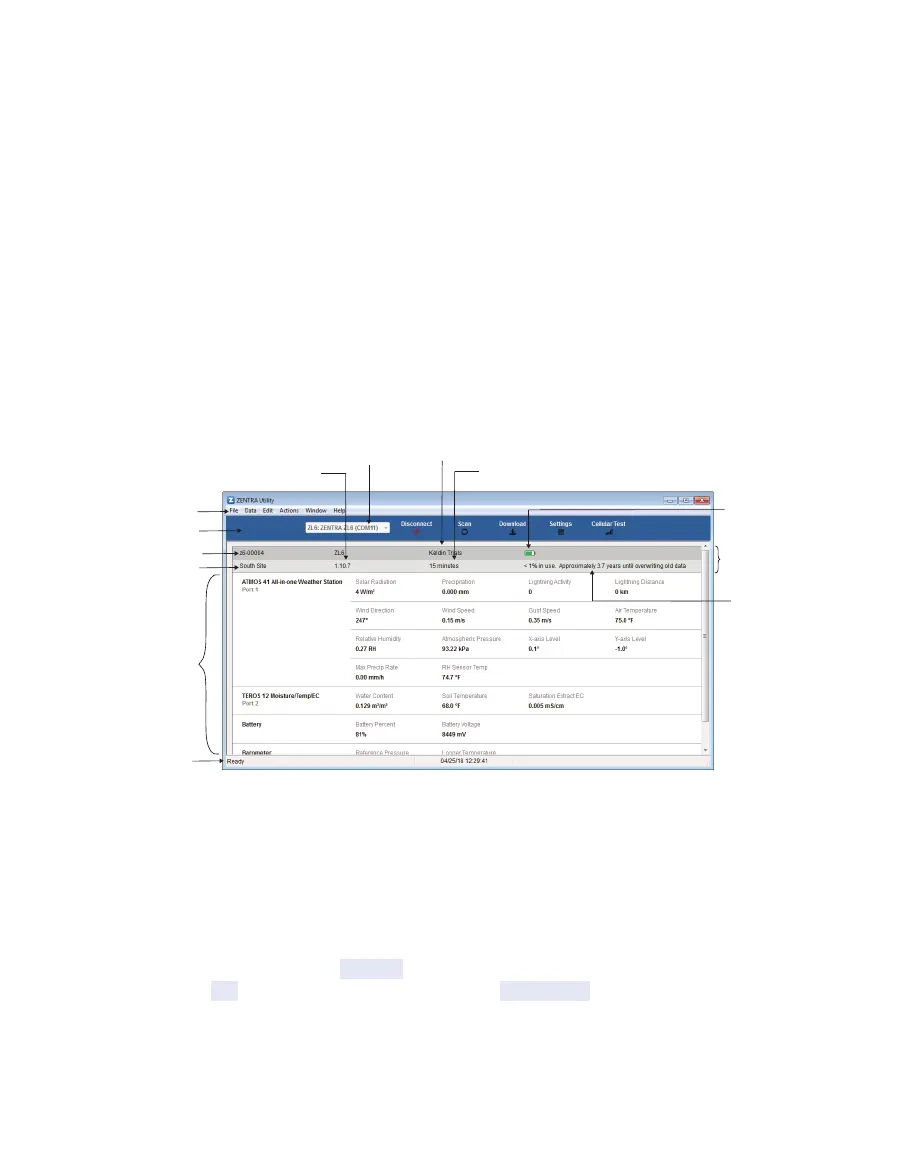
The ZENTRA Utility main screen should appear upon launch (Figure17). Use the Menu bar
and Button toolbar to interact with the ZL6.
Menu bar
COM port dropdown
Button toolbar
Device serial number
Active sensors and
measurements
Battery status
Device name
Measurement interval
Site name
Device firmware version
Status bar
Memory usage
Data logger
identification area
Figure24 ZENTRA Utility main screen
5.2.1 BUTTON TOOLBAR
The Button toolbar provides shortcuts for the most frequent actions in using and configuring
the ZL6 (Figure17):
• COM port dropdown menu: Lists USB devices connected to the computer.
• Connect/Disconnect: Click the Connect button to attempt to connect to the device currently
selected in the COM port dropdown menu. Click the Disconnect button to disconnect from
the currently connected logger.
• Scan: Queries the connected ZL6 for the current sensor readings and updates the active
sensors and measurements area.



 To Next Page