Copyright © 2009-2014 Micca. All rights reserved. Page | 33
8.4 Network Settings
The Network settings menu contains configuration items that determine how the player’s
network capabilities function.
8.4.1 Wired LAN Setup
If the player is connected to the network with an Ethernet cable, there typically is no need for
making any settings changes as the player will automatically detect and use the network
connection. However, advanced users can use these settings to adjust the player’s network
settings.
The player will obtain an IP address and connection settings
automatically from an available DHCP server device on the LAN.
The user can set the player’s LAN connection settings manually,
including IP address, subnet mask, default gateway, and DNS server IP
address. This setting is for expert users only.
8.4.2 Wireless Setup
Note: A/V streaming performance over WLAN is highly dependent on location, distance to
router, the number of floors and walls in the signal path, other 2.4GHz devices in the area, and
other such variables that differ on a case by case basis. It may be difficult to reliably stream HD
quality 1080p videos over a WLAN connection even if the signal strength appears to be strong.
Always use a wired Ethernet connection when available.
To configure WLAN settings, follow these steps:
1) Go to Setup->Network, select Wireless Connection OK/ENTER on the remote control
2) The player will display a list of WLAN network SSIDs that it has detected. Highlight the
desired WLAN network SSID and
press OK/ENTER on the remote
control.
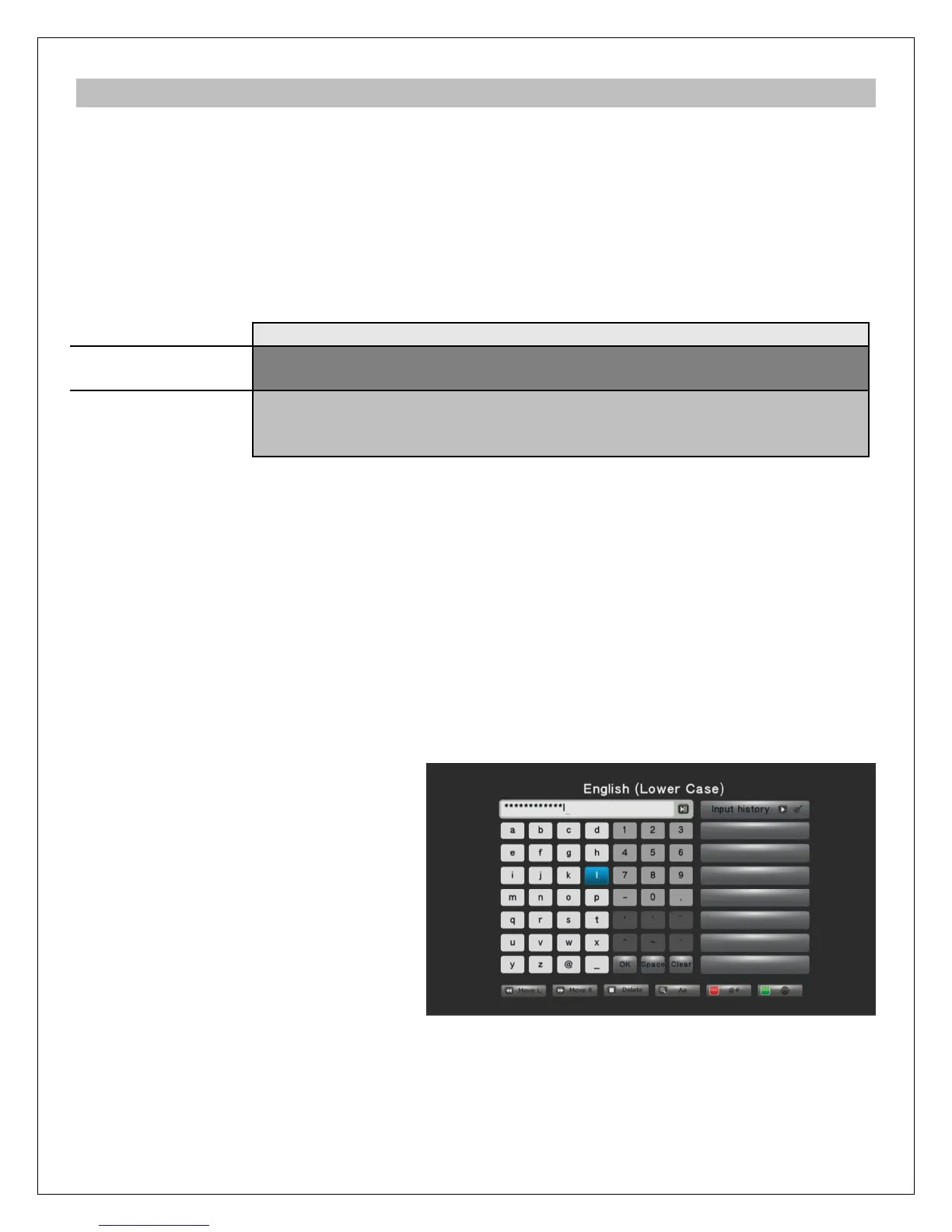
3) Use the remote to enter the WPA
or WEP key phrase using the on-
screen keyboard. Highlight the
OK key on the keyboard and
press ENTER on the remote
control when finished.
4) If the WPA/WEP key was entered correctly, the player will receive an IP address and
connection settings from the access point router. These settings will be displayed on the
screen; press the OK/ENTER key on the remote control to continue.


 To Next Page