Copyright © 2009-2014 Micca. All rights reserved. Page | 11
5 Browsing Media Files
After selecting the Videos, Photos, Music, or All icon from the main menu, the file browser
interface is displayed for finding media files on USB drives, memory cards, network folder
shares, or UPnP servers. Media files will be listed in their original folder structure.
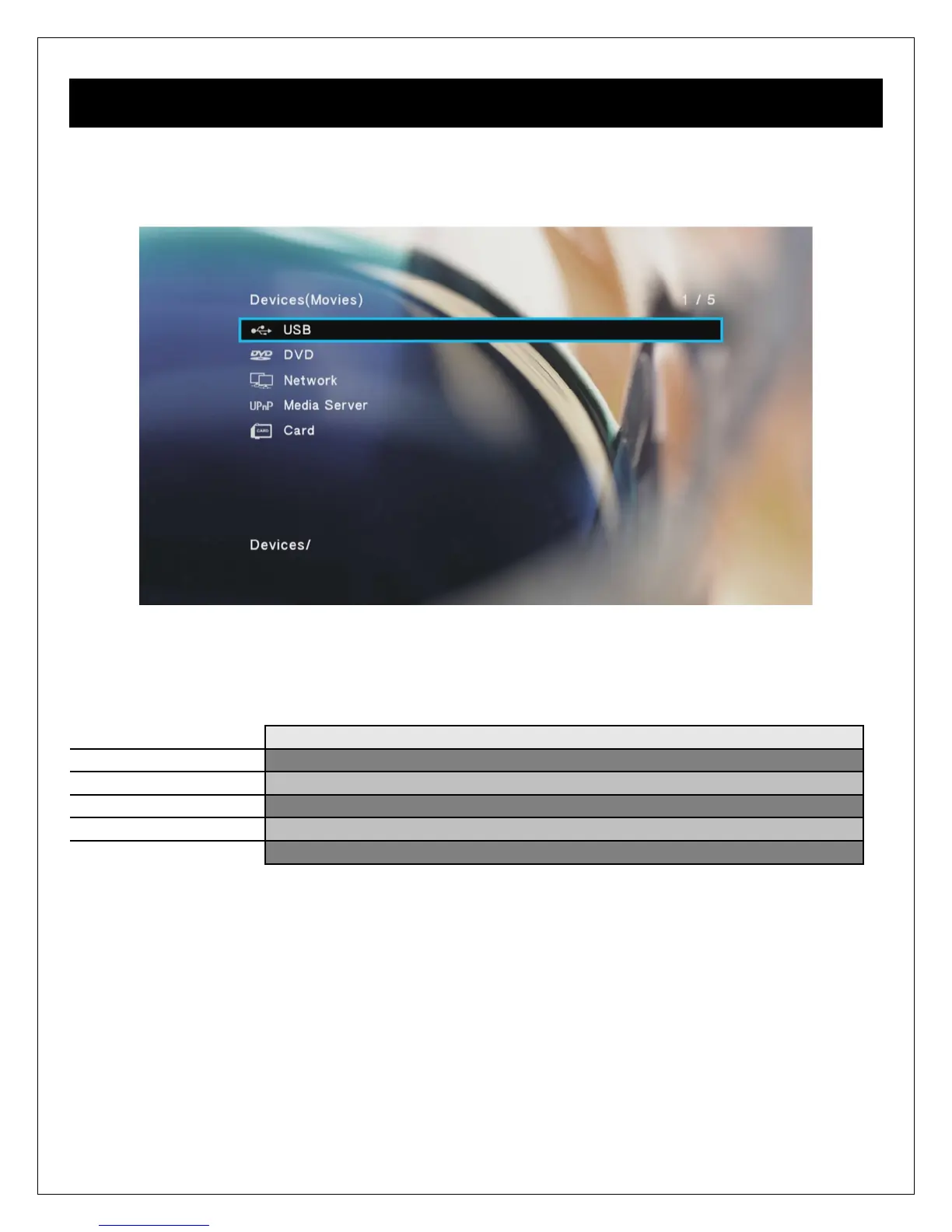
A variety of storage devices and network media sources are supported by the player. Only those
sources that are connected and detected by the player will be listed:
Browse media files on an external USB drive attached to the player.
Browse media files on an attached DVD drive.
Browse media files on LAN folder shares.
Browse media files on UPnP servers.
Browse media files on a SD/SDHC memory card.
After selecting a storage device, media files will be displayed in the same folder structure as
they are stored. Use the directional LEFT/RIGHT and UP/DOWN buttons on the remote control
to select folders or files and press OK/ENTER to enter a folder. When there is a large number of
files or folders listed, use the PREV/NEXT buttons to scroll through files/folders one page at a
time. To exit from a folder, press the RETURN button. To play a media file, highlight it and press
the OK/ENTER button.
Videos stored as BD/DVD folders have multiple sub folders and video files stored within a
nested folder structure. By default, pressing OK/ENTER will navigate within the folder. To play
the entire BD/DVD folder, highlight the folder and press the PLAY/PAUSE button.


 To Next Page