MaxNAS Owner’s Manual
18
1. Status Displays
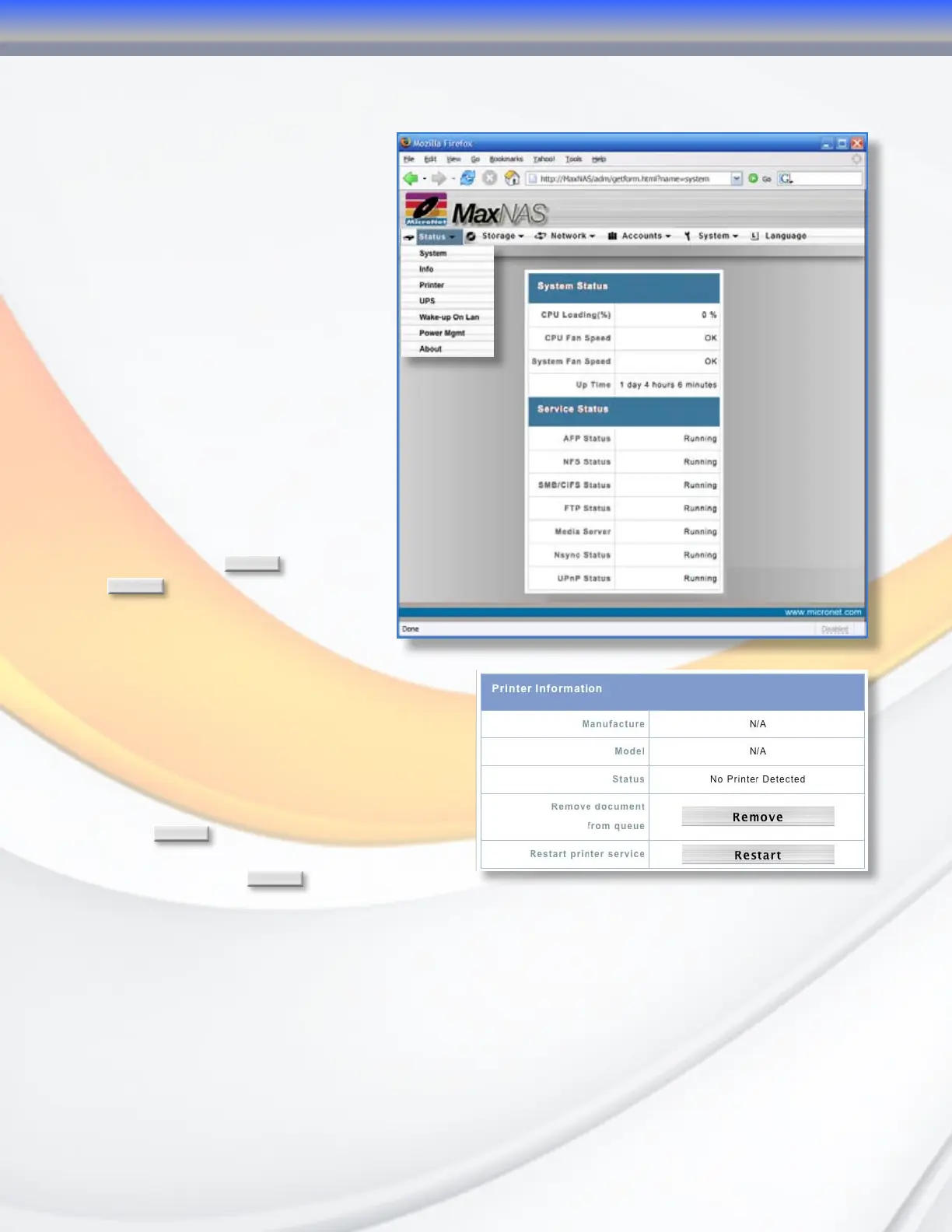
1.1 System Status
The Status window contains the
basic system functionality indicators
including current CPU load, uptime,
disk information and health, and
running services. To view the System
Status, select “System” from the
Status Menu.
1.2 System Information
This field is the verbose description
that will describe this particular
MaxNAS. To access the System
Information definition field, select
“Info” from the Status Menu. In the
following screen, enter a descriptive
name such as “Accounting Storage
Server,” that will differentiate it
from other storage devices on the
network. Click
Apply
to confirm,
or
Cancel
to abort.
1.3 USB Printer Information
The MaxNAS can act as a print
server to an attached USB disk server. To
access the printer information page for the
attached printer, select “Printer” from the
Status menu. The Printer manufacturer and
model information will appear as well as the
current status (online or offline). You may
remove a document from the print queue by
clicking
Remove
. If the Printer service becomes
inoperable you may reset the printer host
service by clicking
Restart
.
3-Administering the MaxNAS



 To Next Page