MaxNAS Owner’s Manual
51
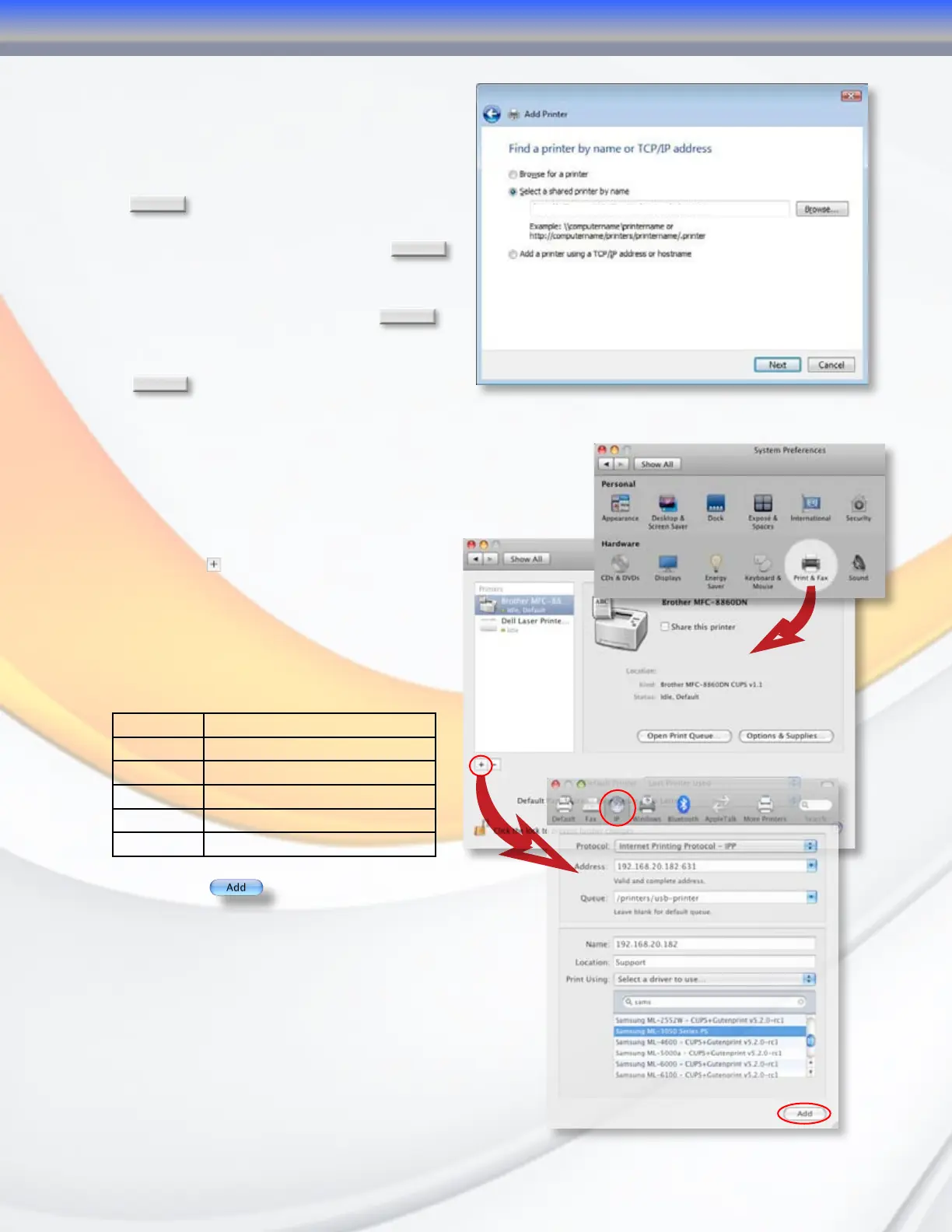
5.2.5 Click Select a shared printer by name.
In the address entry box, type
http://<MaxNAS>:631/printers/usb-
printer in the box, where <MaxNAS> is the
IP address or Netbios name of the MaxNAS.
Click
Next
.
5.2.6 Select or install a printer click
OK
.
You can choose to set this printer as the
default printer by checking the Set as
the default printer box. Click
Next
to
continue.
Click
Finish
. Your printer is ready to use!
5.3 MacOS X
The following instructions are based on printer installation
on a Mac OS X 10.5 based host. Other Mac OS X hosts are
configured similarly.
5.3.1 Access the printer control panel,
located in System Preferences.
5.3.2 Click the in the “Print & Fax” control
panel (illustrated right.)
5.3.3 In the Printer Browser that follows,
Select the “IP” option (circled in the
bottom illustration,) and enter the
following values:
Protocol Internet Printing Protocol - IPP
Address [MaxNAS IP Address]:631
Queue /printers/usb-printer
Name User defined
Location User defined
Print Using Select your printer driver
5.3.4 Click to complete the
installation. The printer is ready to use.
http://<MaxNAS_IP_Address>:631/printers/usb-printer
4-Connecting Users



 To Next Page