
 Need help?
Do you have a question about the Microsoft Lumia 950 XL and is the answer not in the manual?
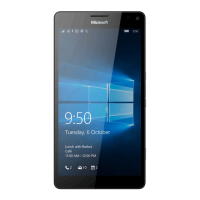
This document serves as a Quick Guide for the Lumia 950 XL (RM-1085) device, providing essential information on its physical components, basic setup, navigation, personalization, and support resources.
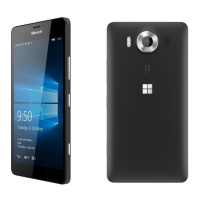
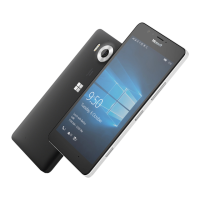
The Lumia 950 XL is a mobile device designed for communication, entertainment, and productivity. It features a main camera and a front camera for photography and video, a loudspeaker and earpiece for audio, and various keys for control. The device operates on Windows Store apps and supports connectivity through cellular networks (LTE, WCDMA, GSM) and Wi-Fi. It is designed to integrate with Microsoft services such as Outlook.com, Office, OneDrive, and Xbox Live, allowing for cloud backups and access to a wide range of applications and games. The device also supports wireless charging with compatible accessories.
The device includes a microphone for voice input, an audio connector for headphones, and a charger connector (USB-C) for power. Volume up and down keys control audio levels, while a dedicated power/lock key manages device power and screen lock. A camera key provides quick access to the camera function.
To begin using the device, the back cover and battery must first be removed. The back cover is detached by inserting a fingernail into a small recess at the bottom right corner, pressing the middle of the cover, and bending it open. The battery, if present, is lifted out from its bottom edge. A nano-SIM card is then inserted into the SIM slot with the metal contacts facing down until it locks. If a memory card is used, it is slid into the memory card slot. Only original nano-SIM cards are recommended to avoid damage. The battery is replaced by aligning its contacts and pressing it into place. The back cover is then reattached by pressing its top edge against the phone's top edge and snapping it into place. To power on the device, a compatible charger (USB-C) is plugged into a wall outlet and connected to the phone. The device can also be charged via a USB cable connected to a computer, though this may take longer. Once sufficient charge is present, the power key is pressed and held until the phone vibrates, initiating the setup process.
Connecting a Microsoft account is crucial for accessing Windows Store apps, games, and automatic cloud backups via OneDrive. Users can create a new account during setup or sign in with existing credentials from services like Outlook.com, Office, OneDrive, or Xbox. Account details and a one-time verification code are required for sign-in.
The device is navigated primarily by touch. The start key returns to the start screen from any view. To switch between open applications, the back key is tapped and held, allowing selection from a list; an 'X' icon closes an app. Available options within an app are accessed by tapping the icon at the bottom right or top left corner. All installed apps can be viewed by swiping left from the start screen, and returning to the start screen is done by swiping right. Notifications and quick settings are accessed by placing a finger at the top of the screen and sliding it down to open the action center. Zooming in or out on items like photos or web pages is achieved by placing two fingers on the screen and sliding them apart or together.
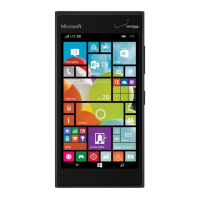
The start screen can be personalized with a background photo by navigating to "All settings > Personalisation > Start," selecting "Tile picture" or "Full screen picture," and browsing for an image. The photo can be cropped as desired. The theme color can be changed via "All settings > Personalisation > Colours," where a color can be selected. Tiles on the start screen can be resized by tapping and holding the tile, then tapping the resize icon. Tiles can be small, medium, or wide, with larger tiles displaying more information. Apps can be added to the start screen as tiles by swiping left to the apps menu, tapping and holding the desired app, and selecting "Pin to Start." Tiles can be rearranged by tapping and holding them, dragging them to a new location, and then tapping the screen to confirm.
To transfer contacts, text messages, pictures, and videos from an old phone, the "Transfer my Data" app is used, accessible by swiping left from the start screen. The old phone must support Bluetooth. For other content like music, the "Lumia Help + Tips" app provides guidance. If the old phone was a Lumia device with content backed up to a Microsoft account, signing into the same account on the new phone will restore the backup.
A comprehensive user guide is available directly on the phone within the "Lumia Help+Tips" app, accessible offline. Printable and online user guides, along with troubleshooting help, are also available at www.microsoft.com/mobile/support/. New Lumia users are encouraged to explore the "Get started" app.
If the phone becomes unresponsive, it can be reset without losing data or settings by pressing and holding the power key for approximately 10 seconds. The phone will vibrate and restart.
Users are advised to read the "Product and safety info" booklet for important information on safe device and battery use. Only original BV-T4D rechargeable batteries and AC-100 chargers are recommended. Third-party chargers complying with USB requirements may also be compatible. Using incompatible SIM or memory cards can damage the card or device and corrupt data. When using the flash, a safe distance should be maintained from people or animals, and the flash should not be covered. Information on hearing aid compatibility (M3 rating or higher) and SAR (Specific Absorption Rate) values are provided, with details on how to access further information on FCC and Industry Canada guidelines. The device meets international guidelines for exposure to radio waves, with SAR tests conducted in standard operating positions. Users interested in reducing RF exposure are advised to limit usage or use hands-free kits.
 General
| RAM | 3 GB |
|---|---|
| Internal Storage | 32 GB |
| Expandable Storage | microSD, up to 200 GB |
| Battery | 3340 mAh, removable |
| Operating System | Windows 10 Mobile |
| Dimensions | 151.9 x 78.4 x 8.1 mm |
| Weight | 165 g |
| SIM | Nano-SIM |
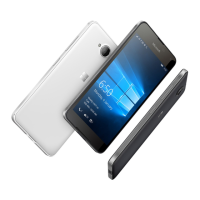
| Colors | Black, White |
| Network | GSM / HSPA / LTE |
| Display | 5.7 inches, AMOLED, 1440 x 2560 pixels |
| Processor | Qualcomm Snapdragon 810 |
| Rear Camera | 20 MP, f/1.9, Carl Zeiss optics, OIS |
| Front Camera | 5 MP, f/2.4 |

 To Next Page