EasyManua.ls Logo

Microsoft MN-500 - User Manual

Microsoft MN-500
100 pages
Print Icon
To Next Page IconTo Next Page
Loading...
user
,
s guide.
M
Microsoft
®
Broadband Networking
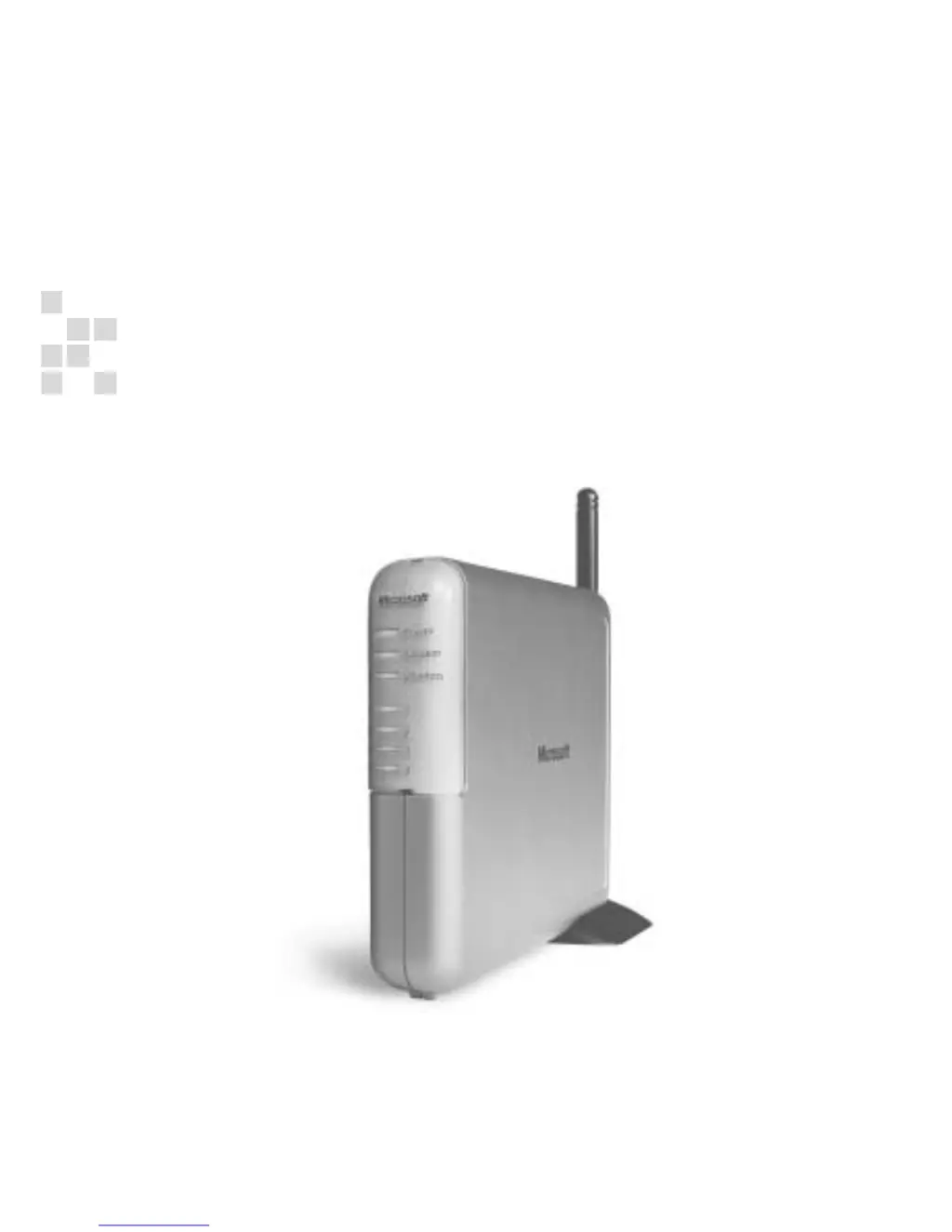
Wireless Base Station
|
MN-500

Table of Contents

Questions and Answers

  • M
    matthew42Aug 17, 2025
    Why is my Microsoft Network Router shared Internet connection slow?
    • P
      Patrick PrestonAug 17, 2025
      The speed of your shared Internet connection can be affected by the number of computers sharing the connection, the distance between your computer and the base station, and interference from other wireless devices. Make sure your computer is within the recommended range of the base station.
  • I
    icarrAug 20, 2025
    What to do if my Microsoft Network Router wireless network connection works occasionally?
    • A
      Anita GrayAug 20, 2025
      Wireless signal issues can arise from interference from other wireless devices like 2.4 GHz cordless phones, microwave ovens, and neighboring wireless networks. Check that your computer is within the recommended range of the base station and free from wireless interference. Also, verify that other devices on your network that may be running NAT and/or DHCP servers have NAT and DHCP servers disabled.
  • R
    Ruth RobinsonAug 22, 2025
    What to do if my Microsoft Network Router computer can’t find the Internet?
    • T
      Travis HuffmanAug 23, 2025
      Check the IP address in the network settings on another computer in the network. If you're using Microsoft Internet Explorer, make sure the Internet Explorer proxy setting is turned off. Also, check the connection status to both the base station and the Internet in the Broadband Network Utility.
  • E
    Eric SpencerAug 26, 2025
    How to fix error messages during Microsoft Network Router installation or setup?
    • R
      Robert WoodAug 26, 2025
      For wired connections, ensure cables are securely connected, the correct Ethernet cable is used, cables connect to the correct ports, and the base station has power. For wireless connections, ensure your broadband modem connects to the base station via Ethernet cable, the base station's power adapter is secure, there's no interference, and network settings are correct. If issues persist, restore the base station to factory defaults using the Reset button. Also, ensure your broadband modem is turned on and working. Click Help on the error message screen.
  • E
    esmithAug 28, 2025
    What to do if I'm having problems running an online application using my Microsoft Network Router?
    • F
      floresbrianAug 28, 2025
      This issue might stem from the base station's firewall feature. To resolve this, configure the base station to allow specific applications.
  • H
    hedwardsAug 31, 2025
    How to fix a Microsoft Network Router when my network isn’t working?
    • A
      Anne SmithAug 31, 2025
      Ensure the base station is plugged into a power source. Verify that the correct cables and cards are securely fastened to the correct ports. Also, verify that you have the correct network settings.
  • A
    Alice HortonSep 3, 2025
    What to do if my Microsoft Network Router computer is not detecting my base station?
    • J
      James NguyenSep 3, 2025
      Ensure that the base station and the computer connected via a wired connection are powered on, and that the link light is illuminated on each device. Also, make sure the correct ends or the correct cables in your network are securely fastened to the correct ports. Check all connections, including power cables and cables between the base station, computers, and modem.
  • P
    Patty TaylorSep 5, 2025
    How to resolve conflicts between my broadband modem's built-in router and my Microsoft Wireless Base Station?
    • M
      Matthew DudleySep 5, 2025
      You can resolve this by turning off Network Address Translation (NAT) on the modem or by enabling bridging mode in the base station.
  • L
    Leslie PetersenSep 8, 2025
    What to do if my Microsoft Network Router computer is within range but can’t detect the network?
    • M
      Meghan QuinnSep 8, 2025
      Physical barriers between the computer and the base station, and interference from microwave ovens and other wireless devices—including 2.4 GHz cordless phones and neighboring wireless networks can be the cause. Verify that physical barriers and other forms of interference are limited.
  • J
    josephchambersSep 12, 2025
    What to do if setup says it was successful, but some Microsoft Network Router network tasks do not work?
    • E
      Elizabeth FernandezSep 12, 2025
      Open the Broadband Network Utility and check the connection status between the base station and the modem. Make sure you are logged on to your computer and the network, and that the files or folders have been made available to you. Ensure the printer has been made available to the network and that your POP3 and news settings in your e-mail application are correct.

Summary

Introduction

Base Station Indicators and Controls

Explains the function of lights and ports on the base station.

Restoring Base Station Factory Settings

Guide to reset the base station to its default configuration.

Placing and Positioning the Base Station

Advice on optimal placement for wireless performance.

Recommendations for Best Wireless Performance

Tips for maximizing wireless range and signal strength.

Ethernet Cables, Phone Cables, and Connections

Compares Ethernet and phone cables, and their connectors.

Planning

Determining Your Network Settings

How to gather necessary network configuration details before setup.

Setup

Typical Setup Steps

Step-by-step instructions for a standard base station installation.

Other Setup Methods

Alternative procedures for different network configurations.

Networking

Using Your Network

Overview of common tasks after network setup.

Allowing Access to an Internet Connection

How to share the Internet connection across the network.

Allowing Access to Files and Folders

Procedures for sharing files and folders on the network.

Monitor

The Broadband Network Utility

Introduction to the utility for checking network status and settings.

View and Change Network Settings

How to adjust adapter, wireless, and encryption settings.

Secure Your Network

General advice on protecting the network from threats.

Configure

Customizing the Base Station

Overview of base station configuration options.

Opening the Base Station Management Tool

Instructions on how to access the configuration interface.

Configuring Network Computers

Steps to set up TCP/IP properties on client computers.

Troubleshooting

Basic Troubleshooting

General guidance for common setup problems.

Software

Solutions for installation and setup issues with the software.

Hardware

Steps to resolve issues related to base station detection.

Reference

Technical Support

Information on how to get help with the product.

Regulatory Information

Compliance details for radio and TV interference.

Limited Warranty

Details of the manufacturer's guarantee and liability.

Technical Specifications

Detailed technical data for the base station.

System Requirements

Minimum hardware and software needs for setup.

Microsoft MN-500 Specifications

General IconGeneral
Frequency Band2.4 GHz
Max Wireless Speed11 Mbps
SecurityWEP, WPA, WPA2
Wireless Standard802.11b
Ports1 x 10/100 Mbps Ethernet WAN, 4 x 10/100 Mbps Ethernet LAN
Antenna TypeExternal
StandardsIEEE 802.3, IEEE 802.3u
Data Rate11 Mbps