With the Xbox 360 Hard Drive (included) or an
Xbox 360 Memory Unit (sold separately), you
can save games and other media and enable
Xbox LIVE sign-in.
Remove and Reattach Your Hard Drive
Your Xbox 360 console comes with a hard
drive attached, but should you need to remove
it, use the following procedures for removal
and reattachment.
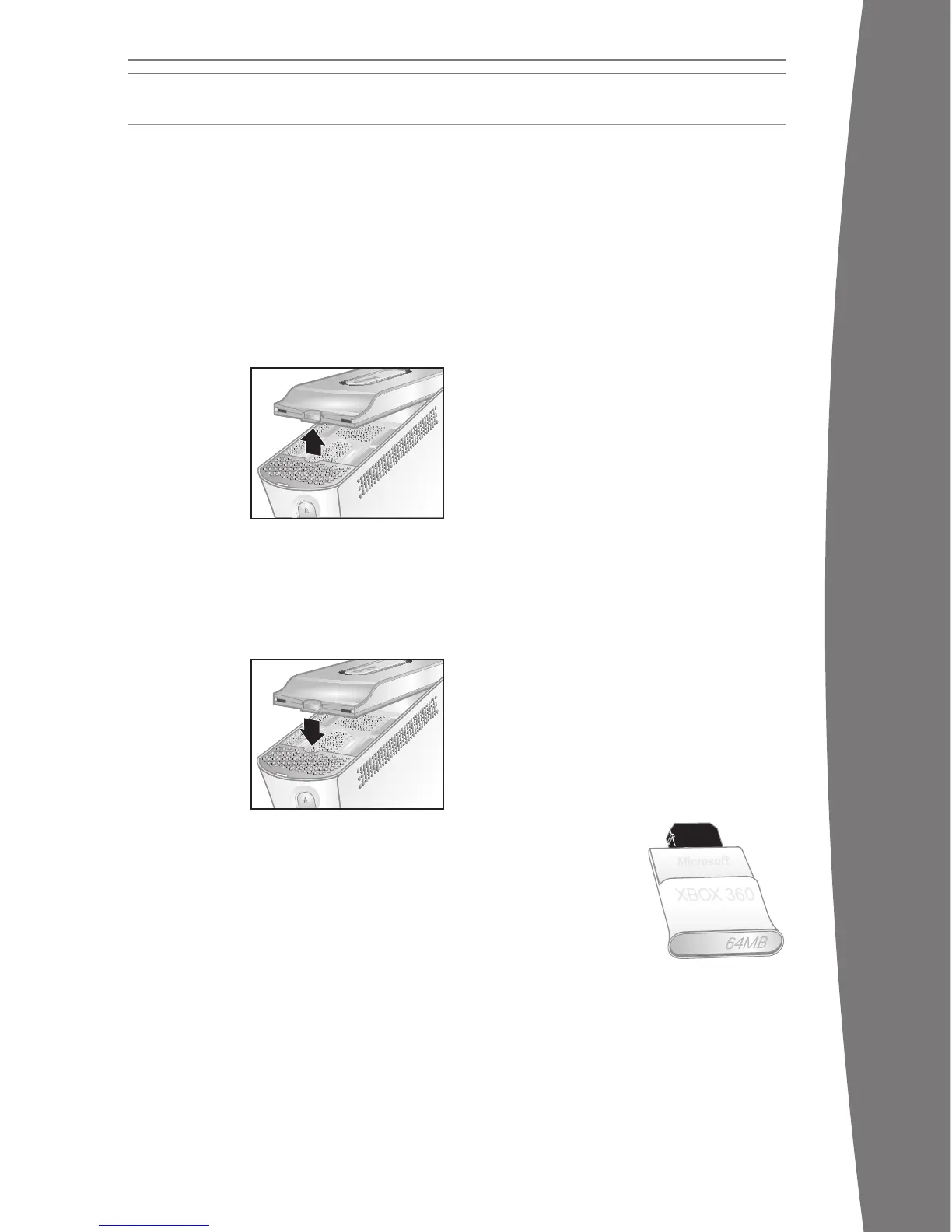
To remove your hard drive:
1 Turn off your
console.
2 Press the tab
on the front
of the hard
drive and lift
the unit from
the console.
iMPOrTanT
Avoid touching hard drive bay contacts and
hard drive connector contacts with ngers or
meta
l objects.
To attach your hard drive:
1 Turn off your
console.
2 Position the
hard drive
over the hard
drive bay
with the
narrow end
(the front)
pointed toward the front of the console and
the broad end (the back) pointed toward
the back of the console.
3 Place the back of the hard drive against the
back of the hard drive bay. Make sure the
ridge along the back of the hard drive rests
beneath the lip on the back of the hard
drive bay.
4 Push the front end of the hard drive down
until the tab clicks.
Personalize Your Hard Drive
You can personalize your hard drive by giving
it a name.
To give your hard drive a name:
1 With the hard drive attached to the Xbox
360 console, select System, Memor
y.
2 Highlight your hard drive.
3 Choose Device Options and rename your
hard drive.
Once your hard drive has been personalized,
you can identify it by its new name.
Copy or Delete Saved Items
You can copy items on your hard drive to a
memory unit, connected PC, or a connected
USB device. You can also free space on your
hard drive by deleting items.
To copy or delete an item from your hard
drive:
1 With the hard drive attached to the Xbox
360 console, select System, Memor
y.
2 Select your hard drive.
3 Choose the type of item, then the specic
item that you want to copy to another
location or delete from the hard drive.
nOTE
If you delete content originally included with
your hard drive, it cannot be restored. Make
sure you do not want to keep any content
before deletion.
Memory Units
You can also connect
up to two portable
memory units (sold
separately) to the
memory unit ports on
the front of your console
for additional storage.
Memory units are smaller
than your hard drive, but extremely portable,
letting you easily take your Xbox LIVE prole
or sav
ed games to other Xbox 360 consoles.
You can also take your memory unit to
participating retailers and download content
from Xbox 360 demo kiosks.
STORAGE
To access media les, including video, audio,
and pictures, from a Windows XP–based PC,
you need a simple Ethernet connection from
the Ethernet port on the back of your Xbox
360 console to your PC. If your PC or home
network is also connected to high-speed
Internet, you can use this connection to
connect to Xbox LIVE. For more information
about home networking options, see “Connect
to Xbox LIVE” or go to www.xbox.com/setup.
Windows Media Connect lets you connect
your Xbox 360 console to a PC running
Windows XP Service Pack 2 (SP2) or later. If
you have a Windows Media Center–based PC,
you can also use it with your connected Xbox
360 console.
Along with normal DVD remote control
functions, the Xbox 360 Universal Media
Remote (sold separately) features a Windows
Media Center button that lets you access a
connected Windows Media Center–based PC.
Windows Media Connect
Windows Media Connect lets your Xbox 360
console stream music and pictures stored on
your Windows XP–based PC anywhere in your
home. View slide shows on your TV, and play
all your music through one sound system
connected to your console through a digital
audio receiver. To learn more about Windows
Media Connect, go to www.xbox.com/media.
To set up Windows Media Connect:
1 Go to www.xbox.com/pcsetup and
download the Windows Media Connect
software to a PC running Windows XP SP2
or later.
2 Connect your console to your PC using one
of the connection types described in
“Connect to Xbox LIVE.”
3 Select Media, and then select pictures or
music from your PC. Follow the on-screen
instructions to nish Windows Media
Conn
ect setup.
Windows Media Center
Your Xbox 360 console can deliver the
ultimate integration of gaming and room-to-
room entertainment—including watching or
recording TV shows, viewing your digital
photos, and listening to your digital music
library—from a Windows Media Center–based
PC to any TV in your home. When you connect
your console to the same network as your
Windows Media Center–based PC, the
experience is delivered to your Xbox 360 video
game and entertainment system. (You can
connect up to ve consoles to a Windows
Medi
a Center–based PC.)
To learn more about Windows Media Center
for Xbox 360, go to
www.microsoft.com/extender.
To set up Windows Media Center:
1 Go to www.xbox.com/pcsetup and
download the latest Windows Media
Center software update to your Windows
Media Center–based PC.
2 Connect your console to your Windows
Media Center–based PC using one of the
connection types described in “Connect to
Xbox LIVE.”
3 On your Xbox 360 console, go to Media,
then select Windows Media Center.
Follow the on-screen instructions to nish
Wind
ows Media Center setup.
SHARE MEDIA FROM YOUR PC
X130405002MNL.indb 21 8/10/2007 6:28:58 PM





 To Next Page