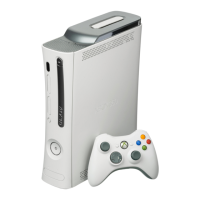
The Xbox 360 video game and entertainment
system is designed to work with a variety of
accessories, including:
• Up to four wired and wireless controllers
and other gameplay accessories (additional
controllers sold separately).
• AV connectors such as component video
cables and digital audio cables, including
the Xbox 360 S-Video AV Cable and Xbox
360 VGA HD AV Cable (sold separately).
• Ethernet and wireless home networking
devices such as the Xbox 360 Wireless
Networking Adapter (sold separately).
• Storage devices such as your Xbox 360
Hard Drive (included), Xbox 360 Memory
Units (sold separately), and USB-based
storage devices.
• USB-based media devices such as music
players and digital cameras.
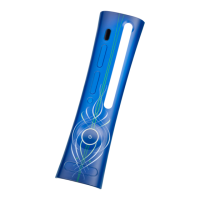
• Custom Xbox 360 Faceplates (sold
separately).
Look f
or the Xbox Authentic Product logo for
accessories from Microsoft for use with your
Xbox 360 video game and entertainment system.
For devices from other manufacturers, look
for one of the following logos, which indicate
that the device has been tested to meet
stringent compatibility requirements to work
with Xbox 360 or Xbox LIVE. For more
information about compatible devices, go to
www.xbox.com.
nOTES
• When you turn off your console, your
controller will still be connected the next
time you turn it on.
• Your controller is connected to only one
console at a time. You can connect to a
new console at any time, but your
connection to the previously connected
console will be lost.
• The Xbox 360 Wireless Controller works
only within 33 feet (10 meters) of the
console. Objects between the controller
and the console can reduce this range.
COnneCt ADDitiOnAl ACCeSSOrieS
Up to four controllers, wired and wireless, can
be actively connected to a console at one
time. Each connected controller gets a
quadrant on the Ring of Light. Before you can
connect a wireless controller, at least one
quadrant must be free (unlit). To disconnect a
wireless controller, press and hold the
wireless controller Xbox Guide button for
three seconds, then choose to turn it off. For a
wired controller, disconnect the cable
connector.
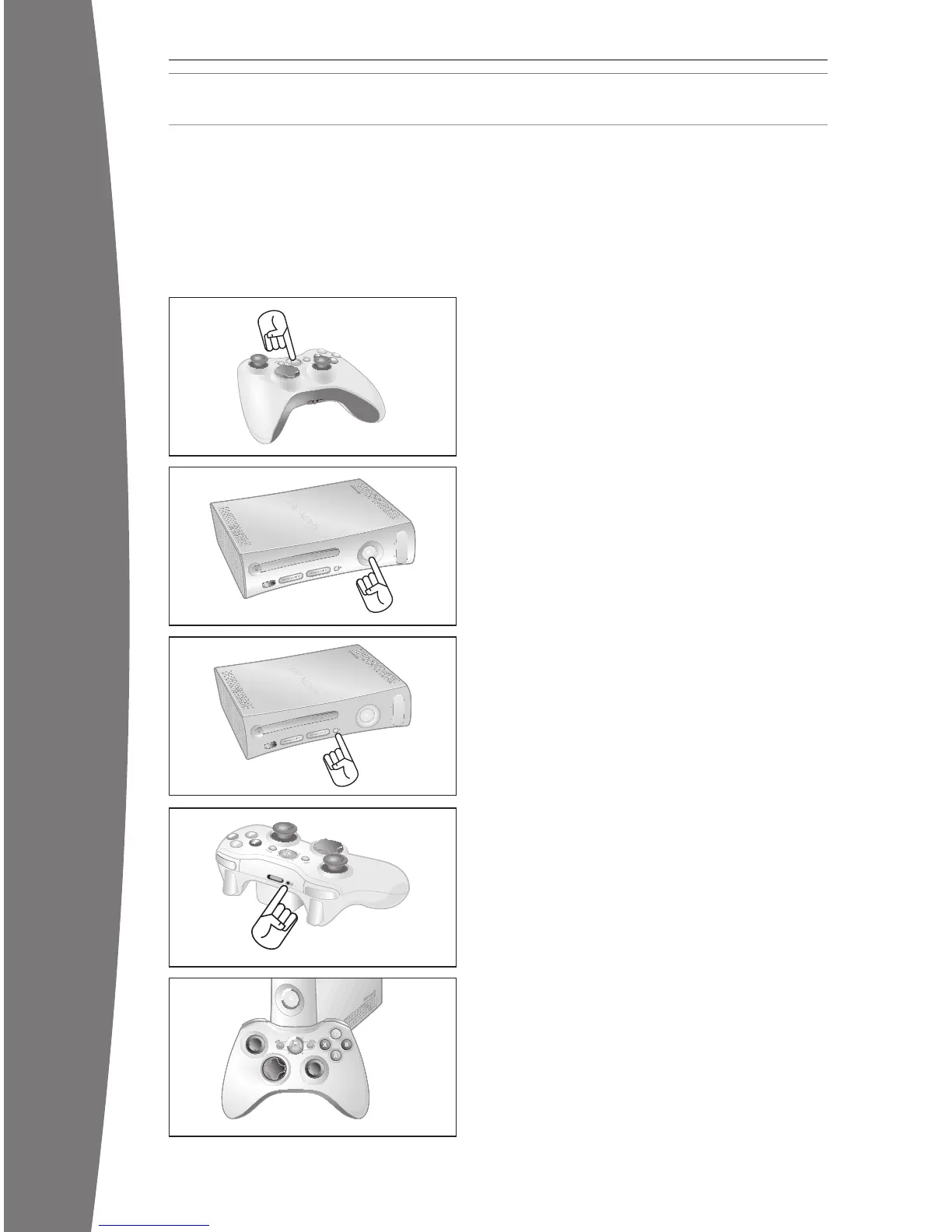
To connect your wireless controller to your console:
1 Press and hold down the Xbox Guide
button until the controller turns on.
2 Make sure the console is turned on. If not,
press the Power button.
3 Press and release the Connect button on
the console.
4 Press and release the Connect button on
the controller.
5 After the Ring of Light on the controller and
console spin and ash once, the controller
is con
nected. The quadrant that remains lit
indicates the controller’s position.
ADD wireleSS COntrOllerS
X130405002MNL.indb 22 8/10/2007 6:29:11 PM





 To Next Page