12
english
If you encounter problems, try the
possible solutions provided below.
Wireless Headset Does Not Work
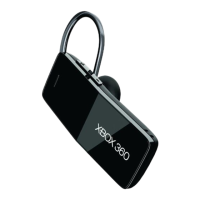
To turn on the wireless headset,
press the headset’s power button. To
connect the wireless headset to your
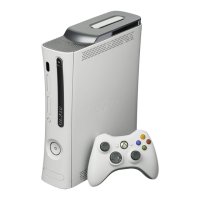
console, press the connect button on
the console, and then press and hold
the connect button on the headset.
You must press the connect buttons
within 20 seconds of each other. If
you’ve done this and the headset
does not work:
•
Make sure your console is
connected to Xbox Live. The rst
time you use the headset, you
m
ust connect to Xbox Live. For
information about Xbox Live, visit
www.xbox.com/live.
• Move the headset closer to
the console.
•
Make sure the battery is
freshly charged.
• Ke
ep the console and headset at
least three feet away from large
metal objects such as le cabinets
and refrigerators.
•
Metallic decorations or stickers on
the console or headset can
interfere with wireless headset
performance. Remove decorations
and try connecting again.
•
Make sure the front of the console
is positioned in the direction of
the headset and away from
nearby walls.
• I
f you have four wireless
controllers connected to your
console, you will need to
disconnect one of them in order to
connect a wireless headset.
To disconnect a wireless
controller, press and hold the
Xbox Guide button for three
s
econds, and then turn it off. To
disconnect a wired controller,
unplug its cable from the console.
• Cordless phones (2.4-GHz),
wireless LANs, wireless video
transmitters, microwave ovens,
some mobile/cell phones, and
Bl
uetooth headsets can interfere
with the operation of the headset.
Tu
rn these off or unplug them and
try connecting again.
TROUBLESHOOTING


 To Next Page