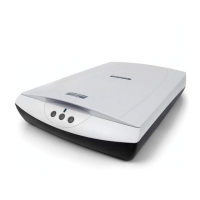
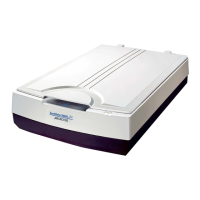
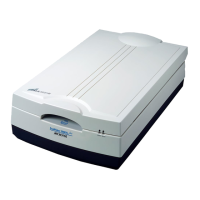
Button Function OF ScanMaker 3880
Status LED Indicator : When scanner is powered up and link with PC via USB interface well, and
then LED indicator will light up in Green steadily while scanner is ready.
Scan Button : Scan to saved as file, or sent it to another application for further image processing.
Copy Button : Scan an image and send it to your printer for print-out directly.
E-mail Button : Scan an image and deliver it to your e-mail editor ( Outlook Express / Lotus Notes
/ Hotmail / Microsoft Outlook ) directly.
Above Button Function can be set or defined in Microtek Scanner Configuration ( MSC ) utility.
Indicator
After you complete to install scanner driver : ScanWizard 5
into PC Windows system, and then you can find the icon of
“ Microtek Scanner Configuration “, “ ScanWizard 5 “, and
“ My Image “ will list you on the Desktop of Windows system.
Click the icon of ScanWizard 5 from the Desktop of Windows
system, and then you can get into the stand alone version of
ScanWizard 5 to do image scanning with Microtek scanner.
All of scanned images in ScanWizard 5 will be saved into My
images, its default path in PC Windows system located at "
C:\Program Files \ Microtek \ ScanWizard 5 \ My Images ".
Windows system, it means PC Windows system can
not find the scanner is linking with PC wel
Windows system, it means PC Windows system has
found the scanner is linking with PC well via interface.






 To Next Page