41
7 SMART FUNCTION
1. Your smartphone is connected to home network,and you
know the network password.
2. Make sure you are near the home appliance.
3. The 2.4GHz band wireless signal is enabled on your wireless router.
wireless network
Follow the below steps to enter the remote control state
Before you start, make sure that:
Use Your Appliance with the MSmartHome App
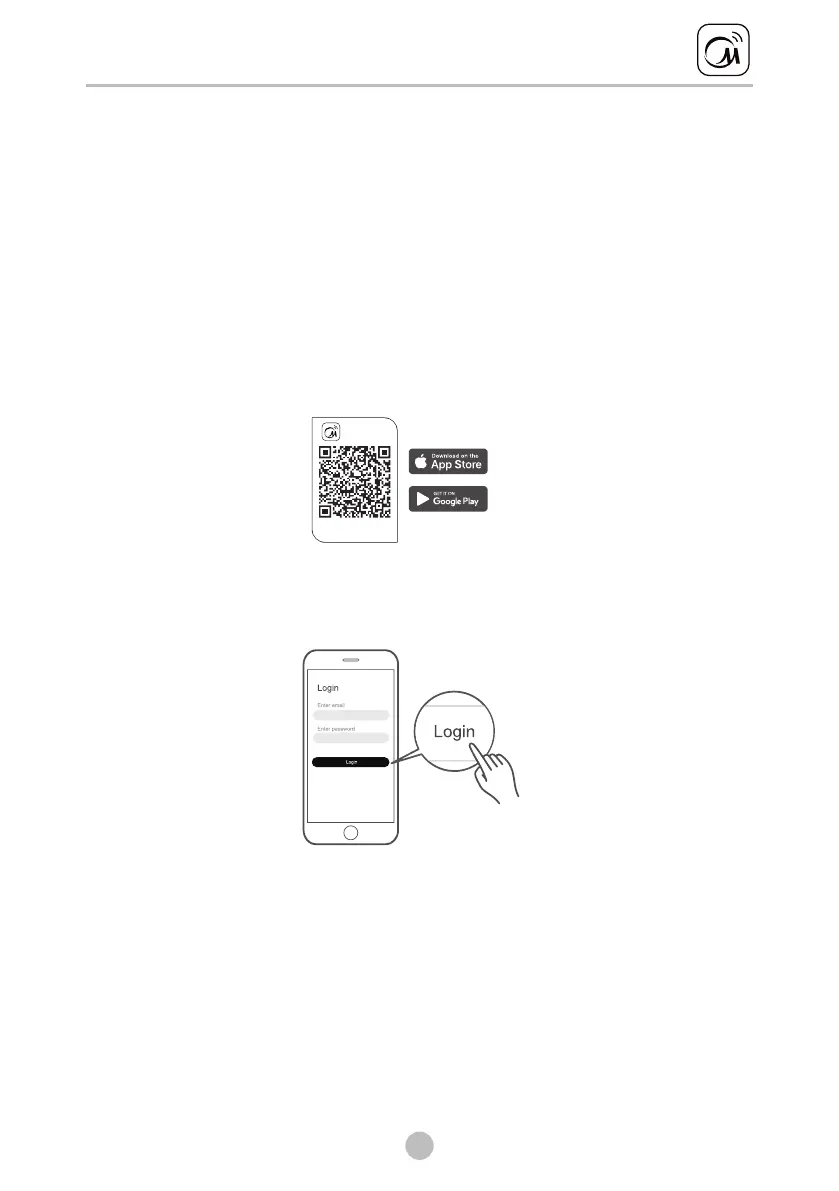
Download the MSmartHome app
On an app market (Google Play Store, Apple App Store), search for
"MSmartHome" and find the MSmartHome app. Download and install
it on your phone. You can also download the app by scanning the QR
code below.
MSma rt Home
Down loa d the a pp
& activate produ ct
Register and log in
Open the MSmartHome app, and create a new account to start (you
can also register through a third-party account). If you already had
an existing account, use the account to log in.
Connect your devices to MSmartHome
1: Please make sure your mobile phone is connected to wireless network.
If not, go to settings and turn on the wireless connection, select and
connect to a wireless network. Also please turn on the Bluetooth on
your phone. If not, go to settings and turn it on.
2:Please power on your devices.
3:Open MSmartHome app on your phone.


 To Next Page
 Loading...