5.11.4 Exporting data
1. Press [SETUP] and [OK] simultaneously to enter the USB menu.
ð
The display shows the respective submenus.
2.
Press or to select the menu item ‘SAVE’ .
ð
The display shows the respective submenus.
3. Press [SELECT] repeatedly to switch between submenus.
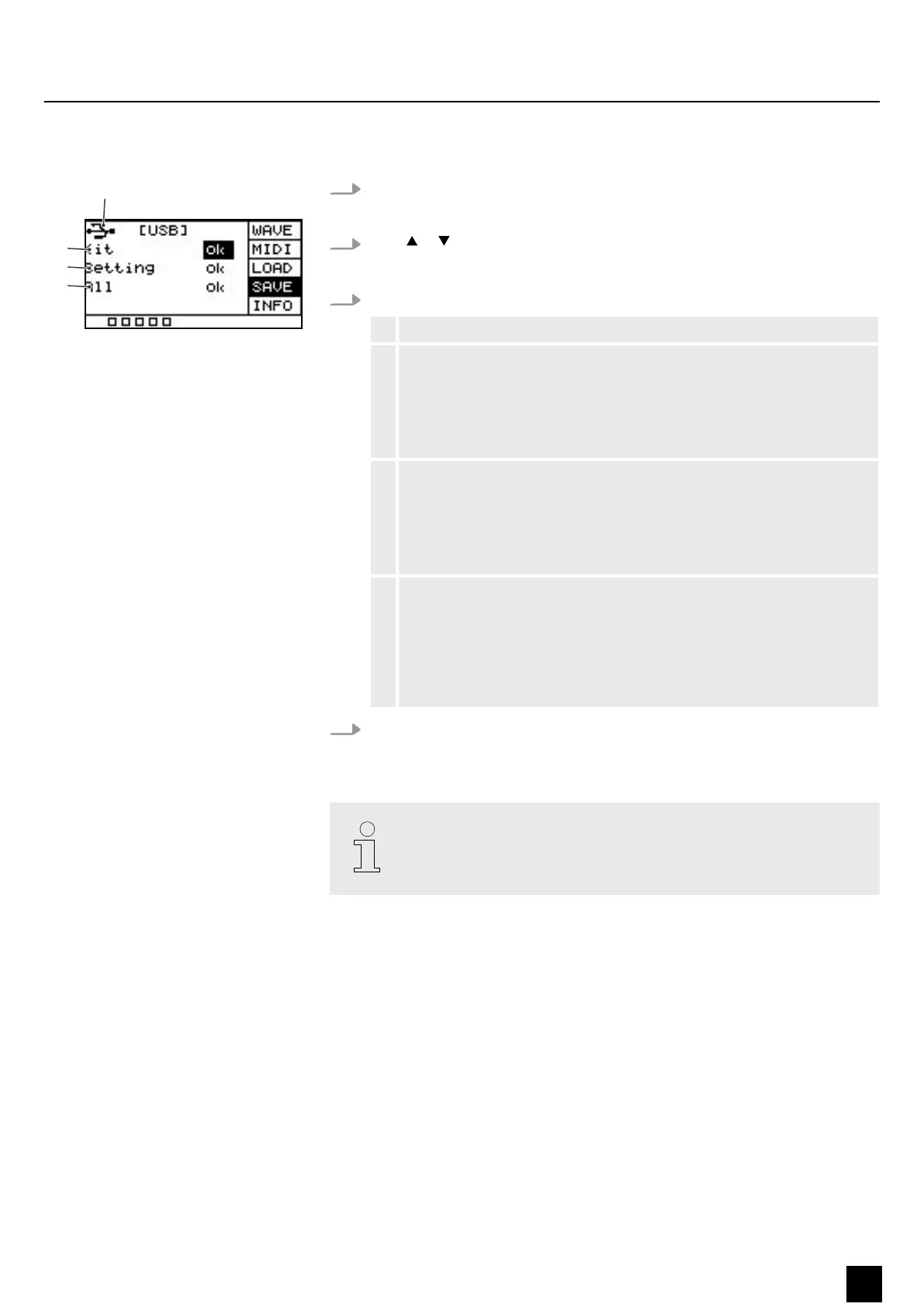
1 Indicates that a USB ash drive is connected.
2 Exports the user-dened samples, drum kits, and MIDI les
Conrm the selection with [OK].
Press [SELECT] repeatedly to choose between ‘No’ (cancel export) and
‘Yes’ (export) and conrm your selection with [OK]. The display shows
‘export ...’ .
3 Exports the user-dened settings for the pads.
Conrm the selection with [OK].
Press [SELECT] repeatedly to choose between ‘No’ (cancel export) and
‘Yes’ (export) and conrm your selection with [OK]. The display shows
‘export ...’ .
4 Exports all user-dened samples, drum kits and MIDI les on the Percus‐
sion Pad, as well as the user-dened settings for the pads.
Conrm the selection with [OK].
Press [SELECT] repeatedly to choose between ‘No’ (cancel export) and
‘Yes’ (export) and conrm your selection with [OK]. The display shows
‘export ...’ .
4. After the export, the device restarts and the display shows ‘welcome’ .
ð
The device is operational again.
Preset sounds and drum kits cannot be exported.
Operating
NonaPad
29
Sampling Percussion Pad


 To Next Page