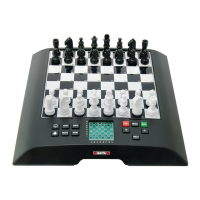
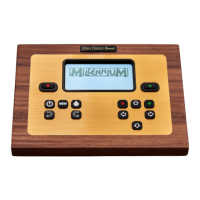
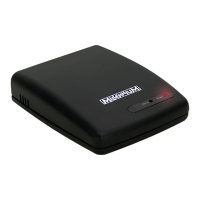
The Millennium ChessGenius Pro (M812) is a sophisticated chess computer designed for players of all levels, from beginners to advanced enthusiasts. It features a pressure-sensitive game board with 64 squares, an LCD display, and a set of buttons for game selection and operation. The device can be powered by batteries or an optional AC adapter (M811, 5V DC 0.6A).
Function Description:
The primary function of the ChessGenius Pro is to allow users to play chess against a computer opponent. It offers a wide range of difficulty levels, from "fun" levels where the computer deliberately makes mistakes, to tournament-grade settings. The computer can also be used for chess analysis, solving chess problems, and providing tips and help during a game.
Important Technical Specifications:
- Model: M812
- Power Supply: 3 x R6/LR6 (AA, Mignon) 1.5 V batteries or optional M811 AC adapter (Output 5V DC 0.6A).
- Hardware: ARM Cortex M4 microprocessor (32 bit), 1024 K flash memory, 160 K RAM.
- Software: Chess program (Copyright © Lang Software Limited, UK), Opening library (Book 2 - Copyright © Applied Computer Concepts Ltd., UK).
- Display: LCD display with backlight and 10 contrast settings.
- Input: Pressure-sensitive game board, various control buttons.
- Language Support: 7 languages (German, English, French, Italian, Spanish, Dutch, Russian).
- Opening Library: Two options: "London Book" (approx. 57,000 positions) and "Modern Book" (over 100,000 positions), or "BOOK 0" for no opening archive access.
Usage Features:
- Game Play:
- Move Entry: Players enter moves by pressing the starting and target squares on the pressure-sensitive board. Incorrect moves are indicated by an error message or humming sound.
- Computer Moves: The computer announces its moves on the LCD display, showing coordinates (e.g., E7 E5).
- Starting a Game: Press NEW to start a new game. Players can choose to make the first move or have the computer start by pressing MOVE.
- Saving Games: The current game is automatically saved when the computer is switched off, allowing continuation later.
- Difficulty Levels (LEVEL):
- 34 Levels: Divided into 4 categories.
- "Fun" Levels (1-9): Computer makes deliberate mistakes for easier play.
- Average "Thinking" Time Levels (10 levels): Computer makes moves within a specified average time (e.g., Move 1s, Move 2m).
- Fixed Game Length (Countdown Levels - 9 levels): Timed games (rapid/blitz) where each player must make all moves within a set time (e.g., Game 2m, Game 1h).
- Tournament Levels (6 levels): Uses "Fischer chess clock" or "sudden death" modes with specific time controls and increments (e.g., Tourn. 1: 5 min + 3 sec/move; Tourn. 4: 30 moves in 1 hour + 30 min for rest).
- Checkmate Problem Level: Finds the shortest solution for checkmate problems (e.g., "Checkmate in 3 moves").
- Special Moves: Supports castling (move king first), en passant capture (move capturing pawn, then press captured pawn's square), and pawn promotion (move pawn to target square, then use arrow buttons to select desired piece).
- Information (INFO):
- During the computer's thought process or after its move, pressing INFO repeatedly displays:
- Position evaluation (e.g., 0.50 pawns advantage).
- Calculation depth and number of moves analyzed (e.g., 8 15/39).
- Main line (the strongest sequence of moves calculated by the computer).
- Tips (HINT): Press HINT for a computer-suggested move, displayed for approximately 6 seconds.
- Undo/Redo Moves (←/⇨): Allows players to undo or redo one or more moves. When undoing a capture, the captured piece must be placed back on the board.
- Help Function (HELP): Displays messages about available options or highlights permissible moves for a selected piece.
- Main Menu (MENU): Accesses various functions:
- LEVEL (Difficulty level)
- NXT BEST (Show alternative moves)
- INVERT (Invert chessboard display)
- CLOCK (Chess clock on/off, displays different info when off)
- ANALYSIS (Analyse chess position)
- OPTIONS (Special functions)
- SET UP (Setup mode)
- Alternative Moves (NXT BEST): After the computer's last move, allows the user to revoke it and have the computer calculate and play its second-best, third-best, etc., move.
- Invert Chessboard (INVERT): Flips the board display for playing with black pieces from the bottom.
- Chess Clock (CLOCK): Toggles the display of the chess clock during the computer's thinking time. When off, it shows other information like position evaluation, calculation depth, and main line.
- Analysis Mode (ANALYSIS): Provides continuous information about the computer's calculations for the current board position, useful for analyzing positions or solving problems.
- Special Functions (OPTIONS):
- LANGUAGE: Selects one of 7 display languages.
- Opening Library (BOOK): Choose between "London Book," "Modern Book," or "BOOK 0" (no opening library).
- SOUNDS: Adjusts the volume level (0 = silent, 3 = loudest).
- TUTOR: Turns error warnings on/off. When active, the computer warns of weak or incorrect moves ("SURE?").
- ECO (Battery Saving Mode): When off, the computer calculates moves even when it's not its turn, increasing playing strength but consuming more power. In "fun" levels, ECO is always on.
- CONTRAST: Adjusts the LCD display contrast (10 settings).
- Setup Mode (SET UP): Allows users to set up custom chess positions (e.g., for problems).
- Clear Board: Clears all pieces from the board.
- Select Piece Type/Color: Use arrow buttons and MOVE button to choose piece and color.
- Place/Clear Pieces: Place selected pieces on desired squares or clear existing pieces.
- Exit Setup: Confirm with ENT after selecting "READY?" or cancel with CL.
- Error Handling: The computer will refuse to exit setup mode if the position is illegal (e.g., missing king, king in check, pawn on first/eighth row, more than 16 pieces per side).
- Castling Restriction: Castling is not possible with pieces placed in setup mode.
Maintenance Features:
- Cleaning: Clean the device surface with a slightly damp cloth. Avoid solvents or abrasive cleaners.
- Battery Handling:
- Insert 3 R6/LR6 (AA) batteries, observing correct polarity.
- Replace all batteries at the same time.
- Do not mix battery types or new/used batteries.
- Remove fully discharged batteries immediately to prevent leaks.
- Remove batteries for long periods of non-use.
- Low battery is indicated by a blinking '#' symbol on the LCD.
- Reset Function: A RESET button on the underside of the device can be pressed with a thin object (e.g., paperclip) for about 1 second to clear memory and return the computer to normal operation, especially after battery insertion or in case of malfunction due to electrostatic charges or electrical interference.
- Disposal: Dispose of packaging materials, batteries, and the device itself according to local environmental regulations and collection points.

 Need help?
 General

 To Next Page