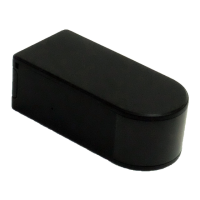
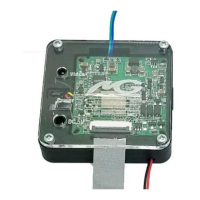
The OmniEye Soda Bottle with Hidden Camera (SKU: OmniSBottle) is a covert surveillance device disguised as a standard soda bottle. It features a hidden camera capable of recording video and taking pictures, along with various operational modes and settings.
Function Description:
The primary function of the OmniSBottle is to discreetly record video and capture still images. It can operate in continuous recording mode, motion detection mode, or PIR (Passive Infrared) sensor mode. The device is powered by a removable internal battery or can be connected to an AC outlet for continuous operation. It stores recorded data on a MicroSD card.
Important Technical Specifications:
- Video Resolution: 1920x1080
- Video Format: .MP4
- Frames per Second: 30 FPS
- Vision Angle: 65°
- Battery Life: 10 Hours Continuous Recording; Up to 30 Days in PIR Mode (if applicable)
- Motion Detection Distance: 8 meters for straight-line distance
- Photo Resolution: 2560x1920
- Photo Format: .JPG
- Type of Memory: External MicroSD Card
- Memory Capacity: Up to 128GB with special formatting (refer to mgidownloads.com for formatting instructions for cards 65GB and above)
- Recording Usage: 10 minutes per 1GB
- USB Interface: 2.0 USB
- Player Software: VLC recommended
- Video Compression: H.264
Usage Features:
Charging:
The OmniSBottle offers two charging methods:
- Direct Battery Charging: Connect the provided charging cable to the battery charging port on the 3D printed housing inside the bottle. The LED indicator light will be on during charging. A full charge takes 4-6 hours.
- External Battery Charging: Remove the battery from the housing, disconnect its connection, and use the matching charging connector and wall jack (provided) to charge the battery via a wall outlet. A red indicator light will be on during charging, turning blue when fully charged.
Turning On the Camera:
- AC Power: If plugged into an electrical outlet, the device powers on automatically and enters motion detection mode. The green light blinks once, then the red light blinks three times and turns off (if motion is detected immediately).
- Battery Power: Point the remote at the device and press the power button. The green light blinks once, then the red light blinks three times and turns off (if motion is detected immediately). The device then enters motion detection mode.
- Note: If the light doesn't come on, try different angles when pressing the power button. Press and release the button only; do not hold it down.
Standby Mode:
To put the device into standby mode, press the motion detection button once. The green light will come on, indicating standby mode.
Recording Video:
- From Standby Mode, press the "Continuous Recording Button" on the remote.
- The Indicator LED will flash twice, then turn off, signifying that video recording has started.
Stopping Video Recording:
- While recording, press the "Continuous Recording Button" again.
- The Indicator LED will turn on, and the camera will stop recording and enter Standby Mode.
Taking Pictures:
- From Standby Mode, press the "Photo Button" on the remote.
- The green light will turn red while the photo is being taken.
- After the photo is taken, the light will turn back to green, and the device will return to Standby Mode.
Recording Motion Detection:
- From Standby Mode, press the "Motion Detection Button" on the remote.
- If motion is detected, the red light will flash twice and turn off, indicating recording has started.
- If no motion is detected for 1 minute, the device returns to detection standby mode (green light on) until motion is detected again.
- Note: To confirm entry into motion detection mode, wave your hand in front of the camera lens; the red light should flash twice and turn off.
Stopping Motion Detection Recording:
- While recording in motion detection mode, press the "Motion Detection Button" again.
- The Indicator LED will turn on, and the camera will stop motion detection recording and enter Standby Mode.
PIR Sensor Mode (OmniX products only):
- Note: OmniEye products do not have this feature. PIR mode detects motion based on passive infrared light, similar to motion detection but using dedicated PIR sensors.
- From Standby Mode, press the "PIR Sensor" button on the remote.
- If motion is detected, the indicator light will flash, then turn off, signifying PIR sensor recording has started.
- To turn off PIR sensor mode, press the "PIR Sensor" button once more. The indicator light will flash, and the camera will return to standby mode.
Changing Device Settings (including Date/Time Stamp):
- Connect the device to a monitor/TV using the provided A/V Cable (AV port located on page 3).
- Power on the device.
- Press the motion detection button to stop any ongoing recording.
- Press the "MENU" button on the remote.
- A menu will appear on the screen. Use the OK, UP, Down, and Menu buttons on the remote to navigate. Settings include:
- Resolution: Select different video resolutions.
- Time Stamp: Enable or disable the date/time stamp on videos.
- Loop Record: Choose whether the device overwrites the oldest file when the memory card is full.
- Video Time: Set the duration of video files in continuous recording mode.
- Audio Record (if applicable): Turn audio recording ON or OFF.
- Motion Detection: Adjust motion detection sensitivity.
- Setup: Access additional settings:
- Format: Format the MicroSD card (all data will be erased).
- Language: Choose the language.
- TV Output: Select between NTSC or PAL (adjustment not recommended).
- Light Freq: Select different light frequencies (adjustment not recommended).
- Date Format: Choose date/time formats (MM/DD/YYYY, DD/MM,YYYY, Etc.).
- Date Input: Set the current date.
- Time Input: Set the current time in military format.
- System Reset: Factory reset the device.
- FW Upgrade: Not active on this device.
- FW Version: Displays the firmware version.
MicroSD Card Slot:
To access the MicroSD Card Slot, unscrew the top part of the bottle.
- Inserting: Gently push the MicroSD Card into the slot with the gold contacts facing the main circuit board. You will feel spring resistance before it clicks into place. Never force the card.
- Removing: Gently push the card in until it clicks; the internal spring tension will eject it.
Retrieving Files to Your PC:
- Remove the MicroSD Card from the device.
- Plug it into your computer using the supplied card reader.
- Locate "Removable Disk" in "My Computer" or via AutoPlay.
- Open the Removable Disk drive and then the [folder name] folder.
- Double-click the file to view. VLC Player is recommended for video playback, especially for issues like black video or "squiggly lines."
Copying and Deleting Files:
- Copying: Select the file, right-click, choose "Copy," navigate to the desired save location, right-click, and choose "Paste."
- Deleting: Select the file, right-click, and choose "Delete." You can select all files by pressing "CTRL+A."
- MAC OS X Users: You must empty the trashcan after deleting files to prevent hidden files from filling the SD card and stopping new recordings.
Maintenance Features:
Troubleshooting:
- Device Won't Turn On: Ensure charging cables are secured and the battery is charged.
- Device Has Crashed: Press the reset button once while the device is on.
- Device Continually Records in Motion Mode: Motion detection relies on pixel changes. Shifting shadows or lighting changes can trigger it. Adjust motion detection sensitivity via the setup menu.
- Other Problems: Contact technical support at 770-694-6923.
The lifetime warranty is voided if the warranty sticker is removed or tampered with. Fees or return denials may occur in such cases.
International Usage Note:
If using outside the US, a converter is required for the AC wall plug due to different electrical voltages to prevent product damage.



 To Next Page
 General