7
1.2
Button Function Description
Function Description
Power
Press and hold for 3 seconds to power on. Tap to power
Mode | OK
Tap to cycle between Photo, Video and Playback modes.
In Settings: Tap to confirm selected setting.
In Playback: Tap to start and stop video playback.
Zoom
In Video or Photo: Slide to zoom in and out.
In Playback: Slide to zoom in on the image displayed on
the screen.
Up | Flash
In Photo: Tap to change the flash settings.
scroll through menus and submenus
Down | Mute
In Video or Photo: Tap to mute and unmute the button
sounds.
In Playback: Tap to scroll through images on the
screen.
scroll through menus and submenus
Left | Self Timer
In Photo: Tap to change the self timer settings.
In Settings: Tap to change the submenu.
Right | Exposure
In Video or Photo: Tap to change the exposure
settings.
In Settings: Tap to change the submenu.
Tap to view the next image.
Menu Tap to show the settings available in each mode.
Shutter In Photo: Tap to capture a photo.
Record In Video: Tap to start and stop recording.
Playback Tap to enter playback mode.
Delete
In Video or Photo: Tap to delete the last recorded video
or captured image.
ISO In Video or Photo: Tap to change the ISO settings.
Display
In Video or Photo: Tap to turn the icons on the LCD
screen off, turn off the LCD screen, or turn it back on.
Scene Dial Rotate the dial to switch the different scene modes.
Mount port for attaching to a
Battery Door
Door to cover the battery compartment and memory card
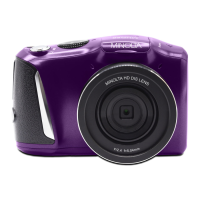
Lens Front capture device for all video and photo.
1. About Your Camera


 To Next Page