EasyManua.ls Logo

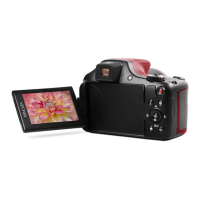
Minolta ProShot MN67Z - User Manual

Minolta ProShot MN67Z
137 pages
Print Icon
To Next Page IconTo Next Page
Loading...

Table of Contents

Questions and Answers

  • M
    mccannelizabethAug 13, 2025
    How to fix blurry picture with Minolta ProShot MN67Z?
    • J
      John AllenAug 13, 2025
      If your pictures are blurry when using Minolta Digital Camera, it could be due to camera shake. Turn on the OIS feature. For high magnification (above 15X) optical zoom, use a tripod. If you are holding the camera, be sure to use both hands.
  • E
    Ebony TorresAug 17, 2025
    What to do if my Minolta ProShot MN67Z Digital Camera images and video files cannot be saved?
    • T
      Timothy McbrideAug 17, 2025
      If your Minolta Digital Camera isn't saving images or video files, it could be due to a full or locked memory card. Try using another memory card or deleting unnecessary files. Also, ensure that the memory card is unlocked.
  • M
    Mia LamAug 20, 2025
    Why my Minolta Digital Camera does not turn on?
    • M
      Michelle SullivanAug 20, 2025
      If your Minolta Digital Camera isn't turning on, it might be because the battery is depleted. In this case, replace the battery. Alternatively, the battery may not be inserted correctly, so ensure you reinstall the batteries correctly.
  • D
    david07Aug 25, 2025
    Why does my Minolta ProShot MN67Z Digital Camera turn off suddenly during operation?
    • S
      Samuel SchmidtAug 26, 2025
      Your Minolta Digital Camera might be turning off suddenly because the batteries are depleted. Replacing the battery should solve this issue.
  • M
    Mr. Charles Smith MDAug 28, 2025
    Why images will not print from the connected printer with my Minolta Digital Camera?
    • D
      Diane DukeAug 28, 2025
      If images are not printing from your Minolta Digital Camera, several factors could be at play. First, ensure the camera is correctly connected to the printer. Verify that the printer is PictBridge compatible. Also, check if the printer is out of paper or ink; load paper or replace the ink cartridge as needed. Finally, check for and remove any jammed paper in the printer.
  • G
    gabriel98Sep 1, 2025
    What to do if I cannot write to the memory card of Minolta ProShot MN67Z?
    • D
      Dustin FrederickSep 1, 2025
      If you cannot write to the memory card of your Minolta Digital Camera, the memory card might be locked. Try releasing the write lock of the memory card or replace it with another card.
  • S
    Scott GonzalezSep 5, 2025
    Why saving data to memory card is slow with my Minolta ProShot MN67Z?
    • J
      Joyce HallSep 5, 2025
      If saving data to the memory card on your Minolta Digital Camera is slow, it might be because you're using a memory card below Class 4. Using a memory card with write Class 4 or higher should improve performance.
  • E
    Eric HarrisonSep 8, 2025
    What to do if my Minolta ProShot MN67Z has too many movies to process?
    • B
      Beth MerrittSep 8, 2025
      If your Minolta Digital Camera has too many movies to process, it may be because the number of pictures or folders in the memory card exceed the specifications, so the playback of data folder can not be displayed. Try deleting unwanted files.

Summary

Declaration of Conformity

About this Manual

Safety Notes

Camera Safety Precautions

Guidelines to prevent damage and ensure safe operation of the camera.

Battery Safety Precautions

Instructions for safe handling, charging, and storage of the camera battery.

Getting Started

Included Accessories

Lists all items included in the camera package.

Installing Battery and Memory Card

Step-by-step guide to correctly insert the battery and SD memory card.

Charging the Battery

Instructions on how to charge the camera's rechargeable battery.

Turning Camera On and Off

Procedures for powering the camera on and off.

Camera Modes and Functions

Mode Overview

Introduction to the camera's various shooting modes and their functions.

How to Take Pictures

Basic steps for capturing photos, including focusing and shutter operation.

Using the Mode Dial

Explains how to switch between different shooting modes for versatile photography.

Wireless Mode Operation

Connects the camera to smart devices for image transmission and remote control.

Basic Operation

Using the Zoom Function

Explains optical and digital zoom controls for framing subjects.

Continuous Shot Mode

Captures multiple shots consecutively for action sequences or faster shooting.

Exposure Compensation Settings

Adjusts brightness for optimal exposure by controlling EV, ISO, shutter, and aperture.

Playback

Viewing Photos and Videos

How to review captured images and videos on the camera's LCD.

Deleting Photos and Videos

Procedure for removing unwanted photos and video clips from storage.

Using the Menus

Shooting Menu Options

Accesses and configures various camera shooting parameters and settings.

General Settings

Adjusts overall camera preferences like sound, language, and display.

Connection Settings

Connecting to a Computer

Steps to connect the camera to a computer for file transfer.

Connecting to a PictBridge Compatible Printer

Enables direct printing of photos from the camera to compatible printers.

Appendices

Product Specifications

Technical details and features of the camera hardware.

Troubleshooting

Minolta ProShot MN67Z Specifications

General IconGeneral
ModelMinolta ProShot MN67Z
CategoryDigital Camera
Optical Zoom67x
Digital Zoom4x
ConnectivityWi-Fi
Video Resolution1080p
Image Sensor Size1/2.3 inch
Display3.0-inch LCD

Related product manuals