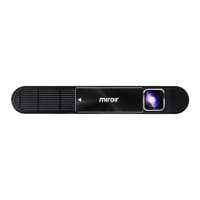
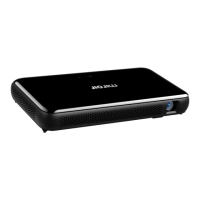
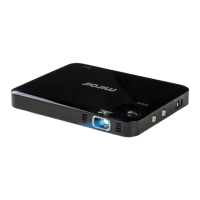
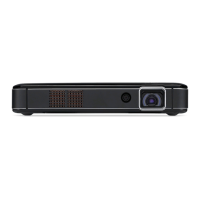
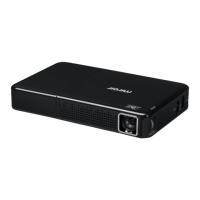
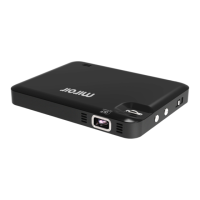
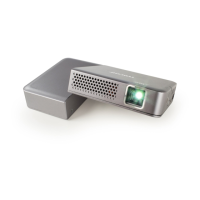
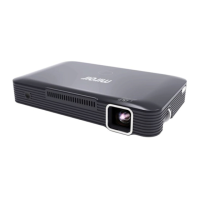
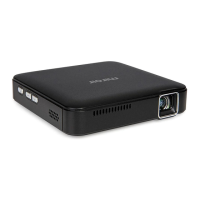
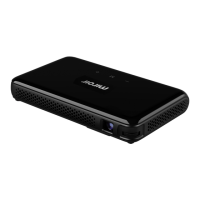
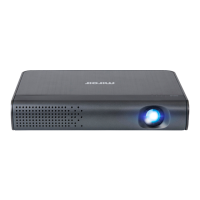
Your Miroir Ultra Pro Projector
A CB
USBAUDIO
HDMI 2
USB-C
HDMI 1
Reset
DC IN
LKJ
USBAUDIO
HDMI 2
USB-C
HDMI 1
Reset
DC IN
D
E F IG H
USBAUDIO
HDMI 2
USB-C
HDMI 1
Reset
DC IN
N OM
USBAUDIO
HDMI 2
USB-C
HDMI 1
Reset
DC IN
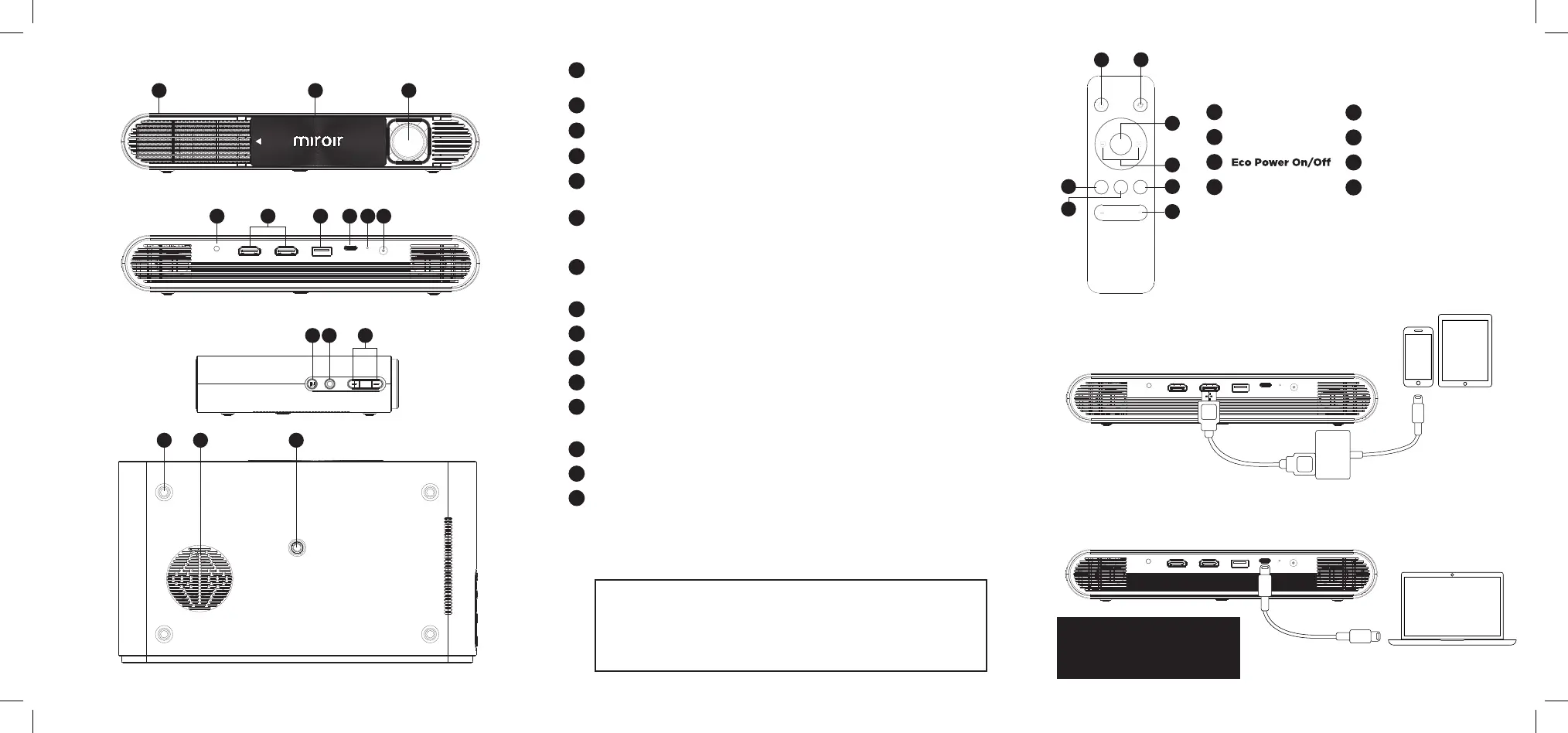
Battery Indicator Lights - Lights flash in turn as the device charges.
The battery is fully charged when all the lights illuminate and no longer flash.
Lens Cover/Power - Slide lense cover to turn device on.
Projection Lens
Audio Out (3.5mm) - (Optional) Connect an external speaker or headphones.
HDMI Video Input - Connect an HDMI cable to a device that supports HDMI
video output.
USB Power Output - Connect a USB power cable to provide power to a HDMI
streaming stick or to charge a smartphone battery. Cannot be used for video
input.
USB-C Video input - Connect the supplied USB-C Video cable to a device that
supports USB-C video output.
Reset Button - Press to reset projector.
DC Power Input
Source Input Button - Press to change input source.
Focus Mode - Press button then use volume +/- buttons to adjust.
Volume Controls - Increase/decrease the volume output of the projector.
Press Volume - button to see battery level remaining.
Rubber Foot Pads - Provides stability and proper airflow to cooling vents.
Cooling Vent
Tripod Mount - Will fit a standard sized tripod screw. Tripod not included.
A
B
C
D
E
F
G
H
I
J
K
L
M
N
O
Included in the Box:
• USB-C Video Cable
• HDMI Cable
• Micro HDMI Adapter
• Quick Start Guide
• Remote
• AC Adapter/Charger
• Projector Drawstring Pouch
Connect Your Device Using HDMI
To connect your Apple device to a Miroir projector, you
will need an Apple Digital AV Adapter (sold separately)
and an HDMI cable (included in the box).
USBAUDIO
HDMI 2
USB-C
HDMI 1
Reset
DC IN
HDMI Cable
(Included)
Apple Lightning
Digital
AV Adapter
(Sold separately)
Connect Your MacBook Pro and MacBook Using USB-C
To connect your Macbook to a Miroir projector, you will need a USB-C Video Cable
(included in the box).
USBAUDIO
HDMI 2
USB-C
HDMI 1
Reset
DC IN
USB-C Video Cable
(Included)
IMPORTANT!
Not all USB – C
cables will support video. The USB-C
cable that comes with the projector
will support video.
HDMI 1 HDMI 2
USB-C
EC O
HDMI 1 HDMI 2
USB-C
EC O
丝印颜色:白色(PANTONE White)
A
B
EG
H
F
C
D
Your Miroir Ultra Pro Projector
Remote Control
Power
Invert Image
Motorized Focus
USB-C Video Input Select
Volume Control
HDMI 1 Input Select
HDMI 2 Input Select
A
B
C
D
E
F
G
H


 To Next Page
 Loading...