MD-500 Quick Start Guide
en-US
|
6
|
Quick Start Guide|
MD-500
©Mitchell International, Inc. 394474 Rev A | APDMD500020421
11. Connect the VCI to the Vehicle
Pairing
The VCI is paired to the tablet during
manufacturing and should be paired out of
the box.
a. Connect the VCI to the vehicle DLC.
b. At this point VCI Connection Manager
icon should display “Connected
via Wi-Fi”.
c. If VCI Connection Manager icon
shows “No connection,” select the VCI
Connection Manager icon.
d. Once VCI Connection Manager
icon is selected, VCI Connection
Manager dialog is displayed, listing
discovered VCIs.
e. Select “Connect” next to VCI in the list to
pair with it.
Once VCI Connection Manager icon
changes to “Connected via Wi-Fi”, the
tool is ready to use.
The tablet is now paired to a VCI. To use a
different VCI in the future, repeat the steps
for manually pairing the VCI.
Select “Connect” next to desired VCI. VCI
Connection Manager dialog will refresh to
show successful connection.
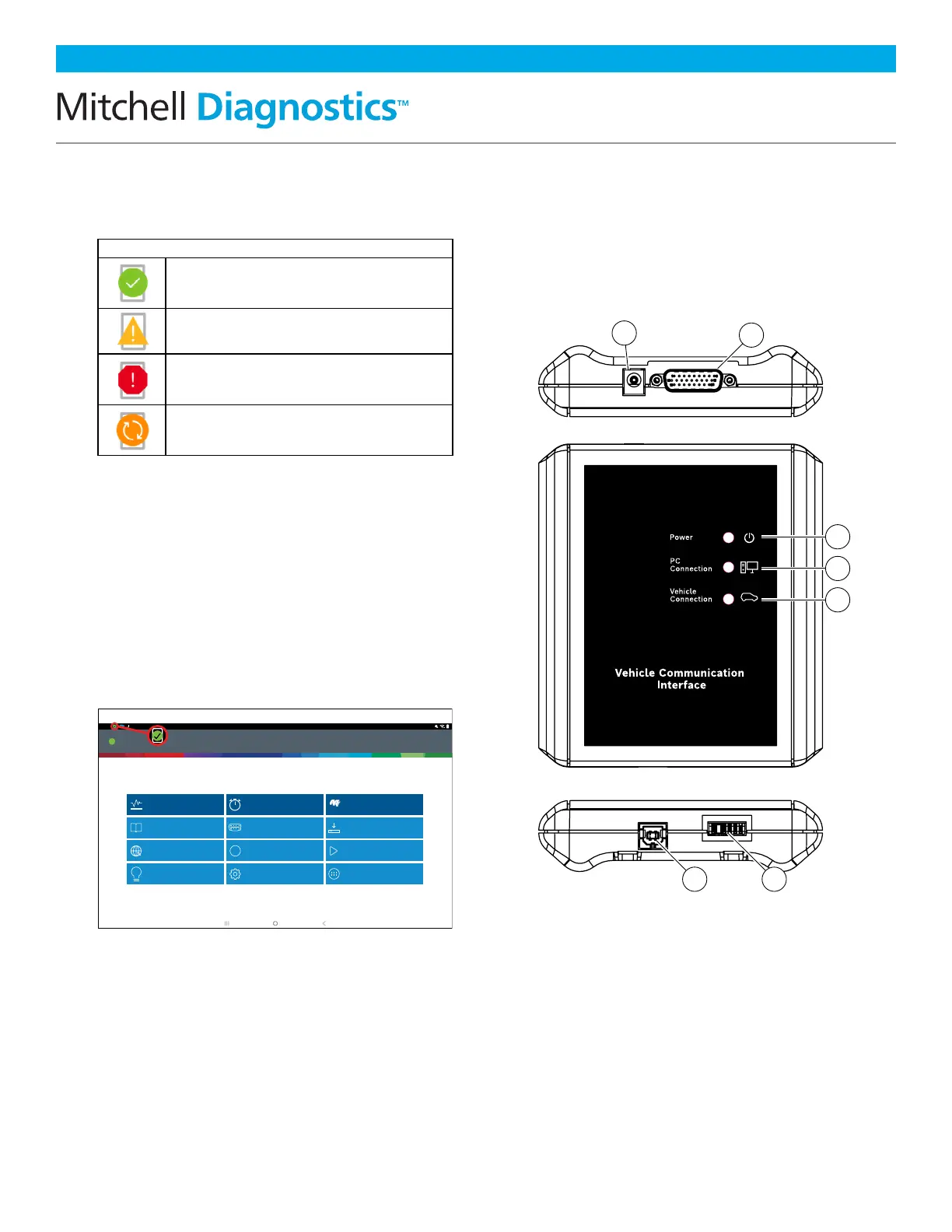
1. Power Port (Used When Necessary)
2. DLC/OBDII Cable Port
3. Power Indicates the VCI Has
Received Power
4. PC Connection Indicates the VCI is
Communicating With the PC
5. Vehicle Connection Indicates the VCI is
Communicating With Vehicle
6. USB “B” Port
7. Docking Station VCI Port
Tuesday 1/12/2021Connected
10:22
Web Browser
Settings
Apps Shortcut
Coverage Guide
i
Video Tutorials
Main Menu
Saved Reports
Diagnostic Information
i
Turbo Scan
Diagnostics
Generic OBDII
Mitchell Connect
mitchell
Explore More
rt0011
VCI Connection Manager Icon Definitions
Icon that will display when user is connected
to DVCI.
Icon will display when user is connected to
DVCI but signal is degraded.
Icon will display when user is NOT connected
to DVCI.
Icon will display when user is connected to
DVCI, but the version does not match expected
tablet version.



 To Next Page