18
www.mitoredlight.com
DEVICE TROUBLESHOOTING
TROUBLESHOOTING
If the control panel is not working,
make sure you are connected to power
and that the power switch on the back
of the device is turned on.
When resetting the Default Time on the
Settings screen, after the time is
selected hit the ‘GO’ button then turn
the power switch off then back on.
If there is no light coming from the
panel when the session is started,
confirm that the brightness setting is
not set to 0% (also note that NIR light
810nm/850nm is invisible to the naked
eye).
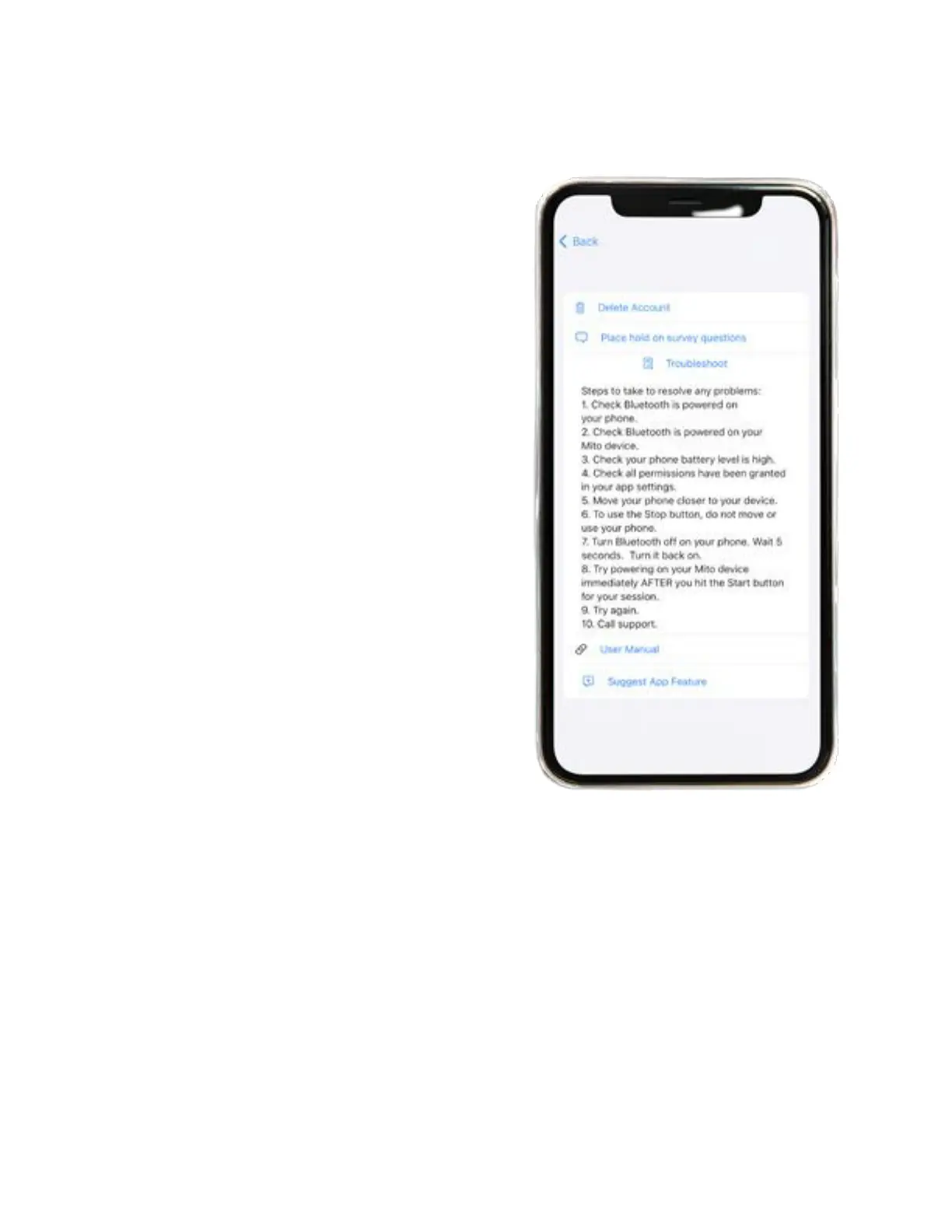
If app failed to connect, make sure you
are within 5 feet of the panel, close the
app on your device and restart. Turn
the panel off and on. Make sure your
Bluetooth permissions are accepted
through your devices’ settings. Ensure
Bluetooth is enabled on your mobile
device and your panel.
You can also access this User Manual
via the app by clicking the settings
icon.



 To Next Page