Using the Snap-shot feature
Use Advanced PIP
• Current setting :
Snap-shot
Use ADJUST to select.
Then press ENTER.
Press MENU to return to
Customize Viewing Menu.
Q
oo0(-I
o o o I'_
000,_
00 ® _-I
(::_ czz_ ,:J
Q c:_ll
<:30_>
<when PIP is off>
PAUSE []
©
PAUSE
O
0
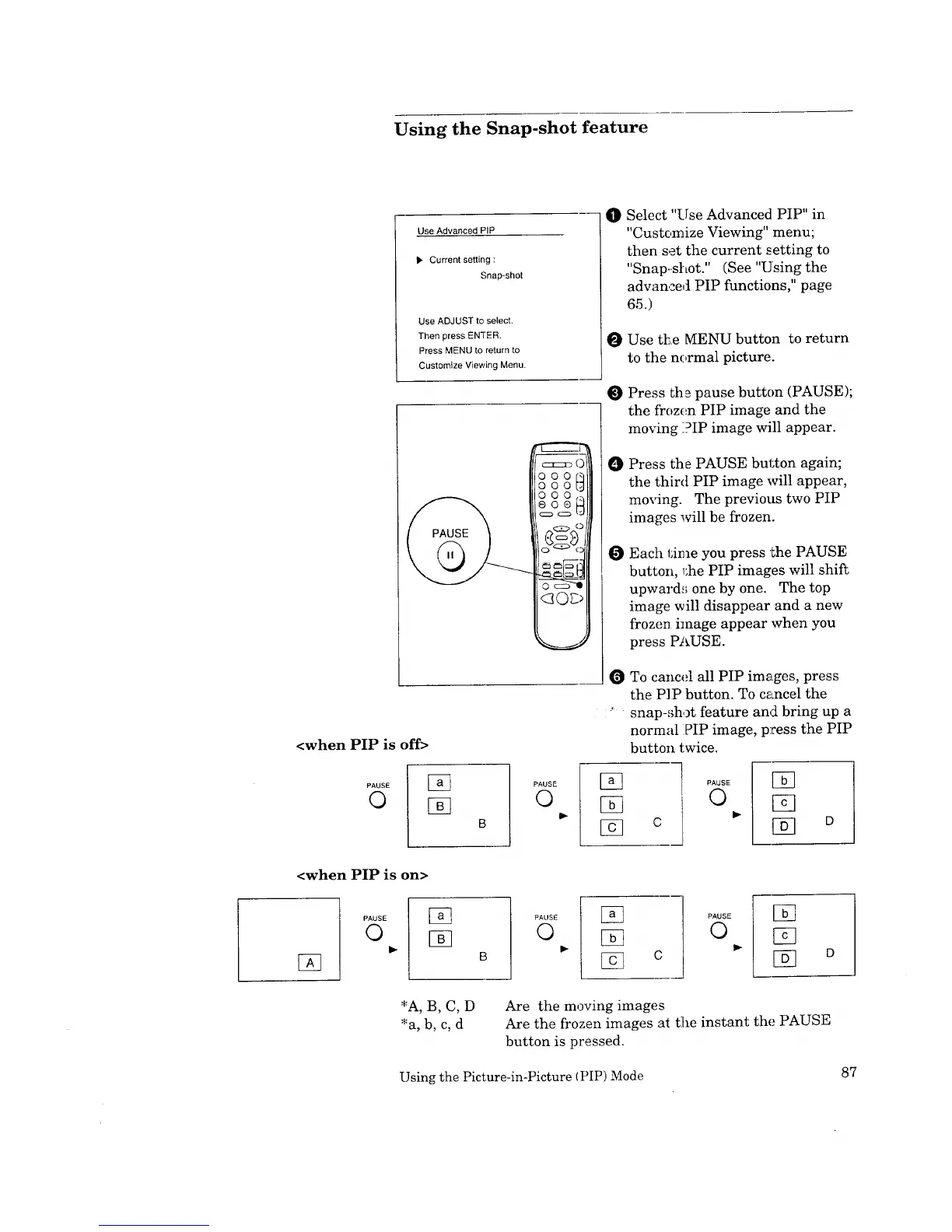
Select "Use Advanced PIP" in
"Customize Viewing" menu;
then set the current setting to
"Snap-.shot." (See "Using the
advan,sed PIP functions," page
65.)
O Use t_.e MENU button to return
to the normal picture.
Press the pause button (PAUSE);
the frozen PIP image and the
moving PIP image will appear.
O Press the PAUSE button again;
the third PIP image will appear,
moving. The previous two PIP
images will be frozen.
Each time you press the PAUSE
button, _;he PIP images will shift
upward:; one by one. The top
image will disappear and a new
frozen image appear when you
press PAUSE.
To cancel all PIP images, press
the PIP button. To cancel the
.... snap-shot feature and bring up a
normal PIP image, press the PIP
button twice.
] l PAUSE
[] c
[]
[]
[]
<when PIP is on>
[]
PAUSE
©
[]
PAUSE
©
[]
[]
[] o
PAUSE
©
[]
[]
[] D
Are the moving images
Are the frozen images at the instant the PAUSE
button is pressed.
Using the Picture-in-Picture (PIP) Mode 87


 To Next Page
 Loading...