EasyManua.ls Logo

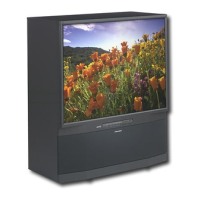
Mitsubishi WS-65315A - User Manual

Mitsubishi WS-65315A
76 pages
Print Icon
To Next Page IconTo Next Page
Loading...
POWER
PAUSE
REC
FF/FWDREW/REV PLAY
STOP
3
6
9
QV
VOLUME
1
7
SQV
4
INPUT
SLEEP
VIDEO
AUDIO
MUTE
2
5
8
0
CHANNEL
TV
AUDIO
CABLE/DBS DVD
VCR
INFO
GUIDE
CANCEL
MENU
V-CHIP
FORMAT
EXCH
ENTER
ADJUST
PIP CH
PIPINPUT
PIP/POP
HOME
Owners Guide
Owners Guide
Projection Television Models
WT-42315, WS-48315, WS-55315,
WS-65315 and WS-65315A
visit our website at
www.mitsubishi-tv.com

Table of Contents

Questions and Answers

  • A
    Ashley LaraAug 18, 2025
    How to fix Mitsubishi WS-65315A remote control that does not work?
    • J
      Jose MooreAug 19, 2025
      To resolve this, verify that the batteries in the remote are correctly installed. Ensure that the selected switch is set to “TV”. Also, make sure you are no further than 20 feet from the TV when using the remote control.
  • R
    Robert BennettAug 21, 2025
    How to set adjustments to factory setting on Mitsubishi Projection TV?
    • M
      Michael BrightAug 21, 2025
      Follow these steps to reset system defaults to factory settings: 1. Press the MENU button followed by number buttons 1,2,and 3 on the remote control. Result: The Reset System Default menu screen is activated. 2. Press the ENTER button on the remote control. Result: The settings reset to factory defaults. 3. Press HOME or MENU on the remote control to return to the HOME or MENU screen. IMPORTANT: This function is not recommended unless it is mandatory to reset system defaults to factory settings. This operation CANNOT be undone and all customs settings will be erased.
  • V
    Virginia DeleonAug 23, 2025
    Why does the sound not match the screen picture on my Mitsubishi WS-65315A Projection TV?
    • H
      Heather CarterAug 23, 2025
      First, ensure the TV's 'Listen to:' setting is not set to SAP. If you are using stereo or A/V receiver speakers, verify the input selection on the receiver. Additionally, if using a stereo or A/V receiver, confirm that the audio is connected from the MONITOR OUT on the TV's back panel.
  • M
    Marc RobinsonAug 26, 2025
    What to do if there is no sound even when the volume is turned up on Mitsubishi WS-65315A Projection TV?
    • D
      Donna WilliamsAug 26, 2025
      Check if the MUTE button is activated. Also, the TV’s “Listen to:” setting may be set to SAP. Finally, ensure that the “TV Speakers” setting is turned On.
  • R
    Randall BassAug 28, 2025
    Why no picture displays when using component inputs on Mitsubishi WS-65315A?
    • A
      Anthony LloydAug 28, 2025
      To fix this, make sure the device connected via component inputs is set to output at either 480p or 1080i via YPbPr or RGB. Check the device output settings for compatibility.
  • L
    Linda RomeroAug 30, 2025
    What to do if there is no picture when using MonitorLink/DVI input with an HDTV receiver or DVD player on Mitsubishi Projection TV?
    • K
      Katherine SimmonsAug 30, 2025
      To resolve this, make sure the connected device is set to output DVI in its menu. You might need to connect to an analog input for the initial setup.
  • M
    michael42Sep 1, 2025
    How to troubleshoot no picture when playing a VCR tape on Mitsubishi WS-65315A Projection TV?
    • D
      deborah97Sep 1, 2025
      To resolve this issue, if you've connected your VCR with A/V cables, use the INPUT button to select the appropriate input source (INPUT-1, INPUT-2, or INPUT-3) to which the VCR is connected. If the issue persists, consult your VCR's owner’s guide for additional troubleshooting steps.
  • K
    Katherine BlankenshipSep 4, 2025
    How to remove a large black or gray rectangle on the screen of Mitsubishi Projection TV?
    • M
      martinjoshuaSep 4, 2025
      To address this, turn off the closed captioning feature within the CAPTIONS menu.
  • S
    scotthallSep 6, 2025
    Why does my Mitsubishi WS-65315A Projection TV take several seconds to respond to channel commands?
    • N
      Natalie Middleton PhDSep 6, 2025
      To address this, press ENTER after inputting the channel number to avoid delays. Also, use the three-digit number format; for example, use 002 for channel 2.
  • K
    Kristi McconnellSep 8, 2025
    What to do if you cannot access a channel on Mitsubishi WS-65315A Projection TV?
    • Z
      zpetersSep 8, 2025
      To resolve this, use the number keys instead of the CHANNEL up/down buttons. Ensure the channel you wish to view is stored in the TV's memory. Verify that the TV is set to the correct input source for the channel by pressing the INPUT button. Also, confirm that the V-Chip setting is turned Off.

Summary

Important Safeguards

Cleaning and Maintenance Precautions

Guidelines for safely cleaning the TV and its components, including specific warnings about cleaners.

Ventilation and Placement Guidelines

Ensuring proper airflow around the TV to prevent overheating and stable placement.

Power and Grounding Safety

Instructions on safe power source usage, polarization, and cord protection.

Lightning Protection Measures

Advice on protecting the TV during lightning storms by unplugging it.

Object and Liquid Entry Prevention

Warning against inserting objects or spilling liquids into the TV to prevent hazards.

Outdoor Antenna Grounding

Information on grounding outdoor antennas for protection against voltage surges.

Servicing and Damage Requiring Service

Guidance on when to seek professional service and conditions requiring it.

Replacement Parts and Safety Checks

Ensuring correct replacement parts are used and performing safety checks after service.

Important Notes on Picture Tube Care

Stationary Image Warning

Warning against displaying static images for extended periods to prevent screen aging and ghosting.

Chapter 1 Television Overview

Thank You and Product Overview

Welcome message and introduction to Mitsubishi's HD-upgradeable television technology.

Unpacking and Special Features

List of items included with the TV and highlights of its special features.

Front Control Panel Layout

Description of buttons and functions available on the TV's front panel.

Back Panel Input;Output Ports

Details on the various input and output terminals located on the TV's back panel.

Chapter 2 Connections

Connecting Antennas and Cables

Instructions for connecting antennas (UHF/VHF, twin lead, coaxial) and wall outlet cables.

Connecting Audio;Video Devices

Guidance on connecting VCRs, cable boxes, and audio receivers via A/V or S-Video.

Connecting Digital Video Sources

Instructions for connecting DTV receivers and DVD players using component or RGB signals.

Connecting MonitorLink;DVI

Details on connecting Mitsubishi's proprietary digital interface for high-quality video signals.

PIP;POP Connection Impact

Table showing input compatibility for Picture-in-Picture (PIP) and Picture-Outside-Picture (POP).

Chapter 3 Remote Control Functions

Remote Control Button Overview

Explanation of the functions for each button on the TV's remote control.

Remote Control Care and Operation

Guidelines for installing batteries and operating the remote control effectively.

Using Remote with Other A;V Products

Instructions for programming the remote control to operate other brands of audio/video equipment.

Chapter 4 Menu Screen Operations

The ViewPoint Menu System Navigation

Overview of Mitsubishi's exclusive on-screen operating system for menu choices.

SETUP Menu Options

Initial setup instructions including channel memorization, input assignment, clock, and language.

CAPTIONS Menu Settings

Configuration options for closed captions, including display type and background color.

CHANNEL EDIT Menu Functions

Customizing channel information, adding/deleting channels, and managing SQV lists.

V-Chip Lock Menu Configuration

Setting up V-Chip to block programs based on ratings, time, or front button lock.

ADVANCED FEATURES Menu Adjustments

Adjusting color balance, auto color correction, convergence, video mute, and black enhancement.

AUDIO;VIDEO SETTINGS Menu

Adjusting audio and video settings for each input, including A/V memory reset.

Chapter 5 PIP;POP Operations

Available On-Screen Format Sizes

Table detailing aspect ratio support for various inputs and signal types.

PIP and POP Viewing Modes

Instructions on how to activate, change, and exchange PIP/POP images and channels.

Appendix A: Bypassing the V-Chip Lock

Appendix B: High Definition Input Connection Compatibility

Appendix C: Remote Control Programming Codes

Appendix D: Cleaning and Service

Appendix E: Diamond Shield Installation and Removal

Troubleshooting Common Issues

Mitsubishi Projection Television Limited Warranty

Mitsubishi WS-65315A Specifications

General IconGeneral
BrandMitsubishi
ModelWS-65315A
CategoryProjection TV
LanguageEnglish

Related product manuals