QUICK REFERENCE GUIDE
User Interface (UI overview
Home screen
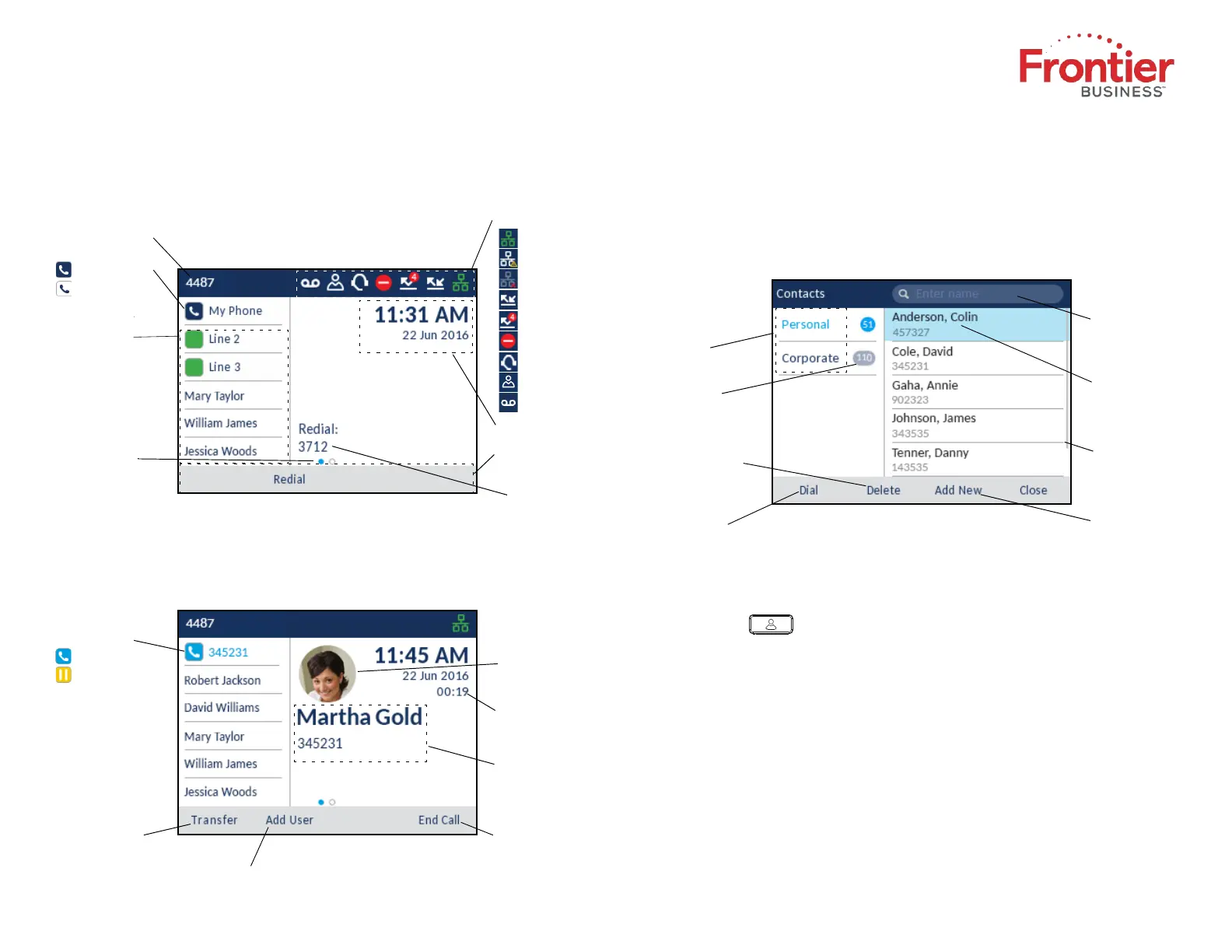
The Home (default) screen is displayed when the phone is in the idle state. The
Home screen displays status indicators, your user directory number, avatar,
the last dialed number, time, date and list of programmable softkeys.
Call screen
When on an active call, the caller's avatar, name, number and call duration
timer is displayed. The context-sensitive softkeys are updated with applicable
call handling features.
Applications
Contacts
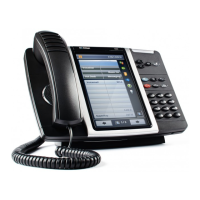
The Contacts application stores personal phone book and directory. The Mitel
MiVoice 6920 IP Phone supports a localized personal directory as well as
enhanced functionality, allowing for interoperability with LDAP (corporate)
directories.
Making a call using the Contacts application
1. Press the key to access the Contacts application.
2. Navigate to the respective contacts folder and scroll through the contacts
by using the navigation keys
or
Enter characters using the keypad and press the Search softkey to use
the search feature.
3. When the applicable contact is highlighted, press the Select button or Dial
softkey to place a call to using the entry’s default phone number
or
To place a call to a different phone number defined for the entry (for
example, a mobile number), press the right navigation key, highlight the
phone number you want to call using the up or down navigation keys, and
press the Select button or Dial softkey.
Status Indicators
Date and time
Programmable
State-Sensitive
Keys
Softkeys
Programmable Key
Page Indicator
Dots indicate
the number of
programmable key
pages and the
relative position.
Call Tim
er
C
all
er I
D
Tr
ansfer So
ftkey
E
n
d Call Softkey
Prime Line Key
P
rime Line Key
B
usy
On
Hold
Solid -
Available
Blinking -
R
Ringing
d
Contact Details
Search
Fiel
(Name and
Number)
Add New
Contact
Number of
Contacts
Delete Contact
Softkey
Dial Softkey
Folders
in Folder
.
Your Directory Number
Network Connected
Attempting
Disconnected
Call Forward
Always Missed Calls
Do Not Disturb
Headset Connected
Hotdesk User
Voicemail
Pending
Scrollbar
Last Number
Dialed
Av
atar
C
onfe
rence Softkey
Copyright © 2019 Frontier Business. All rights
reserved.
02


 To Next Page
 Loading...