Using the Call History application
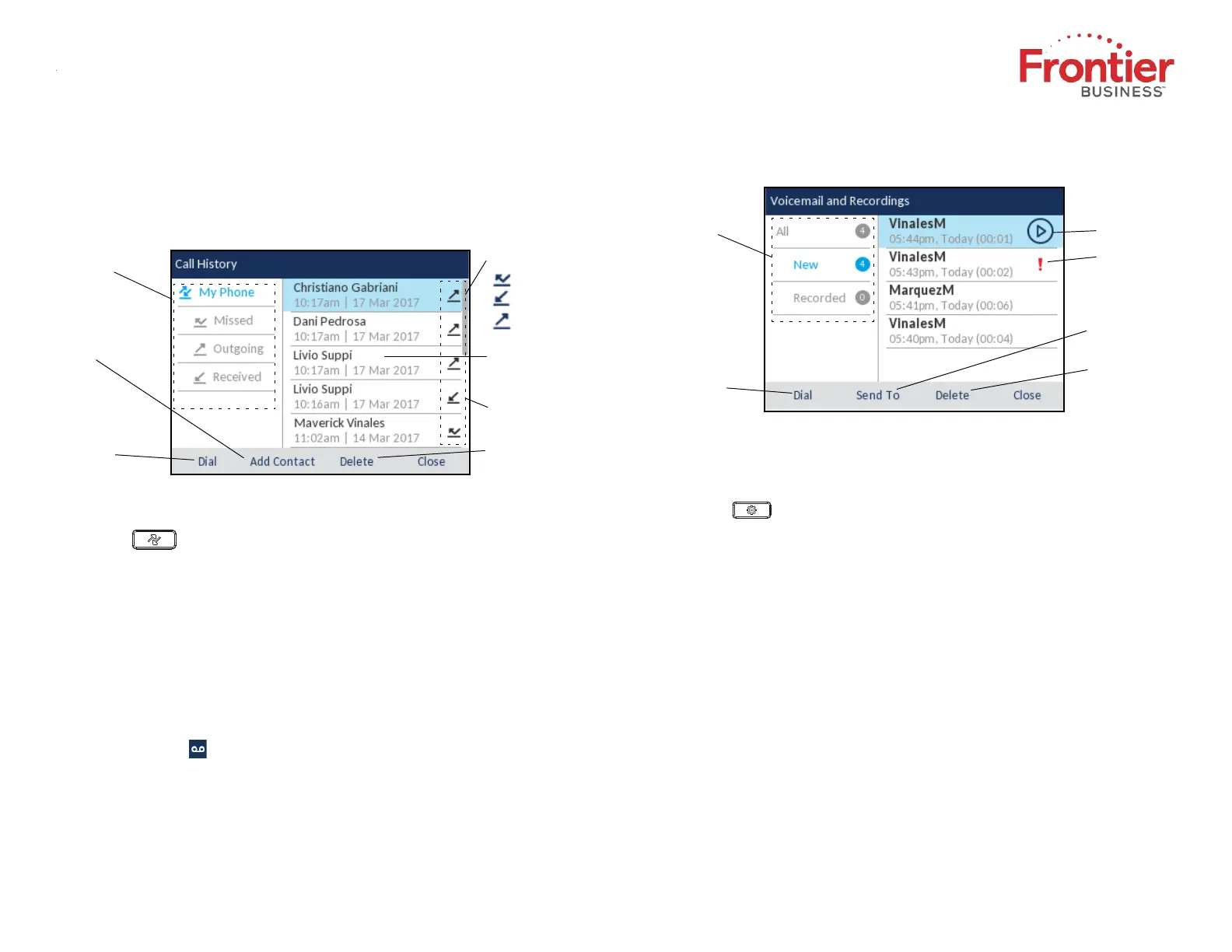
1. Press the key to access the Call History application.
2. Scroll through the lists by using the navigation keys. To view additional
entry
details, press the Right navigation key when the en
try is highlighted.
3. Press the Select button or Dial softkey to place a call to the respective entry
or
Press the Add Contact softkey to copy the entry to your Contacts application
or
Press the Delete softkey to delete the entr
y from your Call History.
Voicemail
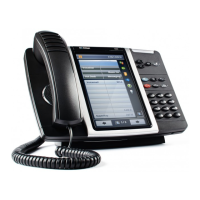
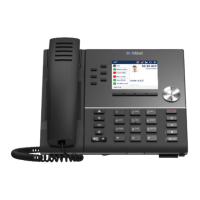
When voicemail functionality is enabled, the MWI LED on the Mitel MiVoice 6920
flashes red and the (Voicemail) icon displays on the status bar, indicating
that voicemail messages are available. You can access your voicemail service by
pressing the Voicemail key.
Visual voicemail
Visual voicemail enables access to voicemail system and displays a count of all,
new and recorded voicemail messages.
All, New, and
Recorded
Voicemails
Dial Softkey
Send Voicemail
Play a Voicemail
Urgent Voicemail
to a Number
Delete Entry
Softkey
Note: Voicemail and visual voicemail functionality must be configured by your System
Administrator.
Enabling visual voicemail
1. Press the (Settings) key on the phone to access the Settings menu.
2. Navigate to Voicemail using the left navigation key and then press the Select
softkey.
3. Press the Select softkey to select the key opens Voicemail App checkbox.
4. Press the Save softkey.
Note: For security reasons, the password can be enabled only from the user login screen.
Note: For additional visual voicemail functions, refer to the Mitel MiVoice 6920 IP Phone User Guide.
Advanced call handling
The Mitel MiVoice 6920 IP Phone provides a method for transferring calls
through the Transfer softkey.
Transferring a call
1. Ens
ure you are an active call with the party you wish to transfer.
2. Press the Transfer softkey.
3. The active call is placed on hold.
4. Enter the transfer recipient’s number and press the Transfer softkey.
Call History
Filters
Dial Softkey
Copy to
Contacts
Call
Type Indicator
Missed Call
Received Call
Outgoing Call
Entry Details
(Name/Number,
Time,
Date)
Delete Entry
Softkey
Scrollbar
QUICK REFERENCE GUIDE
Call History
The Call History application displays a list of your missed, outgoing and
received calls. You can view, delete and dial out to call history entries as well as
copy entries to your Contacts application.
Copyright © 2019 Frontier Business. All rights
reserved.
03


 To Next Page
 Loading...