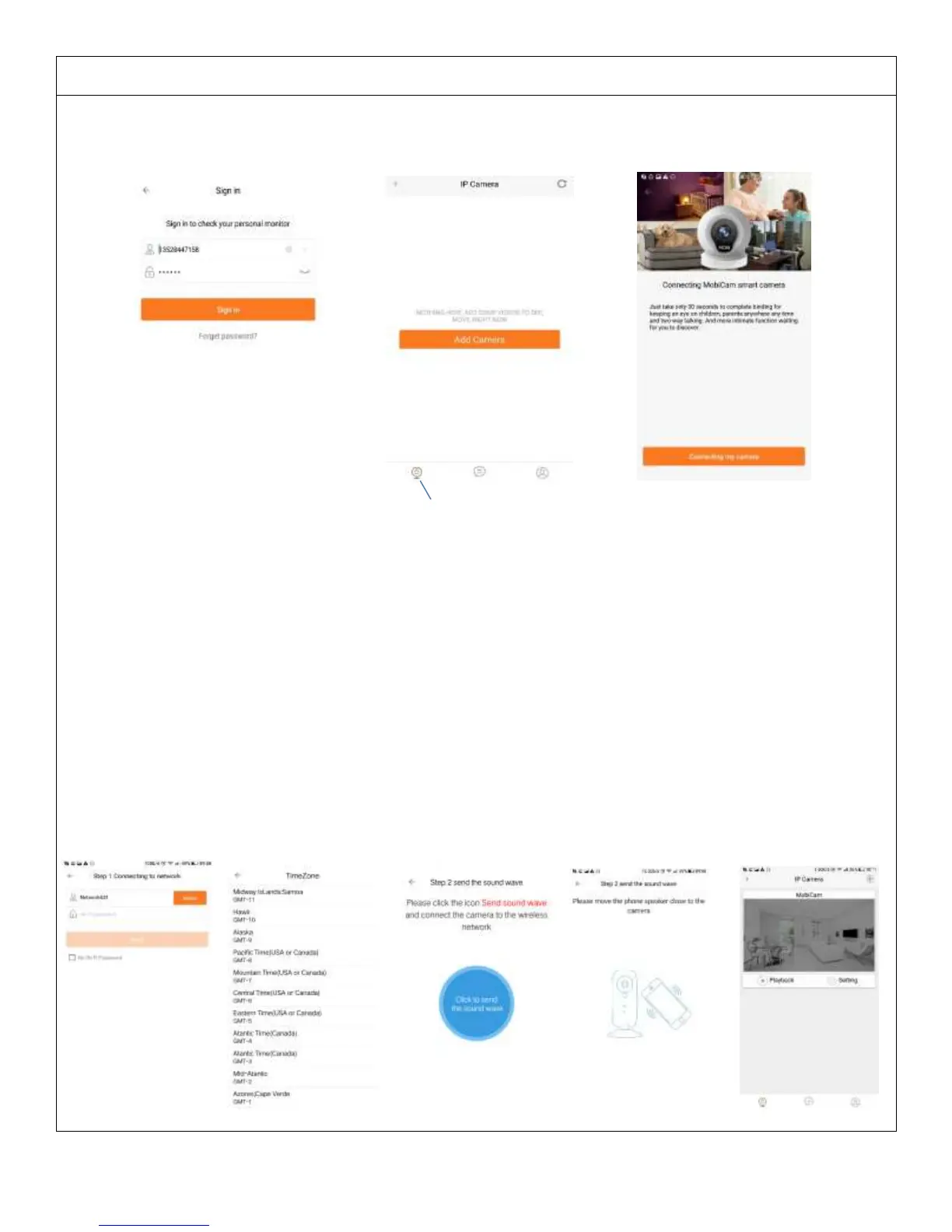
1. Sign in to the MobiCam® APP using your user name and password as indicated in Figure 4 and click into the IP
camera page as indicated in Figure 5 below. Click the top-left “+” button, and then click on “connecting my
camera” button as indicated in Figure 6
IP Camera Page
Figure 4 Figure 5 Figure 6
2. Connecting to network.
a. Find your wireless network in the first field. Please click on ‘select’ if wireless network needs to be changed
as indicated in Figure 7.
b. Enter WIFI password. If wireless network does not have a password, please click on the ‘No Wi-Fi password
box’. Then click on ‘Next’
c. Follow the instructions on the screen (Select your time zone) and move phone speaker close to the camera
device’s microphone, then click the icon ‘Send the sound wave’.
d. A scrambled sound will be played from the phone. Please keep the phone still and wait for the duration of
the transmission before connecting successfully. Afterwards, the voice prompt will indicate that the binding
was successful, and the APP will redirect you to the IP camera page automatically.
Figure 7 Figure 8 Figure 9 Figure 10 Figure 11


 To Next Page
 Loading...