e. You can click on the top portion of the camera image as indicated in Figure 11 above to view.
Please Note:
1. Indicating lamp should be flashing red when connecting to wireless network.
2. Please make sure the WIFI ID and the password are correct.
3. Please make sure the environment is quiet when the phone is sending sound wave, and the sound
wave should be loud enough to be heard clearly.
4. If the camera is not connected successfully at the first time, please try again by clicking the ‘Send
sound wave’ or click on the hyperlink and follow the instructions.
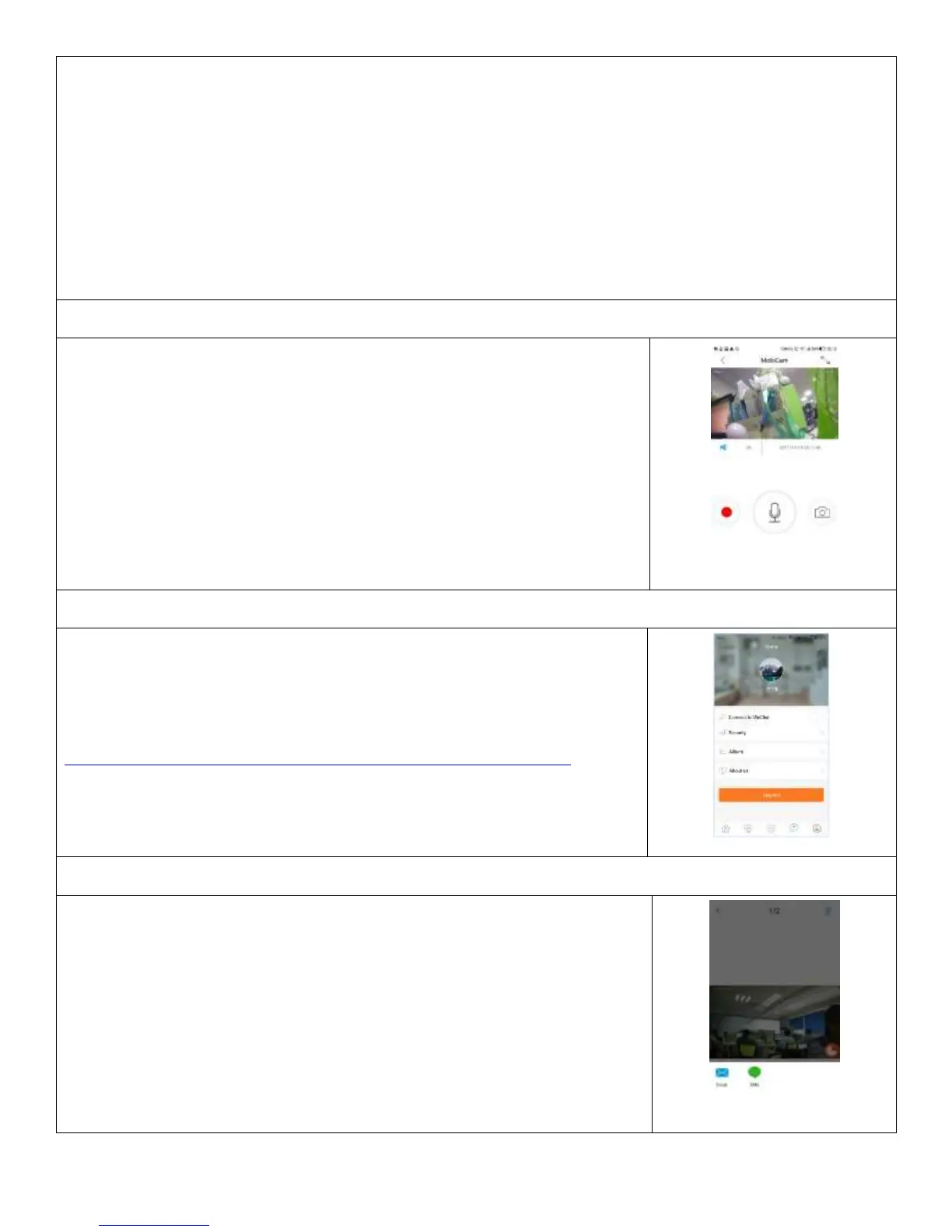
Users can record live video on the APP or an optional Micro SD card (sold
separately), by pressing the red video recording icon on the left as indicated in Figure
12 below. The recorded video will be stored in the album on homepage of the
MobiCam APP Or your phone photo/video album.
Note: you can record onto a Micro-SD card by inserting a Micro SD (Optional
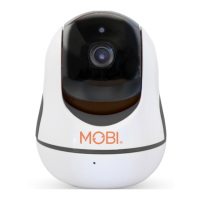
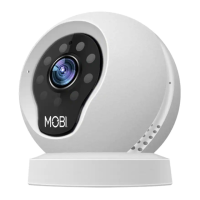
up to 32 GB) in to the Micro SD slot on top of the unit as shown on the product
images on page 1 to record video online or offline.
Go to home page by clicking on Profile icon as indicated in Figure 13 and select
Album to access your video recording and snapshots.
For Playback recordings via MobiCam software, visit the link below to download
the software:
https://getmobi.com/products/mobicam-multi-purpose-monitoring-system
Note: To playback the recorded video from Micro SD card please attached the
Micro SD in to a Memory card reader and plug to your PC like any other
external drive.
Our camera provides a function that shares any snapshot photos to Email/SMS, etc.
To access snapshots, please follow same directions as accessing your video
recording explained under playback feature, choose the photo you want to share and
the platform you want to share it from as indicated in Figure 14.


 To Next Page