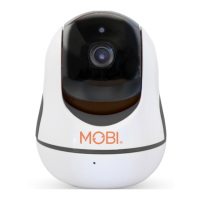
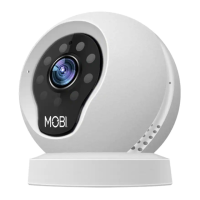
Device Hardware Setup:
Connect the Camera power supply to the power, then wait for the indicating lamp to flash.
Different LED lamp colors correspond to different camera statuses:
- Solid Yellow: System start up
- Flashing Red: System startup completion or connecting to WiFi
- Flashing Green: Connecting successfully
- Solid Green: Camera working properly
Phone App Installation:
For iPhone users:
1. Open the App Store and search for “MobiCam®” APP (See the Icon to the right)
2. Download and install the “MobiCam®” APP to your iPhone
For Android phone users:
1. Open the Google Play Store and search for “MobiCam®” APP (See the Icon to the right)
2. Download and install the “MobiCam®” app to your Android phone
USER ACCOUNT REGISTRATION
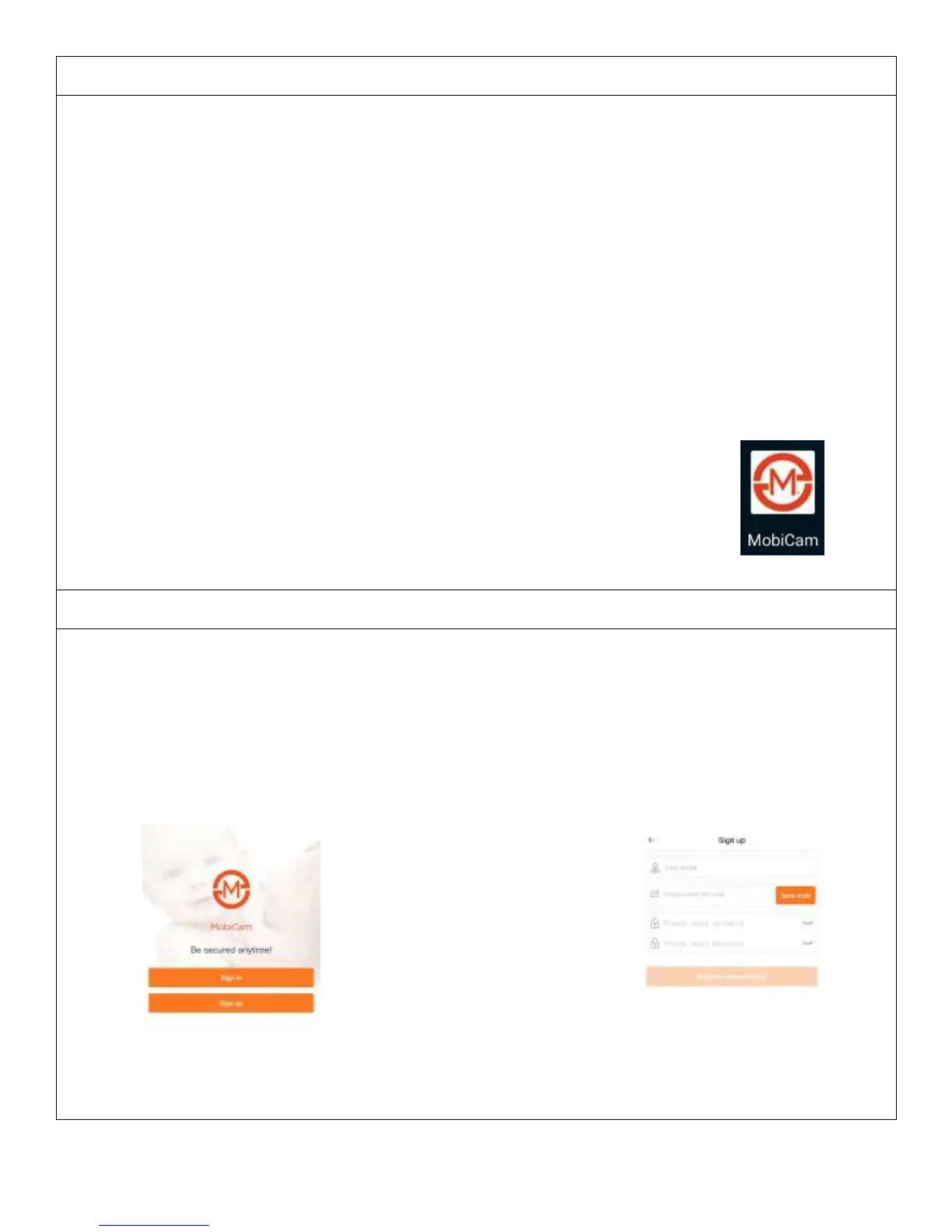
1- After opening the APP for the first time, register your account by clicking ‘sign up’ and enter the desired
user name (your email address) and password. You will have 1 minute to verify your email address and
before you would have to resend.
2- Note that only letters, numbers and English characters are permitted for the user name and password. User
name should be between 4 and 40 characters, and password should be between 6 and 18 characters.
3- Login information can be saved, and next time there is no need to reenter. However, it is recommended to
write down your login information future access.
Figure 2 Figure 3


 To Next Page
 Loading...