TNC3 User Guide
Connecting the TNC
Connect the TNC to the HT with both the TNC and the
radio turned off.
Plug the 3.5mm connector into the TNC. Plug the
radio connector (these styles vary) into the radio's
Speaker/Mic connector.
Connecting/Pairing
Detailed instructions for pairing the TNC on Android are below. Instructions for iOS are omitted
because this happens more seamlessly with BLE.
1. Press S1 briefly to turn on TNC. The blue LED will flash slowly.
2. Ensure Bluetooth is enabled on other device.
3. On other device, scan for Bluetooth devices. You should see “TNC3 Mobilinkd”.
4. Connect to “TNC3 Mobilinkd”. The pairing should happen automatically.
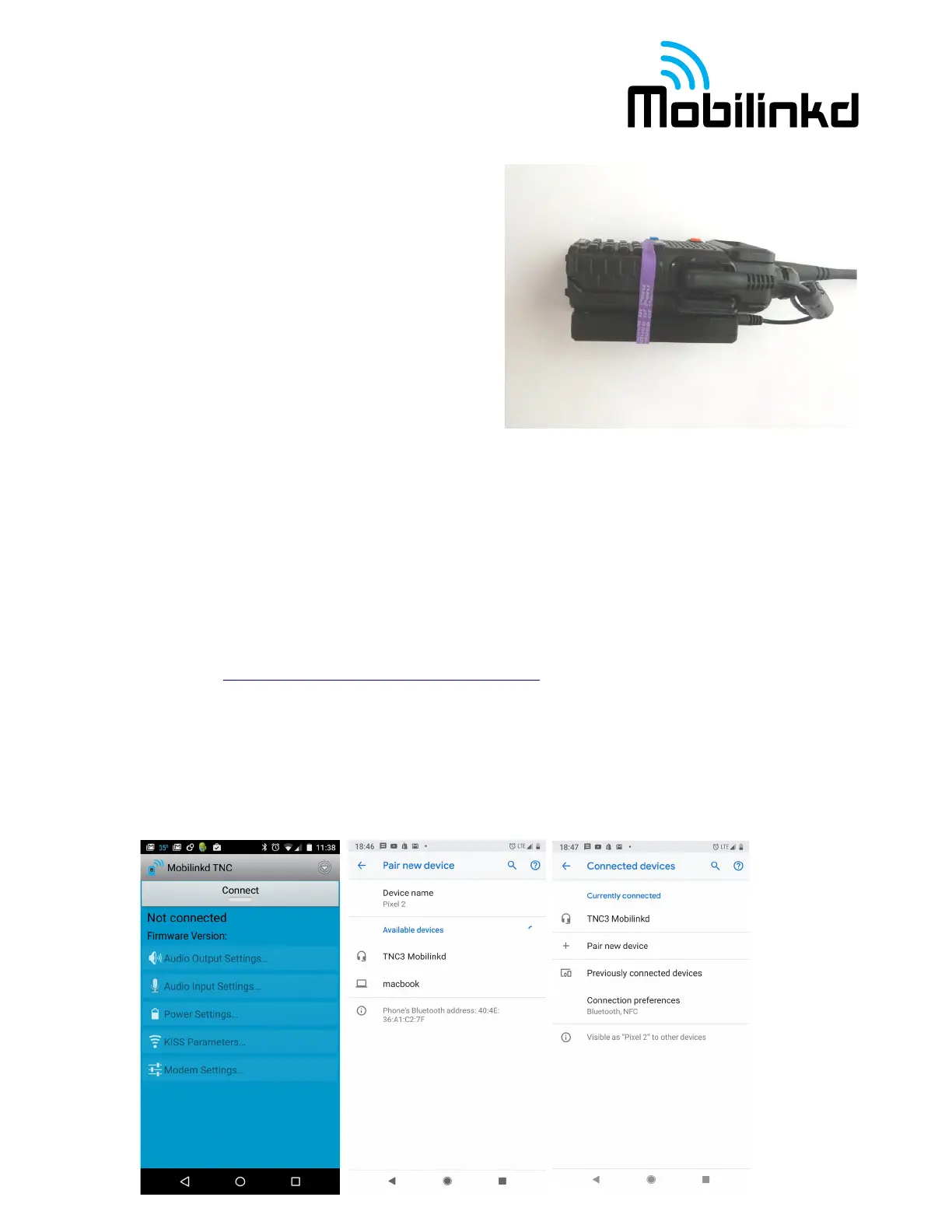
Pairing with an Android Device
1. Install the Mobilinkd Configuration App for Android (available on Google Play.)
2. Open the Mobilinkd app.
3. Press S1 briefly to turn on TNC. The blue LED will pulse slowly.
4. Open the app menu and select “Bluetooth settings”
5. In the Bluetooth settings menu, select “Pair new device”
6. When you see “TNC3 Mobilinkd” under “Available devices”, select it.
7. After a few seconds, you should see the TNC appear under “Currently connected”.
8. Hit the back button to go back the the Mobilinkd app.



 To Next Page