54 55
Getting Started
Connecting devices
MODALapp can be attached to an iPad using a Camera Connection kit, or an Android device
using a USB OTG (On-the-go) adapter.
MODALapp can only be connected via USB MIDI and not by MIDI DIN.
Install and open MODALapp. You will see a splash screen until a Argon8 has been detected,
at which point you will see the Editor page appear.
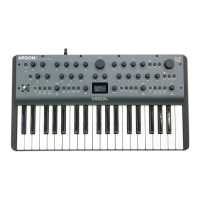
Playing Argon8
At this point you can play your Argon8 with any MIDI controller! MODALapp forwards all
incoming MIDI to Argon8 automatically. Just make sure that your MIDI controller is sending to
the same MIDI channel you’re Argon8 is assigned to.
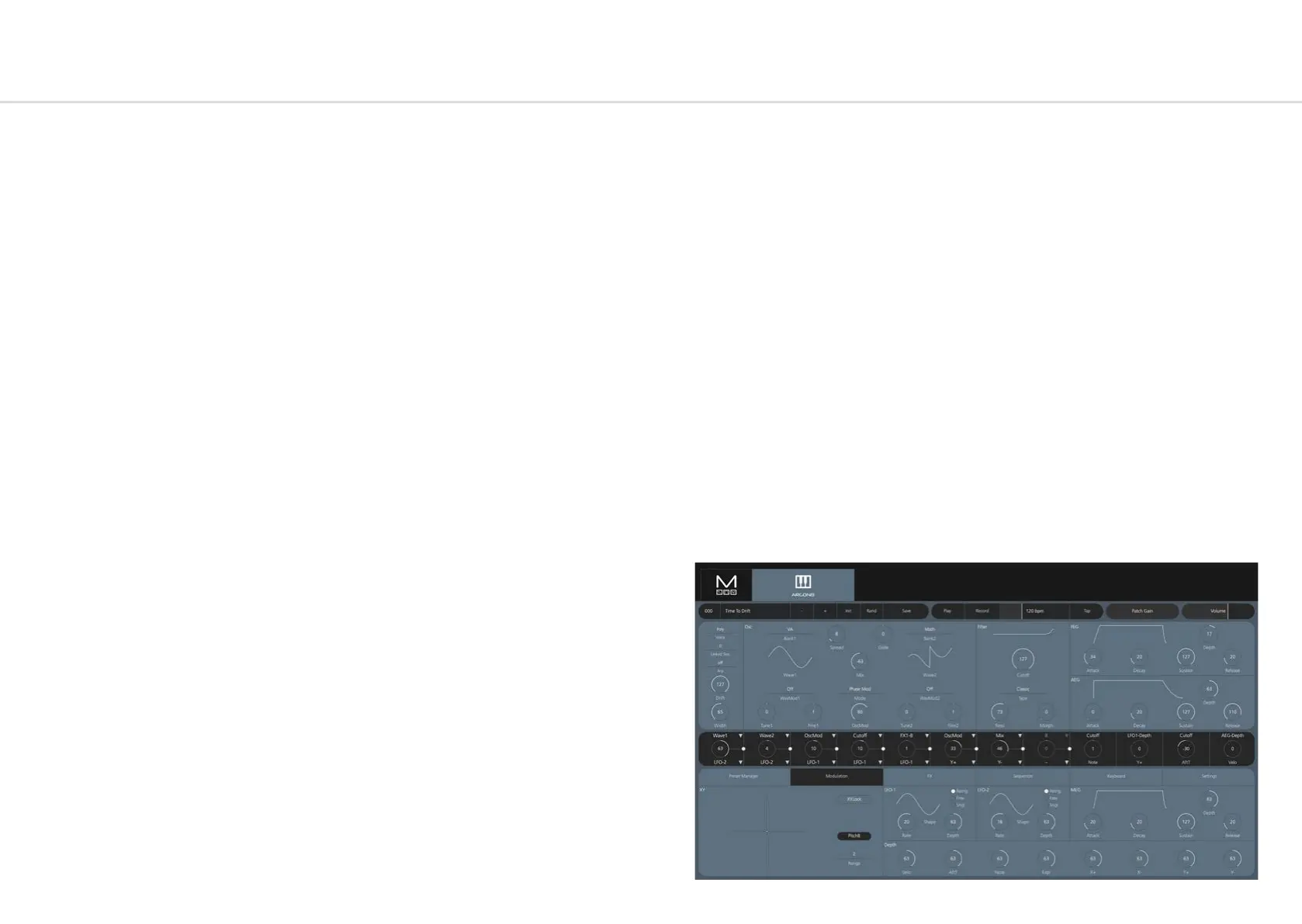
Main Editor
This is the main section for patch design / editing. You will find keyboard/voice, oscillator, filter,
and envelopes here.
The currently selected preset is shown at the top. There are also options for previous or next
preset, init preset and randomise.
To save a preset first click the save button. You can then select the slot you would like to save
the new preset with the - / + buttons. You can change the name of the preset by clicking on
the preset name. Finally click either SAVE again to confirm or EXIT to discard any name / slot
changes.
There is also access to play, record, tempo options as well as sliders for patch gain and volume.
Across the middle there are the 12 modulation slots with 8 user configurable and 4 pre
defined. Only valid modulation destinations for the respective source will be shown in the
drop down menu.


 To Next Page