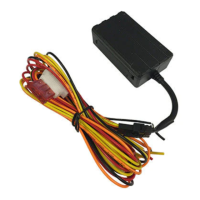
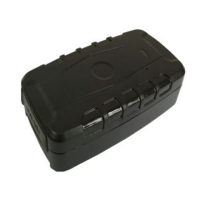
Just send these 4 text commands from your mobile phone to the trackers phone number.
1.
Pair your mobile phone to the tracker
The tracker needs to know your mobile phone number so it can communicate with you.
Send this text message from your phone to the trackers SIM number;
admin123456 XXXXXXXXXX
space here
123456 is default password - XXXXXXXXX is your mobile number Reply:
admin okay
2.
Set the time zone
Send this text message
timezone123456 11
(11 hours ahead of GMT)
Australia range:- 10 or 11 NZ:- 12 or 13
space here
Reply:
Time ok
3.
Set upload frequency
Send this text message
upload123456 30
(upload location to website every 30 sec’s)
space here
Reply:
Upload ok
4.
START GPRS DATA LOCATION REPORTING
Send this text message
gprs123456
Reply: GPRS ok
THE APN NUMBER
The APN (Access Point Name) is the address of the SIM card provider’s data connection.
Some SIM cards, such as those in New Zealand, automatically adds the APN to this GPS tracker which
means you don’t have to do anything.
Open and login into the mobile APP and if there is a message at the top of the screen ‘not enabled’,
this means that the website has not received any data from the tracker. One reason may be the APN
needs to be set. Contact your SIM card provider for the correct APN.
Here are some Australian examples;
Telstra
telstra.internet or telstra.wap
Vodafone NZ vodafone.net.nz
Optus
connect or yesinternet or connectme
2 Degrees (NZ) internet
Vodafone AUS
live.vodafone.com
The Warehouse (NZ) warehouse
A
ldi mdata.net.au
To set the APN, send this text message:-
apn123456 xxxxxxxxxx
Reply:
apn ok
xxxxxxxx = your SIM cards APN


 To Next Page