7
WINDOWS MULTI-MONITOR CONFIGURATION
A display connected to the HDMI® port can be configured to extend the Windows®
desktop, to mirror the main display, or as the main display itself. Perform the steps in one
of the following sections to configure the display.
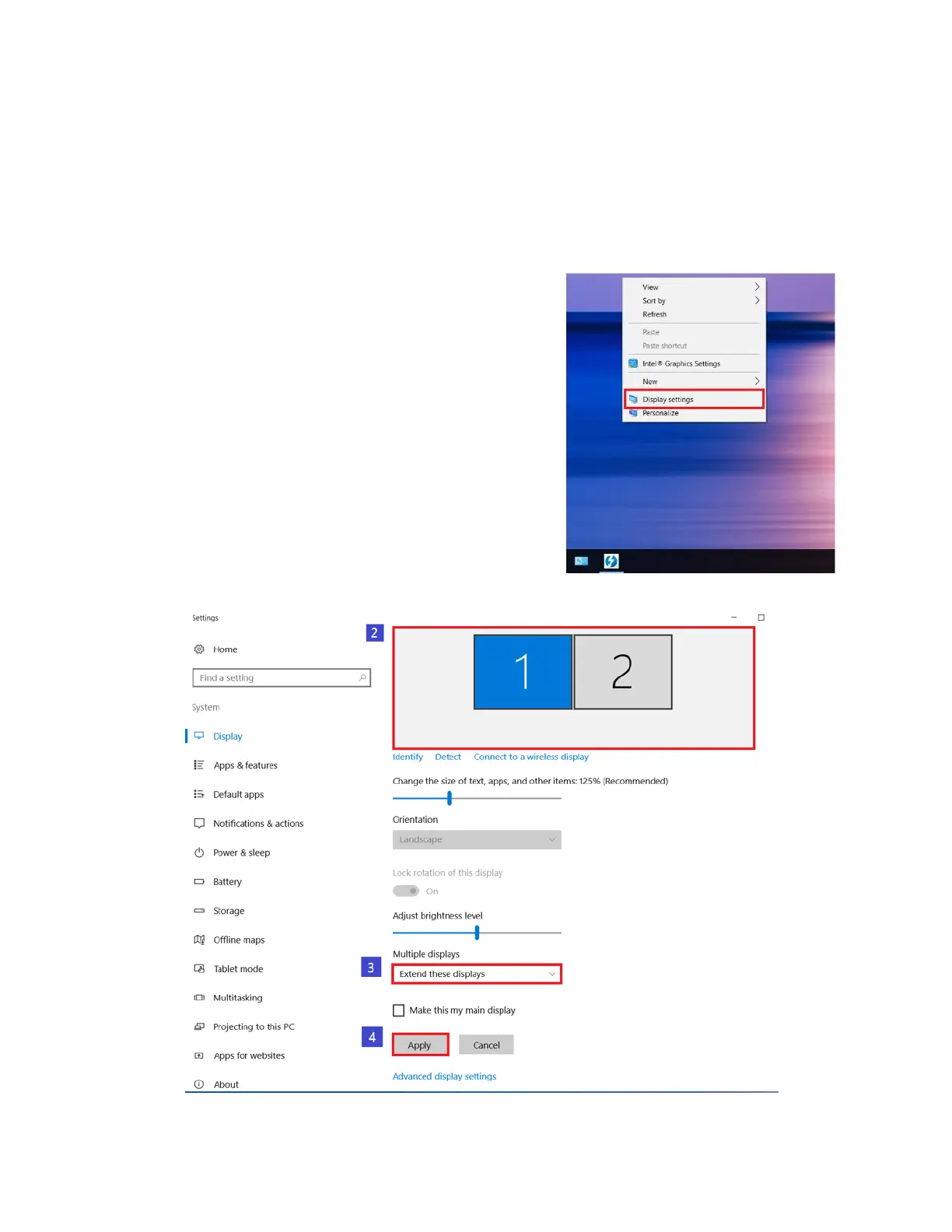
Extended Desktop
1. Right-click the Windows® desktop and select
Display settings from the pop-up menu.
2. Select the preferred monitor at the top of the
page.
3. Select Multiple Displays > Extend these
displays.
4. Click Apply to confirm and exit.



 To Next Page