EasyManua.ls Logo

Monster GPS GL300 - ACCOUNT SETTINGS AND CONFIGURATION; Changing Account Password; Setting Correct Time Zone

Monster GPS GL300
7 pages
Print Icon
To Next Page IconTo Next Page
To Previous Page IconTo Previous Page
Loading...
!
©Copyright+2016+Monster+GPS™+|+JLM+Enterprises +LLC +
5!
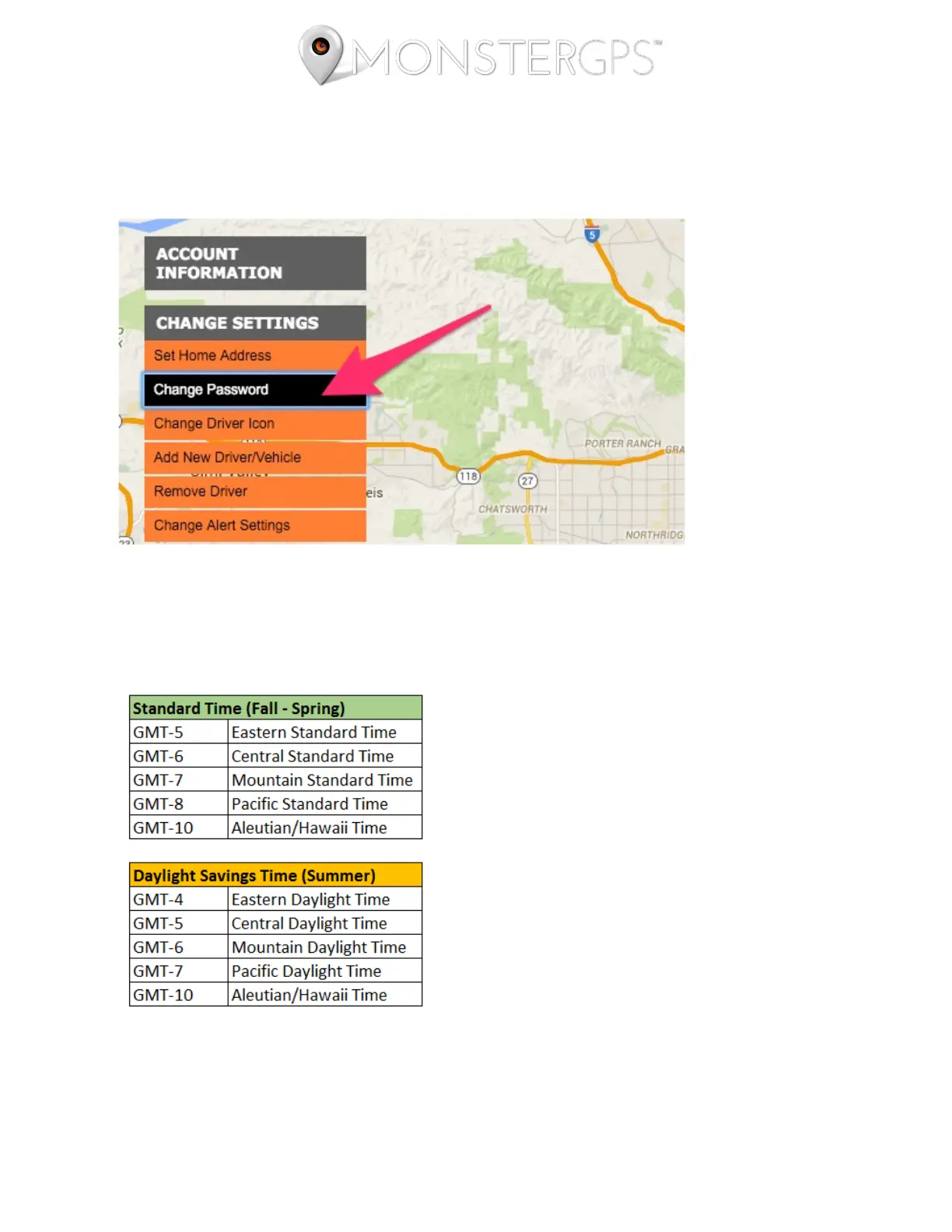
3. Change your password for account security. Hover your mouse over the Change
Settings menu and click Change Password. Enter your old password, new password twice,
then click the Submit button.
4. Set your correct time zone. Click Change Timezone under the Change
Settings menu. Set your correct timezone based on the following chart.
Note: If you're like most and live in an area that observes daylight savings time, set yourself a reminder to change the
time zone in your GPS Track Manager™ account any time you move the clock forward or back an hour.