EasyManua.ls Logo

Monster MT-SB512DA - User Manual

Monster MT-SB512DA
32 pages
Print Icon
To Next Page IconTo Next Page
Loading...
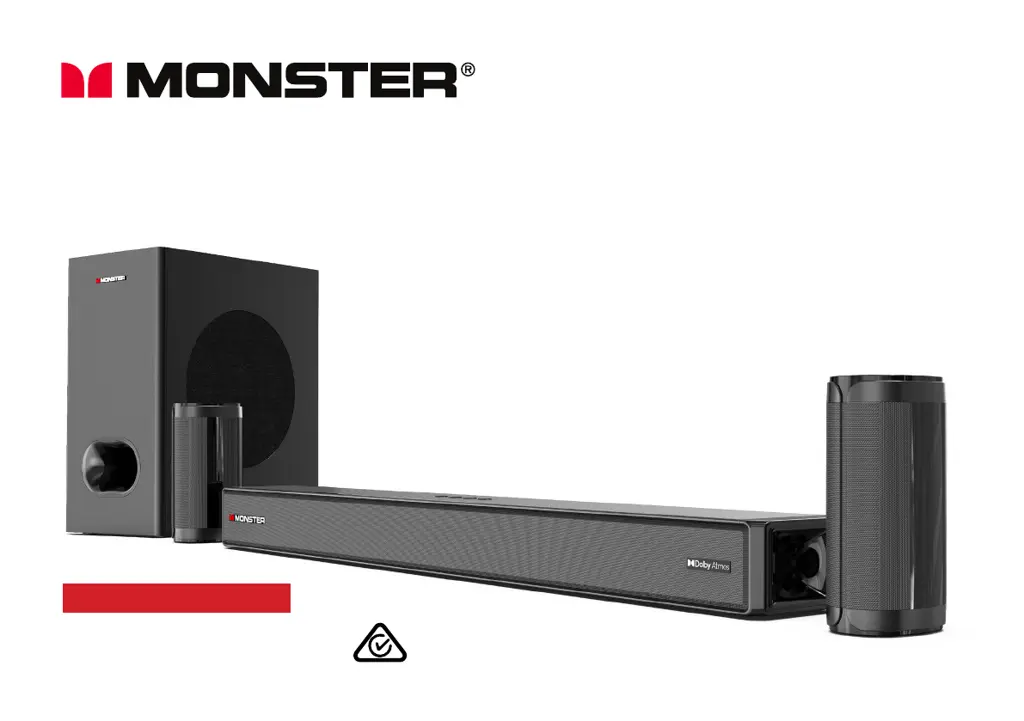
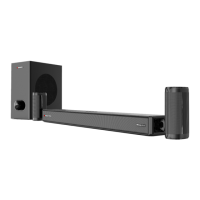
5.1.2 Channel Dolby Atmos Soundbar
with Subwoofer and
Wireless Surround Speakers
User Manual
MODEL: MT-SB512DA

Questions and Answers

  • T
    Tanya AllenAug 13, 2025
    How to troubleshoot a Monster MT-SB512DA with no power?
    • E
      Erika SanchezAug 13, 2025
      First, ensure that the power is properly connected. Next, check that there is power at the AC outlet. Finally, tap the power button on the soundbar or press the power button on the remote to turn the soundbar on.
  • K
    kim55Aug 17, 2025
    What to do if the Monster MT-SB512DA Speaker System remote control does not work?
    • A
      Anita SmithAug 17, 2025
      Try using the remote control closer to the soundbar, aiming directly at the sensor on the front. Ensure the battery is installed correctly, aligning polarities (+/-) as indicated. If it still doesn't work, replace the battery.
  • C
    Cody CampbellAug 20, 2025
    Why is my Monster Speaker System having general sound issues?
    • T
      tylerbushAug 21, 2025
      Make sure the soundbar is connected to power, turned on (with the LED display on), and set to the correct mode using the INPUT button on the remote. Check if the system has frozen by pressing the volume buttons to see if the number in the LED display changes. If only a specific input mode isn't working, the setting might be wrong, or the cable used might be faulty.
  • C
    Christian MaddenAug 25, 2025
    How to fix no sound in HDMI ARC mode on Monster MT-SB512DA?
    • G
      gary34Aug 25, 2025
      Ensure the input source is set to ARC (the LED will display 'ARC'). Verify your TV or external device supports ARC and connect the HDMI cable to the ARC port. In your TV or device settings, turn on both the ARC and CEC functions. Also in the audio output settings, change the audio output mode to 'PCM'. Make sure both ends of the HDMI cable are fully plugged in and that your TV or device isn't muted. If problems persist, try changing the HDMI cable.
  • M
    Mr. Ryan Macdonald DDSAug 28, 2025
    Why is there no sound in Optical mode on my Monster MT-SB512DA Speaker System?
    • A
      Alyssa RussellAug 28, 2025
      First, make sure the input source is set to the correct mode; the LED will display 'OPT'. Increase the volume of the soundbar to ensure it’s not muted. For optical connections, remove the small caps on either end of the optical cable, and ensure both ends are fully plugged into the sockets. If these steps don't resolve the issue, try changing the optical cable.
  • E
    Erin BurkeAug 31, 2025
    What to do if there is no response from the Monster MT-SB512DA soundbar?
    • J
      Julie NelsonAug 31, 2025
      Disconnect and reconnect the power, then turn the soundbar on again.
  • C
    Christian MartinSep 4, 2025
    How to troubleshoot no sound in AUX IN mode on a Monster MT-SB512DA?
    • R
      Ryan LawsonSep 4, 2025
      Make sure the LED screen is displaying 'AUX'. Turn up the volume on the soundbar. Also, turn up the volume on the external device and ensure it’s not paused or muted. Check that the 3.5mm audio cable is properly plugged in at both ends.
  • P
    Paul WilliamsSep 8, 2025
    Why is there no sound in USB mode on my Monster MT-SB512DA Speaker System?
    • S
      Sandra CruzSep 8, 2025
      Make sure the USB drive is in FAT32 file format and is no greater than 32GB.

Monster MT-SB512DA Specifications

General IconGeneral
BrandMonster
ModelMT-SB512DA
CategorySpeaker System
LanguageEnglish

Related product manuals