Chapter 4
Using Your Motion M1200 and M1300 Tablet PCs
Motion Computing M1200 and M1300 Tablet PC User Guide 47
MIRRORING OR
EXTENDING
YOUR DISPLAY
FOR
ADDITIONAL
V
IEWING
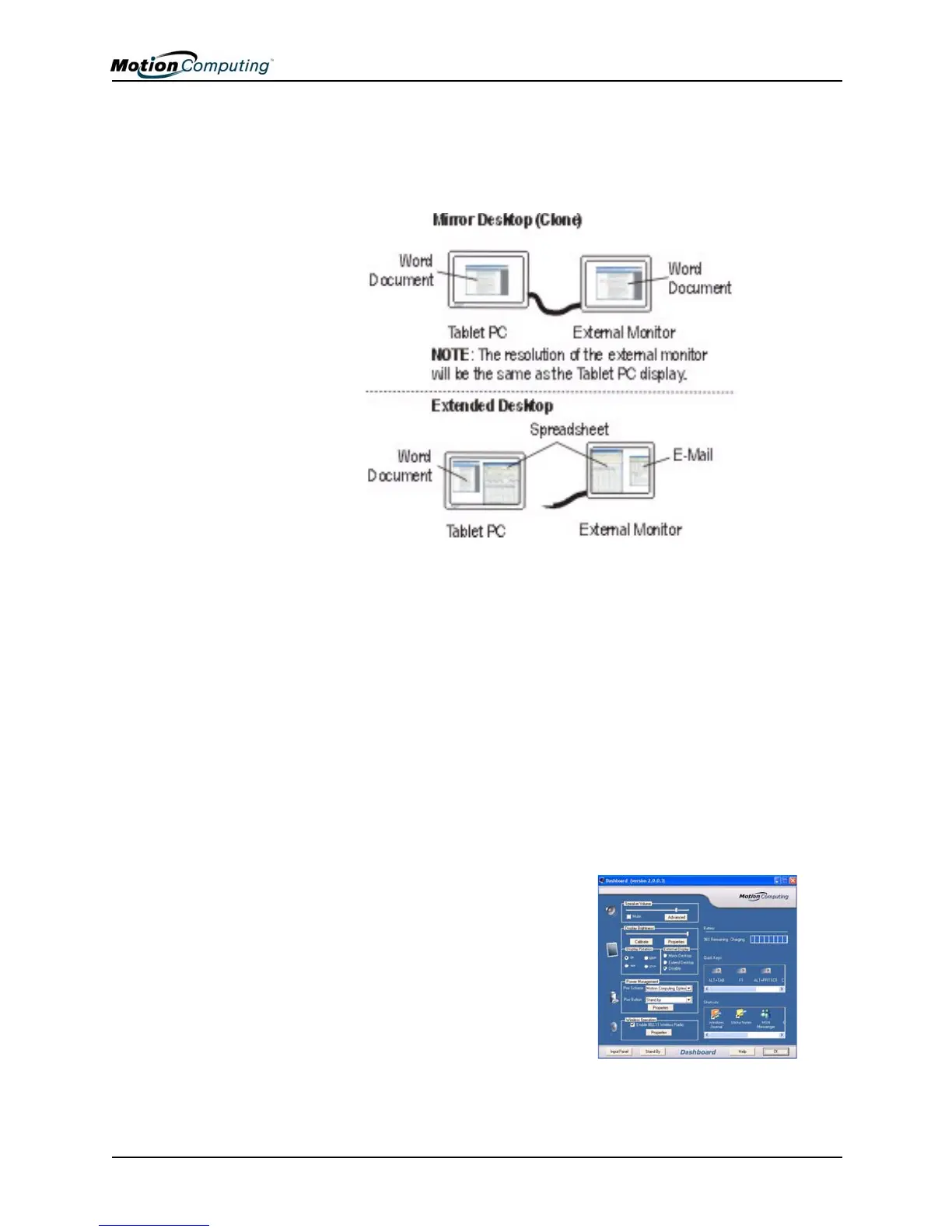
The Tablet PC has a Dual Head Video Controller that lets you mirror the
Tablet PC display or extend it to a second monitor or external device, such as
a projector. Examples of how you might set up a mirrored Tablet PC display
and an extended desktop are shown below:
1. Connect the VGA Monitor and Tablet PC
a. Plug the VGA monitor cable into the VGA port on the Tablet PC or
Motion M-Series FlexDock.
b. Then, connect the external monitor or data projector to a power outlet
and turn it on. Windows XP will recognize the external monitor or data
projector and search for a driver.
c. If necessary, install the driver from the CD supplied by the monitor’s
manufacturer.
2. Setting Up a Mirrored Desktop
This function is useful when connecting an external projector for
presentations.
a. Open the Motion Dashboard.
b. Select the Mirror Desktop
radio button under External
Display. This setting
automatically creates an identical
display on the external monitor.


 To Next Page