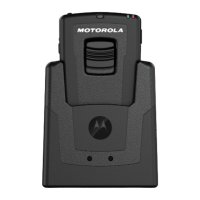
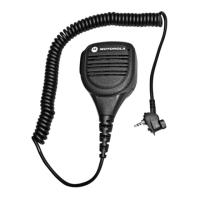
The WM500 Wireless Remote Speaker Microphone (RSM) is a robust communication accessory designed for professional use, offering hands-free operation and enhanced audio quality in various demanding environments. This device, identified by the model number PMMN4127A, integrates seamlessly with a range of compatible radios and smart devices, providing reliable communication for users in industries such as public safety, manufacturing, and logistics.
Function Description:
The WM500 RSM serves as an extension of a primary communication device, such as a two-way radio or smartphone, allowing users to transmit and receive audio without needing to directly handle the main unit. It features a Push-To-Talk (PTT) button for instant communication, a Multifunction Button (MFB) for various call management and language/tone settings, and dedicated volume controls. The device supports both individual and talkgroup calls, making it versatile for different operational needs. Its wireless connectivity, primarily via Bluetooth 5, ensures freedom of movement and reduces cable clutter. The RSM also includes an emergency button for critical situations, an audio jack for an earpiece, and an NFC location for quick pairing.
Important Technical Specifications:
- Mic Sensitivity: -44 ± 3 dBV typical, ensuring clear voice capture.
- Audio Loudness: 100 ±3dBphon at 30cm wideband audio, providing loud and clear output even in noisy environments.
- Speaker Rated Audio/Distortion: 1W, < 5% distortion, for high-fidelity audio.
- Dimensions (W x L x D): 58 x 81 x 24.5 mm (2.28 x 3.18 x 0.96 in), making it compact and portable.
- Operating Temperature: -20°C to +60°C (-4°F to 140°F), suitable for extreme conditions.
- Weight (includes RSM and cable): 128 g (5.4.54 oz.), lightweight for comfortable wear.
- IP Rating: IP67, indicating high resistance to dust and water immersion.
- Battery: 1130mAh Lithium-Ion battery.
- Battery Life:
- BYOD (Bring Your Own Device): 40 hours (5/5/90 duty cycle).
- LMR (Land Mobile Radio): 17 hours.
- Charge Time: 2 hours typical for a full charge.
- Bluetooth Range: 100m line of sight, offering extensive coverage.
- Compatible Radios: LEX L11, BYOD Android, TLK 100, TLK 150, SLN 1000 ION (requires WM500 firmware R03.00.00 and beyond), MXP600, and R7 (requires WM500 firmware R04.00.00 and beyond).
Usage Features:
The WM500 offers intuitive button operations for various functions:
- Power Button: Short press to turn on/off, long press (>1.5s) for power on/off, very long press (>3s) to enter pairing mode.
- PTT Button: Used for Push-To-Talk communication, including Kodiak Group Calls when connected.
- Multifunction Button (MFB):
- In disconnected state: Change language/tone.
- For incoming calls: Answer or reject calls.
- For ongoing calls: End calls or mute/unmute the microphone.
- Note: MFB is not available for TLK series devices.
- P1/P2/P3/P4 Buttons: Programmable functions, with default settings for WAVE OSM (Optional Status Messaging) or channel up/down, depending on the host device and WAVE application configuration.
- Call Button: Answer/reject incoming calls, mute microphone, or end calls.
- Volume +/- Buttons: Adjust volume incrementally or ramp up/down, with distinct tones for minimum and maximum volume.
- Dark Mode: Enter/exit dark mode by pressing Power + Call button.
Pairing to Devices:
The WM500 supports multiple pairing methods:
- Bluetooth Pairing:
- Power off the RSM, then press and hold the Power button until "Power On" and "Searching for Host" are heard, and the blue LED blinks for 90 seconds.
- Search for "WM500_xxxx" on the compatible device's Bluetooth list and select it.
- A tone confirms successful pairing, followed by a "Connected" voice prompt.
- Specific actions may be required for Android, iPhone, MXP600, ION, and R7 devices.
- NFC Pairing:
- Power off the RSM, then press and hold the Power button until "Power On" and "Searching for Host" are heard.
- Align the NFC locations on both the RSM and the compatible device.
- Verify successful pairing on the compatible device.
Unpairing the RSM:
- From RSM: Power off the RSM, then press and hold both Power and PTT buttons until the blue LED blinks and a "Cleared" voice prompt is heard. Always unpair from the Bluetooth host first.
- From TLK/SLN Devices: Refer to the Wave Portal User Guide for TLK100/TLK150 or Nitro Portal User Guide for SLN1000 for specific instructions.
Maintenance Features:
- Charging: Connect the USB-C charging cable to the RSM and a USB power source.
- Charging Indicator Behavior:
- Blinking red: Battery is low (charge immediately).
- Solid red: Battery is charging.
- Solid green: Battery is fully charged.
- Blinking green: More than 90% charged.
- Rapid blinking red: Charging error.
- Battery Indication (when not charging):
- Rapid blinking red: Battery is critically low.
- Blinking red: Battery level is low.
- Off: Battery is medium or high (press Power button for status).
- LED Status Indication:
- Audio/Bluetooth Status:
- Blinking in blue: Enter pairing.
- Solid blue: Disconnected.
- Double blinking blue (once): Connected.
- Solid red: Mic muted.
- Blinking in red: Voice prompt/Tone mute.
- Blinking in green: Receiving incoming call.
- Power Status (short press Power button):
- Double-blinking blue: Connected.
- Double-blinking green: Battery level is high.
- Double-blinking amber: Battery level is medium.
- Firmware and Language Upgrades (via Accessory Manager App):
- The Accessory Manager app (available on Google Play Store and Apple App Store) is used for firmware upgrades and language pack installations.
- Users must install the app and connect the WM500 to update software to the latest version (e.g., R04.00.00 for MXP600/R7 compatibility) and to install desired language packs (French, Dutch, English).
- The app provides notifications during transfer progress, even when minimized.
- Multiple WM500 units can be upgraded by using the 'RESET' function and selecting the desired language again.
Compatibility with MXP600 and R7:
The WM500 is compatible with MXP600 and R7 radios from v4.0.0 (or R04.00.00) firmware onwards. If the WM500 is running an older firmware version, it must be upgraded using the Accessory Manager application to ensure full compatibility and functionality with these radios.
Connecting to WAVE and Nitro Devices:
- Bluetooth Accessory Configuration in Wave Portal:
- Select the desired WAVE or SLN1000 device in the Wave On Cloud portal.
- Go to "Actions" > "Bluetooth Accessories."
- Insert a Friendly Name and Pin Code (if applicable).
- Click "SAVE."
- Programming Buttons via Wave and Nitro Portals:
- Select the desired WAVE or SLN1000 device in the Wave On Cloud portal.
- Go to "Accessory Button" configuration.
- Configure desired button functions.
- Click "SAVE."
Troubleshooting (FAQ):
- Changing Voice Announcement Language: Upgrade Accessory Manager app to V1.0.11+, upgrade WM500 software to R04.00.00 via the app, then update language options.
- Accessory Manager on Apple App Store: Currently in development, expected Q1-2022.
- Reconnection Issues with R7 Radio: If "Connecting Failed" is displayed, Bluetooth LED is solid blue, a "bad bonk" audio is heard, and "Disconnected" notification occurs, the recovery method is to power off the WM500, power cycle the R7 radio, clear WM500 pairing info from the R7, and perform a fresh pairing.

 Need help?
 General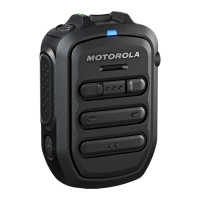

 To Next Page