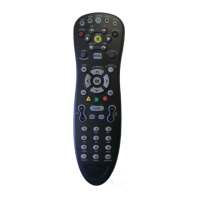
Operating Instructions for
Motorola
Advanced Series
MXv3 Remote Control
MENU
Displays the Applications Menu
RECORDED TV
Displays the Digital Video Recorder (DVR) menu
OK/SELECT
Selects highlighted screen options
LAST
Returns to the previous channel
CH/PG + OR -
Navigate to and highlight an item
from the on-screen choices
RECORD
Controls Record functions
(only available on Digital
Video Recorder Set-top Boxes)
EXIT
Use to exit setup screens
GUIDE
Displays the Program
Guide Listings
BUTTONS SHOULD BE PRESSED AND RELEASED QUICKLY, AS HOLDING BUTTONS MAY EXECUTE ADDITIONAL COMMANDS.
MUTE
Silences the audio. Press to activate.
Press again to restore to original level
VOLUME + OR -
Raises or lowers the
sound level
ON DEMAND
Provides direct access to
on Demand Channel
REPLAY
Replays the previous few
seconds of a program
DELETE
Edit text on the screen
TV/VIDEO
Selects the video source from
available video components
POWER
Allows you to turn your TV, VCR, DVD,
AUX and Set-top Box On and Off
LEARN
Displays information about the program
currently playing or highlighted in
the program guide
CURSOR NAVIGATION PAD 5,6 ,4,3
Navigates to and highlights an item
from on-screen choices
A
Allows you to select available aspect ratios through the STB
INTERACTIVE
Available for future use
FWD
Forward ahead to stored
or recorded programs
VCR/DVD/MOD KEYS 7,8,4,;
Perform standard VCR and DVD functions when in DVD or VCR
mode, and DVR or Video-on-Demand options when in STB mode
NUMBER PAD
Enter numbers to tune to channels. Also,
make numeric entries on on-screen menus
Note: You can also use 5/6or the program guide as alternate
ways to tune channels.
BACK
Return to previous menu screen or TV channel
INFO
Displays information about the program currently
playing or highlighted in the program guide
BUTTON FUNCTIONS
STB, TV, DVD, AUX
Used to select the component you want
to operate and signals remote control actively
B
Provides direct access to favorites channel
C
Available for future use
ZOOM
Allows access to viewing options, including
aspect ratios, audio languages and subtitles
Thank you for choosing FTC Vision. For user
support, or to report trouble, please call 611
from any FTC, FTC Diversified or FTC Wireless
phone. For Vision tutorials, please visit our
website at www.ftc-i.net or the VOD section on
FTC Vision and search for Vision tutorials.
Battery Installation
1. On the back of the remote, push down on the
tab and lift the cover off.
2. Match the batteries to the + and - marks inside
the battery case, then insert two AA alkaline
batteries.
3. Press the battery cover back into place.
Programming the Remote
to Control Other Devices
The remote control will only control the device
that is selected by the appropriate mode key
(STB, TV, DVD and AUX). The mode key light
for the selected device ashes each time a valid
key is pressed. In order to control other devices
with your MXv3 Remote Control, you need to
tell the remote control what types of devices
you have. Sections A and B take you through
the steps needed to do this. The volume controls
will control your Set-top Box (STB) until the TV
device mode is set up. The channel controls will
always control your STB. If you want to change
this, you should follow the steps in Sections E
& F.
To use your MXv3 Remote Control for your other
devices, you will need to set up the TV, DVD and
AUX mode keys to control the devices (Section A).
Please refer to the code list for a list of supported
brands and models. If you do not nd the brand
of your device on the supported code list, please
refer to section B for the search function or you
may use section C for instructions on the learning
feature of your remote control.
If you have an integrated or combo unit such as a
TV/DVD, each component of the unit may need
to be set up separately by setting up both the TV
and DVD mode keys.
Note: The DVD and AUX mode keys can be set
up with any code. The TV mode key can only be
set up with TV codes.
A. Manual Programming
How to set up the TV, DVD or AUX mode keys:
1. Power on the device you want to program and
locate the 4-digit code from the code list.
2. Press and hold the mode key (TV, DVD or
AUX) and, while holding it pressed, press the OK
key for 1 second.
3. Release both keys. All of the mode keys will
ash, then the selected mode key light will stay lit.
4. Enter the 4-digit code by pressing the numerical
keys (0-9). The selected mode key light will blink
for each digit entry and will remain off after the
entry of the fourth digit
-
indicating a successful
setup.
5. Point the remote control at the selected device
and press the power key once. The device should
turn off. If the device stayed on, repeat steps 2
through 5, trying each code for your brand until
you nd the correct code
Repeat the steps on the previous page to set up
another device. To use the remote control for
your Set-top Box, press the STB mode key.
Note: If an invalid code is entered or no key is
pressed at all for 30 seconds, the mode key light
ashes for 3 seconds and turns off. The remote
control returns to normal operation and you
will need to start over from step A2 to set up the
device.
B. Using the Search Function
To search for a particular device code for DVD or
AUX, e.g., VCR, use the Manual Programming
for section A and program DVD or AUX with any
VCR code prior to starting a search.
1. Turn on the device you want to control and
point the remote at that device.
2.
Press and hold the mode key (TV, DVD or
AUX) and, while holding it pressed, press the OK
key for 1 second.
3. Release both keys. All of the mode keys will
ash then the selected mode key light will stay lit.
4.
Press the power button repetitively until the
selected device turns off. Once your device has
turned off, press OK to save the code.
5. To indicate a successful setup, the selected
mode key will turn off and you are ready to set
up another device by following steps 1 thru 4 of
this section.
C. Learning
If the code for your device is not found in the
code list and the search feature was not able to
nd the code for your device, then the learning
feature may be your best option. The learning
feature lets you “learn” functions from your
original remote control.
Note: Learning cannot be performed for any
mode until after that mode is set up with a valid
code. So, to learn the keys, rst set up the mode
with a valid code, see section A, (select any code
for the appropriate mode from the code list), then
follow the steps below.
C-I. Learning Commands
1. Press and hold the mode key (TV, DVD or
AUX) on the MXv3 remote and, while holding it
pressed, press the LEARN key for 1 second, then
release both keys.
2. All of the mode keys will ash and then the
selected mode key light remains on.
3. On your MXv3 Remote, press and release the
key that you want to teach.
4.
While pointing your original remote at the
bottom of your MXv3 Remote, approximately 1
inch apart, press and hold the original remote key
until the mode key light blinks once and stays on.
(If there is a learning problem, the mode key light
blinks for 3 seconds and stays on. If this happens,
repeat steps 3 and 4 above.)
5. Repeat steps 3 and 4 on previous page for each
key you want your MXv3 Remote Control to
learn.
6. Press and release the LEARN key when all
desired remote commands have been learned.
If you have encountered difculties with the
LEARN key setup, please refer to Section K:
Troubleshooting Learning.
Note: It is not necessary to have your MXv3
Remote Control learn every key from your original
remote, since most of the keys will not be used
under normal daily use. The best practice is to
teach only the keys that help you navigate for the
best experience, like your volume up and down.
D. Clearing Commands
D-I. To Clear all Learned Commands
(under a single mode)
1. Press and hold the mode key (TV, DVD or
AUX) and, while holding it pressed, press the
LEARN key for one second, then release both
keys.
2. All the mode keys will ash and the selected
mode key light will stay on.
3. Press and release the LEARN key once. The
mode key light blinks off.
4. Press and release the DELETE key. The mode
key light turns off. All learned commands under
that mode are now cleared.
D-II. To Clear all Learned Commands
(under ALL modes)
1. Press and hold the mode key (TV, DVD or
AUX) and, while holding it pressed, press the
LEARN key for 1 second, then release both keys.
2. All the mode keys will ash and the selected
mode key light will stay on.
3.
Press and release the LEARN key twice. The
mode key light blinks off.
4. Press and release the DELETE key. The mode
key light turns off. All learned commands under
that mode are now cleared.
E. Volume Control Setup Options
The volume controls will control your Set-top Box
until the TV device mode is programmed, e.g.,
if DVD mode is selected, then volume controls
your STB. If TV mode is programmed and DVD
mode is selected, then volume controls your TV.
If you’d like the volume commands to operate
from just one device, e.g., always TV, then follow
the instructions in Section E-I. If you’d like the
volume commands to be sent to different devices
depending on which mode you are in, then follow
the instructions in Section E-II.
E-I. Volume Always Controls
the Same Device
1. Press the TV key and, while holding it pressed,
press the OK key for 1 second.
2. Release both keys and all of the mode keys
will ash, followed by the TV mode key light
remaining on.
3. Press and hold the MUTE key for 3 seconds
until the TV mode key light briey turns off, then
remains on. Press and release the mode key that
you always want to operate the volume commands
(STB, TV, DVD or AUX). The selected mode key
light will remain on.
4. Press and release the MUTE key to save the
setting. The selected mode key light will turn
off, indicating a successful setup. The volume
commands will be set up for the selected device,
despite what mode is selected.
If the selected mode key light ashes for 3
seconds and turns off, then the selected mode
will have no volume commands of its own and
you will need to start over from step 1 above and
select a different mode to program the device.
E-II. Volume Control Depends
on Device Selected
1. Press and hold the TV key and, while holding it
pressed, press the OK key for 1 second.
2. Release both keys. All of the mode keys
will ash, followed by the TV mode key light
remaining on.
3. Press and hold the MUTE key for 3 seconds
until the TV mode key light briey turns off, then
stays on, then release the MUTE key.
4. Press and release the MUTE key to save
the setting. The TV mode key light turns
off, indicating successful setup. The volume
commands will now work for different devices.
Note: If a programmed mode key has no volume
commands of its own, then the volume control
will normally operate the TV. If an invalid key is
pressed, the selected mode key light ashes for
3 seconds and turns off. The remote control
returns to normal operation and you will need
to start over.
If no key is pressed within 30 seconds, the remote
control times out, the selected mode key light
ashes for 3 seconds and turns off. The remote
control returns to normal operation, at which time
you can start over.
F. Channel Control Setup Options
The channel controls (Channel Up/Down, 0-9
and LAST) will always work your Set-top Box.
If you’d like the channel commands to be sent to
different devices depending which mode you are
in, follow the instructions in Section F-I.
F-I. Channel Control Depends on
Device Selected
1. Press and hold the TV key and, while holding it
pressed, press the OK key for 1 second.
2. Release both keys and all of the mode keys
ash, followed by the TV mode key light
remaining on.
3. Press and hold the LAST key for 3 seconds
until the TV mode key light briey turns off, then
stays on, then release the LAST key.
4. Press and release the LAST key to save
the setting. The TV mode key light turns
off, indicating successful setup. The channel
commands will now work for different devices.
F-II. Channel Always Controls Your
Set-top Box (Factory Default)
1. Press and hold the TV key and, while holding it
pressed, press the OK key for 1 second.
2. Release both keys and all of the mode keys
will ash, followed by the TV mode key light
remaining on.
3. Press and hold the LAST key for 3 seconds
until the TV mode key light briey turns off, then
remains on.
4. Press and release the STB mode key. The
selected mode key light remains on.
5. Press and release the LAST key to save the
setting.
The STB mode key light will turn off, indicating
a successful initial setup. The channel commands
will be set up for your Set-top Box, regardless of
what mode is selected. If the selected mode key
light ashes for 3 seconds and turns off, then you
will need to start over from step 1.
G. Mode Deactivation
If you’d like to deactivate a device mode, then
follow the instructions below:
1. Press and hold the mode key to be deactivated
(TV, DVD or AUX) and, while holding it pressed,
press the OK key for 1 second.
2. Release both keys, all of the mode keys will
ash and then the selected mode key light will
remain on.
3. Enter the 4-digit code 1754 by pressing the
numerical keys (0-9). The selected mode key light
will blink for each digit entry and will remain off
after the entry of the fourth digit, indicating the
mode is deactivated. Note: The STB mode cannot
be deactivated.
H. Multiple Device Power
Control Setup Options
After pressing the STB key, pressing the Power
key turns the Set-top Box on or off, AND turns on
or off the TV if it has been set up. If you want the
Power key to turn on other devices at the same
time, you can enable these as follows:
1. Press and hold the STB key and, while holding
it pressed, press the OK key for 1 second. Then
release both keys. You are now in setup mode.
2. Press and release the mode key (TV, DVD or
AUX) you want to enable.
3. Press and release the 1 key. The selected
mode is now enabled. If no mode key is pressed
in step 2, ALL modes (TV, DVD and AUX) will
be enabled.
To remove a mode from the Power key:
1. Press and hold the STB key and, while holding
it pressed, press the OK key for 1 second. Then
release both keys. You are now in setup mode.
2. Press and release the mode key (TV, DVD or
AUX) you want to disable.
3. Press and release the 0 key. The selected mode
is now disabled. If no mode key is pressed in
step 2, ALL modes (TV, DVD and AUX) will be
disabled.
Note: You can turn individual devices on/off by
pressing the desired mode key, followed by the
Power key. It is important to point your MXv3
Remote directly toward the devices for this
feature to operate correctly.
I. Backlight Cancellation Feature
Your MXv3 Remote Control has the ability to
toggle between turning the backlights on or
off. If you wish to use this feature, follow these
instructions:
1. Press and hold the TV key and, while holding
it pressed, press the OK key for 1 second and
release both keys at the same time.
2. All the mode keys ash and the TV mode key
light stays on.
3. Press the GUIDE key and all backlights will
no longer turn on. To reverse this process so that
the backlights turn on when the remote control is
being used, simply follow the same steps of the
above section one more time.
J. Resetting the Remote Control
to the Factory Default Settings
1. Press and hold the TV key and, while holding
it pressed, press the OK key for 1 second and
release both keys at the same time.
2. All the mode keys will ash and the TV mode
key light will stay on.
3. Press and hold the DELETE key for 3 seconds
until the TV mode key blinks and stays off. The
remote control is now reset to factory default
settings. If you want to use the remote control for
your TV and other devices, you will need to set
up the TV, DVD and AUX mode keys.
4. If no key is pressed within 30 seconds, the
remote control times out. The selected mode
key light ashes for 3 seconds and turns off. The
remote control returns to normal operation and
you will need to start over.
K. Troubleshooting Learning
You can only learn one device type under any
one mode key. For example, only learn TV
codes under the TV mode, DVD codes under the
DVD mode, etc. If you are trying to learn from a
“Universal” remote, it might have more than one
code type stored under a mode.
a. No functions may be stored under the LEARN
key, or in the STB mode.
b. Depending on the remote you are trying to
learn, some keys may not be learnable.
c.
Only one original device type can be learned
per individual mode.
d.
Use fresh batteries for your original remote and
your MXv3 Remote Control.
e.
Stay at least 3 feet away from incandescent or
low-energy lights when learning.
f.
Before learning, clear all learned commands
(refer to Section D-II), then try learning two or
three commands initially.
g. Point your original remote at the bottom end of
your MXv3 Remote Control so the IR elements
on both remotes are directly in line with each
other (see diagram in C-I). You may need to adjust
the height of either remote to achieve this.
h. Avoid learning your original remote’s Volume/
Mute keys unless you are sure these operate the
same device.
i. Avoid learning your original remote’s VCR
or DVD transport keys unless you’re sure these
operate the same device.
j. If learning the rst or second keys for a
mode results in continuous errors, then try the
following:
i. End the learn session by pressing the LEARN key.
ii. Clear out the learned commands for
that mode.
iii. Check that the IR elements are correctly
aligned between the two remotes.
iv.
Adjust the distance between the two remotes
to be closer (e.g., half an inch) or farther away
(e.g., 2 inches) from each other.
v. Try learning the original remote for that
mode again. If problems reoccur with the
same key, check the original remote key
being learned. Does it transmit? Does it
operate the target device? Try learning that
key under a different clear mode. If it learns
OK, then it is likely to be a different code
type from the others and cannot be learned
under the same mode.
Install two
AA alkaline
batteries,
as shown.
Original Remote and
Motorola Remote
1 inch apart
Operating Instructions for
Motorola
Advanced Series
MXv3 Remote Control
(888) 218-5050 • www.ftcvision.com
3/11

 Need help?
 General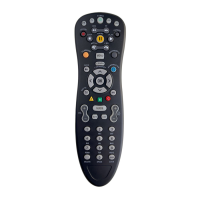

 To Next Page