Press this
.- 10...
Key
Press this
Key
lo'
"
lÐ
noroRoLA
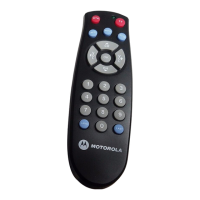
Motorola DRC800
4-in-'l
Universal
Remote Control
(lVERVIEW
Your
new Motorola
DRC800 universal
4-
in-1
remote operates
your
Motorola
or
other manufacturer's
cable set-top
box
irnrl
up to lhrcc othcr dcvices.
l¡r irtltlilir¡¡r, thc
l)lì,(ltl(X)
provides
rrrlvrurtrrl
lcrrtt¡rcs such iìs
l)igital Video
l,l.t'toltling
(l)Vlì.)
corrtrol and
Picture-
in-Picturc
(
PIP) support.
You can
lock
volume
control to
any of
thcsc dcvices,
to make adjusting
your
honlc
enteltainment volume
easier.
See
"0hanging
Volume Lock'. The DRC800
conrcs
from the factory
without the
volume
locked
to
any specific
device.
You can also
change what
type ofdevice
each mode
key controls.
See
"Reassigning Device Keys".
0perating
Range
Your remote
controls devices
from up to
50
ft
(15
m)
away
if you are directly
in
front ofthe
device, or
from up to 20 ft
(6
rn) away ifyou are offto
either side.
INSTATTING BATTERIES
Your remote requires
2 AAA
batteries.
'l'he
fìrst set ofbatteries
is included,
and
should last up to 6 months under
nurmal usage.
L
Removethebatterycasecoverand
the old batteries
(ifnecessary).
2. Followthe diagram
inside the
battery case to
insert the
new
batteries.
l{ote: Always use neq
high
quality
rcplacement batteries.
Ensure that the
batteries
are not damaged
before
inserting
them into the remote.
To select a device
to control,
simply
oress one ofthe device
mode kevs
(TV
huolo, nvorucn,
cABtE) at
the iopof
your
remote. After
you set up the
remote
to control that device,
you may begin
using the device.
See
"Programming
Device
Control" for
more information on
identifying
a
specific device
to a device
key.
You have ten
minutes to
replace the
batteries
before
your remote loses
memory.
USING Yf¡UR
REMf¡IE
Turn the selected
device 0N
or OFF
Audio,DVI!/VCR, Selectadevice
TV Cabls
'
Direct access to Video
('
voD
J
onDemand(VoD),
where
available
Direct access to
Pay Per
View
(PPV)
programming
(where
available)
REW RewindVCR,DVD,
@
voD,DVR,orHTIB
PI-AY
O
PlayVCR,
DVD VOD,
DVR, or HTIB
tFW0 Fast
Forward VCR,
-Fl
DVDVoD,DVR,oT
\-J
HTIB
REC0RD
RecordtoVCRorDVR
@
PAUSE PaUseVCR,DVDVOD
@
orDVR
ST0P
SIopVCR,DVD,VOD
@
orDVR
@
Repþ the
previous
few seconds ofa
program
(only
available with
DVR
models)
Display a
list of
programs that
you
recorded. Thiswill
allow
you to select one
for viewing
(only
available
with DVR
models)
Displays live television
programming
(onÌy
available with
DVR
models)
Mute current audio
feed
@
@
fump
among
pre-
selected favorite
channels
(only
available in CABLE
mode)
Note: Favorite
channels must be
pre-
selected
through the
Electronic
Programming
Guide
before dris key
works.
Display
the heþ screen
(only
available
in
CABLE
mode)
Return
to last selected
channel
Increase or
decrease
volume
Select
the next or
previous
channel
or the
Electronic
Program Guide
Exit
any 0n-Scrccn
Display
(OSD)
rntl
rcturn t0 rcguliìl'
vicwing
Display clrannel
and
program information
Access the
cablc
guicle
Access
any OSD for the
currently selected
device
Move up through
any
OSD
or cablc
guidc
menu
Move down through
any OSD or cable
guide
menu
Move
left through any
OSD or cable
guide
menu
Move
right through any
OSD
or cable
guide
menu
Select the currentþ
highlighted
oSD menu
or cable
guide choice
View the
previous or
next
day's cable
guide
These
functions are set
by your cable
provider
These functions are set
by
pur
cable
provider
These
functions are set
by
your
cable
provider
Enter ¿
ch¿nnel or
device code number.
To
access channels
lower
than
I00,
you
may
need to enter
3 digits.
For example,
to access
channel
2, press 0-0-2.
For channel 22,
press
0-2-2.
lnput
Select the video
source
Aspect Changetheviewing
aspect
(ifavailable)
PIP
flil/(lFF Turn Picture-in-
Picture
(PIP)
on or off
(ifavailable)
PIP
SWAP
Swap the
PIP signalto
the main display
(if
available)
PlPMove
Movethepositionof
the PIP display
PIP CH +/-
Select
the next or
previous
channel
inthe
PIP display
(the
main
display does
not
change)
PRf¡GRAMMING
DEVICE
CflNTRflL
found the
right code.
If your
device does
not respond,
repeat
steps 2
-
3 with
the next
code in the
list..
Ifthe remote
does not
recognize
the code,
the LED will
turn off.
Retry the code
(by
repeating stePs
2-3 using
the next code
listed for
your
brand), or search
for a device
code. See
"Searching for Codes".
SEARGHII{G
FflR
C(lt¡ES
Ifnone ofthe
codes
listed under
"Device
Codes"on
the back
ofthis
guide match
vour
device,
you
can search
for a set
of
commands that
will work.
Your remote
will sample
all the codes
in its system
for
that device mode to find one
that
will
allow
you to control
your device.
1. Press andhold
a device
mode
key
(AUDl0,
DV0/VCR, orï\l)
for at
least
six seconds.
The LED
for each
device
key
lights up, then the
key
for the device
you selected
remains
on.
2. Press a
function
key
(such
as
Power or Mute).
The following
function
keys are
valid for
Searching
(Power
is
recommended):
.
Power
0.
This
is
the
first digit of the
device code.
Press
2,
3, and
4 to
obtain
all four-code
digits.
CHANGIIIG
Vf¡TUME
tflCK
Locking
the volume controls
to a single
device
makes it easier
to control
volume,
without
having to
guess
whether
the
volume
will change.
If
you lock
the
remote's volume
controls
to the
TV
(for
example),
youwill
always
be able
to
change the
volume to
the level
you want,
without
having to adjust
it on
multiple
devices.
1. Press and
hold the device
mode
key
(TV,
AUDl0,
DVD/VCR, or
Cable)
corresponding
to the
device you
want to control volume
for
at
least
six seconds.
The
LED for
each
device
key lights up,
then the key
for the device
you selected
remains
on.
Press
Volume +.
The device
key's LED
blinks three
times,
indicatins it
tias locked the
volume
control to"the device vou selected.
The
AUDIfl
device key
always controls
its
own volume,
regardless of
the device
is
locked to volume control.
Note: Ifyou
reassign
AUDIO to another
device, such
as a second
TV the second
TV will always
control
its own volume.
Unlocking
Volume Control:
l. Press
and hold a device
mode key
(TU
AUD|0, DVD^|CR,
or Cable)
corrcsponding
to thc
dcvice
currently
locked to
the volume
controls
for at least six
seconds.
The LED
for
each
device
keylights
up, then the
key for the
device
you
selected
remains on.
2. Press Volume
-.
The device
key's
LED
blinks
three times,
indicating
it has unlocked
the volume
control for all devices.
REASSIGNII{G DEVICE
KEYS
3.
Press the device
mode
keyyou
want to
reassign
(for
example,
AUIll0). That
mode key's
LED
blinks
three times and
turns off,
indicating that
it has been
reassigned.
The
reassigned key automatically
uses
the same device
code as the
key you
selected
in Step l.
Ifyour second device
uses
a different
code,
you
may
program
it for the
new code. See
"Programming
Device Controll'.
l{ote:
You may not reassign
the Cable
device key to another
type ofdevice.
Assigning a Key
back t0 lts
0riginal
Device
Type:
1.
Press and
hold
the
device
mode
key
(Tt{
AUDl0, DVD/VCR,
or.Caile)
you
want
to reset to
its original
iype
(for
example,
AUDI0)
for at
lèãst six
seconds.
The LED for each
device
key lights up, then the
key
for the
device
you selected remains
on.
Enter 3 I 2.
The mode keyt
LED
blinks three times
and turns
off
Press the device
mode key
you
selected
in Step I again.
The mode
key's tED blinks
three times
and
turns off.
Program the
restored
mode key to
control a
device. See
"Programming Device Control".
2.
IRflUBTESHflflÏINû
ADDITIflNAI
I1{FflRMAÏIflI{
The
Motorola DRC800 does
not have any
user-serviceable
parts.
0pening
the
case, except
for the battery
cover, may
cause
permanent
damage
to
your
Motorola remote
control.
No
part
of this
publication may be
reproduced, transmitted,
transcribed,
stored
in any retrieval
system, or
translated to any
language,
in any form,
or by
any means, electronic,
mechanical, optical,
manual,
or
otherwise,
without
the
prior
written
permission
of
Motorola.
MOTOROLA and
the styiized
M logo are
resistered trademarks
in
the
US
Patent
an"<l Trademark
Office.
All
other
product
and service
names
are the
property of
their
respective
owners. Copyright
Motorola,
Inc.2003:
@
'o*o
ilïüf;:l:i:",",
ooo
ooo
o@o
@
a
a
a
@
@
Vflt
+/-
CH +/-
.@.
.@.
@
@
^
Ml072BA1
05i05
rroToRoLA
intølhgênce everywherc
This
product
uses
technologies
licensed
under
one or
more of the
following U.S.
patents:
6,587,067
6,195,033
6,496,135
Each ofthe additional
device
keys
controls a
particular
type ofdevice.
For
example, the
DVD/VCR key controls
your
VCR, DVR,
or DVD
playea but notyour
TV, unless
you
specify
otherwise.
See
"Reassigning
Device
Keys".
Cable
Cableboxonly
Audio
Amplifier,Tuner
To specify a device
l.
Look up the device
you want
to
control in the device code
list on
the back ofthis
guide.
Press and hold a
device key
(AUDl0,
DVII/VCR, orTV)
for at least
six seconds.
The
LEDs for each
device key
light up, then the
LED
for the
device
you
selected
remains
on.
Enter the four-digit
code. The
device
key LED turns
offbriefly
after
each key
press.
l{ote: You have
10
seconds
to
press each
digit.
Ifit takes
longer than that,
the
remote
"times
out'
and
you
must begin again.
4. Ifthe remote
recognizes
the code,
the
device
key's LED blinks
three
times. You can now test the
remote
by
pressing P0ÌYER.
If your device
resþonds
(turns
off),
you
have
Mute
Play
CH+
.
stop
The device
key's
LED blinks three
times,
then turns
off.
Press A.'l'he
rcrnote will scnd
the
lR cornrnand
ltrr the
function you
pressed in Step
2.
Ifthe device
pertbrmed the
function
you prcssetl, press 0l(.
The remote will now control
the
device
you
selected
in Step 1.
Ifthe device
did not
perform the
function
you
prcssccl, rcpeat step
3. Press
V to retry the
previous
code.
Tip: Note
the code set
that worked,
in
case
you must
re-code your
remote:
DVD/VCR:
TV:
AUDIf):
See
"Checking
Codes"for
more
information on
noting code sets.
CHECKING
CflDES
l. Press
and hold a device
mode
key
(AUDI0,
IIVD/VCR, orI\l)
for at least
six
seconds.
The LEDs for each
device
key light up, then the
key for
the
device
you
selected
remains
0n.
Enter I I 0 to tell
the remote
you
are verifuing
the device
code. The
LED blinks
twice.
Press 1, then
count the
LED blinks
and write
down the
number.
If the
LED does not blink,
the number
is
Each device
key accesses a specific
type
ofdevice
(for
eiample,
the
DVD/IICR key
can only be
programmed
to control
a
DVD
playea
VCR,
DVR, or HTIB
system).
This makes
it
easier
to search
for a code ifvour device's code does
not
upp.u. on tlt.
litt
provided.
Your
new remote allows
you
to change
the type ofdevice
that
may be assigned
to a device
key.
That wa¡ ifyou
have two
TVs, for example,
you
can
control them
both by
changing the
type ofdevice
the
DVD/VCR or
AUDI0 key controls.
1. Press andhold
the device
mode
key
(TV,
AUDl0,
DVD/llGR, or
Cable)
corresponding
to the type
ofdevice
you
want the
reassigned key to
control
(for
example,
TV)
for
at
least six seconds.
The
LED for each
device
key lights up, then the
key
for
the
device
you selected remains
on.
2. Enter992.
Ifyou
have trouble
with your remote,
try
the following
steps in order.
My remote
is not responding
.
Review the
information
in
"Using
Your Remote"to
make
sure that the
key
you pressed is active for the
device
you
are
controlling.
.
Make sure
you are controlling
the
device
you
think
you
are. See
"Using
Your
Remotd'for
more
information
on choosing a
device
to control.
.
Make sure
yourbatteries are
good.
Ifbattery
power is low,
your
remote
enters a
"Low
Battery
Condition"
to conserve
battery
power
for retaining
your settings.
See
"Installing
Batteries"for
more
information
on changing
the
batteries.
.
Reset
all settings:
.
Pressandholdadevicemode
kev
(TV
AUDI0,
DVO/VCR, or
Cable)
or at least six
seconds.
The
LED for each device
key
lights up, then the
keyfor the
device
you selected remains
on'
'
Enter9 I
1.
The
LED blinks twice
to indicate
that vour remote is
returned to
its
facto'ry settings.
You will need
to
reset all device
code settings.
See
"Programming
Device
Control".
TV
DVD/VCR
TV
DVù VCR,
DVR,
HTIB, TV/VCR,
TV/VCVDVD
andTV/DVD
V
@
O*'@
A
tr
o
')
2.
Press this
Key
lo"
'
(@@
@o@
o@@
0@@@
tr
o
o
o
o
^
o
o
o
o
o
o
o
o
User
Guide
This device
Controls this type of
key...
device..-



 To Next Page
 Need help?
 General