EasyManua.ls Logo

Motorola B12 - User Manual

Motorola B12
2 pages
Print Icon
To Next Page IconTo Next Page
Loading...
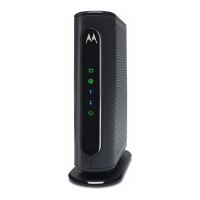
FRONT LIGHT
During power up, the light will blink for about a minute.
QUICK START
DOCSIS 3.1 CABLE MODEM
LIMITED WARRANTY
MTRLC LLC warrants this product against defects in material and workmanship
for a warranty period of 2 years. To read the full warranty, please visit:
motorolanetwork.com/warranty.
SAFETY PRECAUTIONS
Device is intended to be placed indoors in an environment that’s between 32°
and 104° F (0-40° C)
Avoid water and spills
Leave room for airflow around the device, do not block the vents on the
top or bottom
Make sure to use your cable modem’s power adapter and a compatible
electrical outlet
The coaxial cable’s ground shield is intended to be connected to the building’s
Earth ground. Attachment to Earth ground is typically provided through your
cable service provider’s installation
The power adapter plug is used as the disconnect device. The connected AC
power outlet must be located near the equipment and be easily accessible
LABEL SYMBOLS
Symbol Indicates
DC voltage
AC voltage
For indoor use only
Class II equipment
Energy ecient marking
DC input connector is center-pin positive polarity
FCC STATEMENT
This device complies with Class B Part 15 of the FCC Rules. Operation is subject to
the following two conditions: (1) this device may not cause harmful interference,
and (2) this device must accept any interference received, including interference
that may cause undesired operation.
© Motorola Mobility LLC 2022. MOTOROLA, the Stylized Motorola Logo, and the Stylized M Logo are trademarks or
registered trademarks of Motorola Trademark Holdings, LLC and are used under license. Minim is a registered trademark
of Minim, Inc. All other trademarks are the property of their respective owners. All rights reserved. Produced by MTRLC
LLC, ocial licensee for this product.
B12
Light Color & Behavior Description
Slow blinking teal Modem is connected to power
Slow pulsing teal Scanning for downstream channel
Slow pulsing white Scanning for upstream channel
Rapid pulsing white Registering with internet service
Solid white Online with DOCSIS 3.1 or DOCSIS 3.0
Fast blinking white Updating firmware
Fast blinking teal Factory reset or restoring configuration
27833-EL-D
NEED HELP?
Web help.motorolanetwork.com Email support@motorolanetwork.com Phone 1 (512) 877-6466
Question and Answer IconNeed help?

Do you have a question about the Motorola B12 and is the answer not in the manual?

Summary

Front Light Status Indicators

Front Light Status Indicators

Describes the modem's front light colors and blinking patterns indicating status like power, connection, and updates.

Limited Warranty Information

Safety Precautions

General Safety Guidelines

Provides essential safety guidelines for device placement, power, and grounding to ensure proper and safe operation.

Label Symbols Explained

FCC Compliance Statement

Package Contents and Setup

Modem Buttons and Ports

Identifies and describes the function of the Ethernet port, power port, coax port, and reset button on the modem.

Getting Started Steps

Outlines the initial steps for connecting and powering on the cable modem and waiting for it to become operational.

Activating Your Service Provider Connection

Provider Activation Contacts

Lists contact information and websites for activating the modem with common internet service providers like Comcast, Cox, and Spectrum.

Modem Activation Process

Details the steps to activate the modem with your service provider, including connecting your router and confirming internet access.

Overview

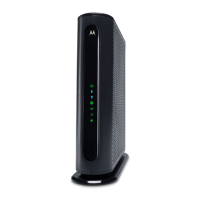
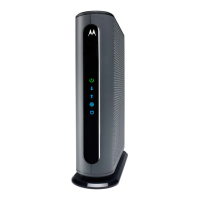
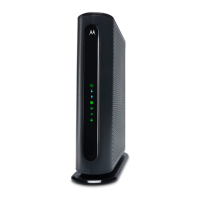
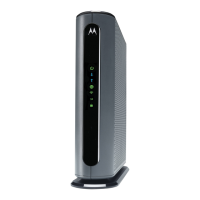
This document describes the Motorola B12 DOCSIS 3.1 Cable Modem, a device designed to provide high-speed internet connectivity.

The B12 cable modem functions as an interface between a coaxial cable network and a user's local network, enabling internet access. It supports the DOCSIS 3.1 standard, which allows for faster internet speeds compared to previous DOCSIS versions. The device connects to a cable service provider's network via a coaxial cable and provides internet connectivity to a WiFi router or wired device through an Ethernet port.

Technical Specifications and Features:

  • Connectivity:
    • Coax Port: Connects to the cable wall outlet for internet service.
    • Ethernet Port (2.5 Gbps): Provides a high-speed wired connection to a WiFi router or other wired devices. This port supports speeds up to 2.5 Gigabits per second.
    • Power Port: Connects to the supplied power adapter.
  • DOCSIS Standard: Supports DOCSIS 3.1 and is backward compatible with DOCSIS 3.0, ensuring compatibility with a wide range of cable service providers.
  • Environmental Operating Conditions: Designed for indoor use within a temperature range of 32° to 104° F (0-40° C).
  • Power Adapter: Uses a dedicated power adapter. The adapter plug serves as the disconnect device, and the AC outlet should be easily accessible.
  • Grounding: The coaxial cable's ground shield is intended to be connected to the building's Earth ground, typically provided through the cable service provider's installation.
  • Safety Certifications: Complies with Class B Part 15 of the FCC Rules, indicating it meets standards for electromagnetic interference.
  • Warranty: Comes with a 2-year limited warranty against defects in material and workmanship.

Usage Features:

  • Front Light Indicators: The device features a front light that changes color and behavior to indicate its status:
    • Slow blinking teal: Modem is connected to power.
    • Slow pulsing teal: Scanning for downstream channel.
    • Slow pulsing white: Scanning for upstream channel.
    • Rapid pulsing white: Registering with internet service.
    • Solid white: Online with DOCSIS 3.1 or DOCSIS 3.0.
    • Fast blinking white: Updating firmware.
    • Fast blinking teal: Factory reset or restoring configuration.
  • Setup Process:
    1. Turn off and disconnect any existing modems or routers.
    2. Connect an active coax cable to the modem's coax port.
    3. Plug the B12 into a power outlet using the supplied power adapter.
    4. Wait for the front light to stop pulsing and remain solid (white) for at least 1 minute, indicating the modem is online. This process can take up to 15 minutes and may involve multiple reboots.
  • Activation: Requires activation with the internet service provider (ISP) using their app, website, or phone. Contact information for major ISPs (Comcast/Xfinity, Cox, Charter/Spectrum) is provided.
  • Connecting Devices: After activation, a computer or WiFi router can be connected to the B12 via the Ethernet port.
  • Troubleshooting: If internet access is not established, users are advised to turn the modem off for at least 10 seconds, then on again. Further assistance is available via web (help.motorolanetwork.com), email (support@motorolanetwork.com), or phone (1-512-877-6466).
  • Coax Splitter Usage: A coax splitter can be used to share cable connectivity with a TV. It is recommended to use a two-way splitter with a top frequency of 1,000 MHz or higher, though this may reduce the device's performance.

Maintenance Features:

  • Reset Button: A reset button is located on the bottom of the device. Using a paper clip or similar object, pressing it for 10 seconds will reset the modem to factory defaults.
  • Airflow: It is important to leave room for airflow around the device and not block the vents on the top or bottom to prevent overheating and ensure optimal performance.
  • Power Adapter as Disconnect: The power adapter plug serves as the primary disconnect device for the equipment.
  • Cleaning: Avoid water and spills to prevent damage to the device.

Label Symbols:

The device's labels include symbols indicating:

  • DC voltage
  • AC voltage
  • For indoor use only
  • Class II equipment
  • Energy efficient marking
  • DC input connector is center-pin positive polarity

This comprehensive description covers the functionality, technical aspects, usage, and maintenance considerations for the Motorola B12 DOCSIS 3.1 Cable Modem, making it suitable for users setting up or troubleshooting their internet connection.
Motorola B12 Specifications

General IconGeneral
BrandMotorola
ModelB12
CategoryModem
LanguageEnglish

Related product manuals