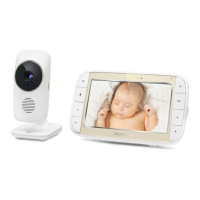
2. Setting up the Camera Unit for Wi-Fi
®
Internet Viewing
1. Open the Hubble for Motorola Monitors App on your compatible smartphone or tablet.
2. Follow the in-app instructions to create your Hubble account and connect to your Wi-Fi
®
Camera.
3. Log in to your account on your compatible smartphone, tablet or via
https://app.hubbleconnected.com/#login
on your PC to access your live camera stream.
B. View on Compatible Smartphones, Tablets and Computers.
Wi-Fi
®
Camera Connect to Internet
via Wi-Fi
®
Compatible
Viewing Devices
A. Install Hubble for Motorola Monitors App.
• Scan the QR code with your smart device and download the
Hubble for Motorola Monitors App from the App Store for iOS
devices or from the Google Play
TM
Store for Android
TM
devices.
• Install Hubble for Motorola Monitors App on your device.
Please take note of the following minimum system requirements:
Smartphones/Tablets: iOS 7, Android™ 4.2
PC (only for viewing – NOT setup): Windows
®
7, Mac OS
®
10.7, Chrome™ 24, Internet Explorer
®
9, Safari
®
6,
Firefox
®
18, Adobe
®
Flash
®
15, Java™ 7
Wi-Fi
®
requirements:
At least 0.6 Mbps upload bandwidth per camera. Test your Internet speed at: http://www.speedtest.net/


 To Next Page
 Loading...