7Touchscreen & keys
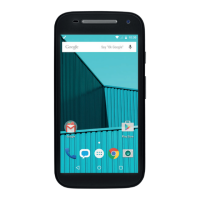
hold Home to show the last few apps you used,
then touch an app to open it.
Touch Search for text search, or touch and hold for
voice search.
Touch Menu to open menu options, or touch
Back to go back.
Sleep & wake up
To save your battery, prevent
accidental touches, or when you
want to wipe smudges off your
touchscreen, put the touchscreen to
sleep by pressing Power/Lock .
To wake up the touchscreen, just
press Power/Lock again, or open the phone.
To change how long your phone waits before the
screen goes to sleep automatically, touch Menu
> Settings > Display > Screen timeout.
Tip: To make the screen lock when it goes to sleep,
use “Screen lock” on page 56. To unlock the screen,
press Power/Lock or open the phone. Then, drag
to the right.
Power/Lock key menu
Press and hold Power/Lock to open the
Power/Lock key menu, where you can turn off the
phone (Power off), or turn Airplane mode or Silent
mode
on or off.
Adjust volume
Press the volume keys to change
the ring volume (in the home
screen), or the earpiece volume
(during a call).
When playing music or video files,
press the volume keys to adjust
media volume.
Rotate the screen
When you rotate the phone, the touchscreen can
rotate to stay right-side up:
Find it: Menu > Settings > Display > Auto-rotate
screen
Quick tips
If you’re not sure what to do next, try one of these:
To...
Get the details—Open a
text message, see details
for a contact, or open items
in other lists.
Touch the message,
contact, or item.



 To Next Page
 Loading...