7
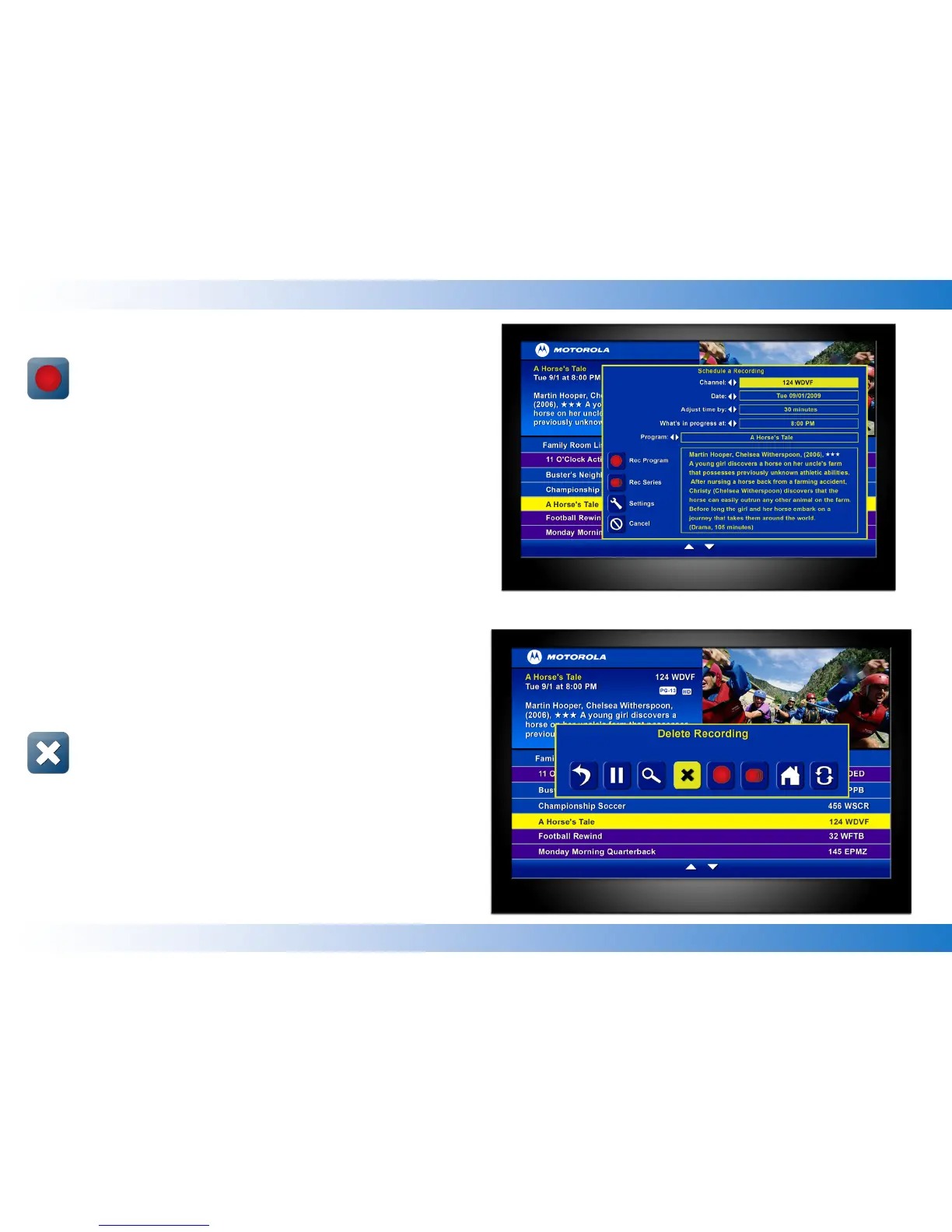
Delete a Recording
In the My Recordings screen, use the up and down arrow keys on the
remote to select and highlight the recording you want to delete.
Press the MENU button on your remote to display the Main
Menu. Use your arrow key to select the Delete Recording
icon. Press the OK or Select button on the remote to delete
the recording.
At the Press “OK” to Confirm Delete… confirmation message, press
the OK button on the remote. The recording is now deleted.
Recordings can also be deleted from the Playback Details screen.
Schedule a Recording
Press the MENU button on your remote. Select the Schedule
Recording icon on the menu and press the OK button on your
remote.
On the Schedule a Recording screen, use the up and down and
arrows on the remote to select the Channel, Date, Adjust time by,
and What’s in-progress at: fields. Use the left and right arrow keys to
scroll through these fields to locate and select the program you want
to record. The title and a description of the show you select will appear
in the Program field.
Once you have set up your recording, select the Rec Program icon
and press the OK button on your remote to schedule the recording. A
Record Request Succeeded message will display. You can also select
the Rec Series icon to schedule multiple episodes of a program to be
recorded.


 To Next Page
 Loading...