EasyManua.ls Logo

Motorola V60 - User Manual

Motorola V60
185 pages
Print Icon
To Next Page IconTo Next Page
Loading...
1
Welcome
Welcome to the world of Motorola digital wireless
communications! We are pleased that you have chosen the
Motorola
V
™ Series 60g wireless phone.
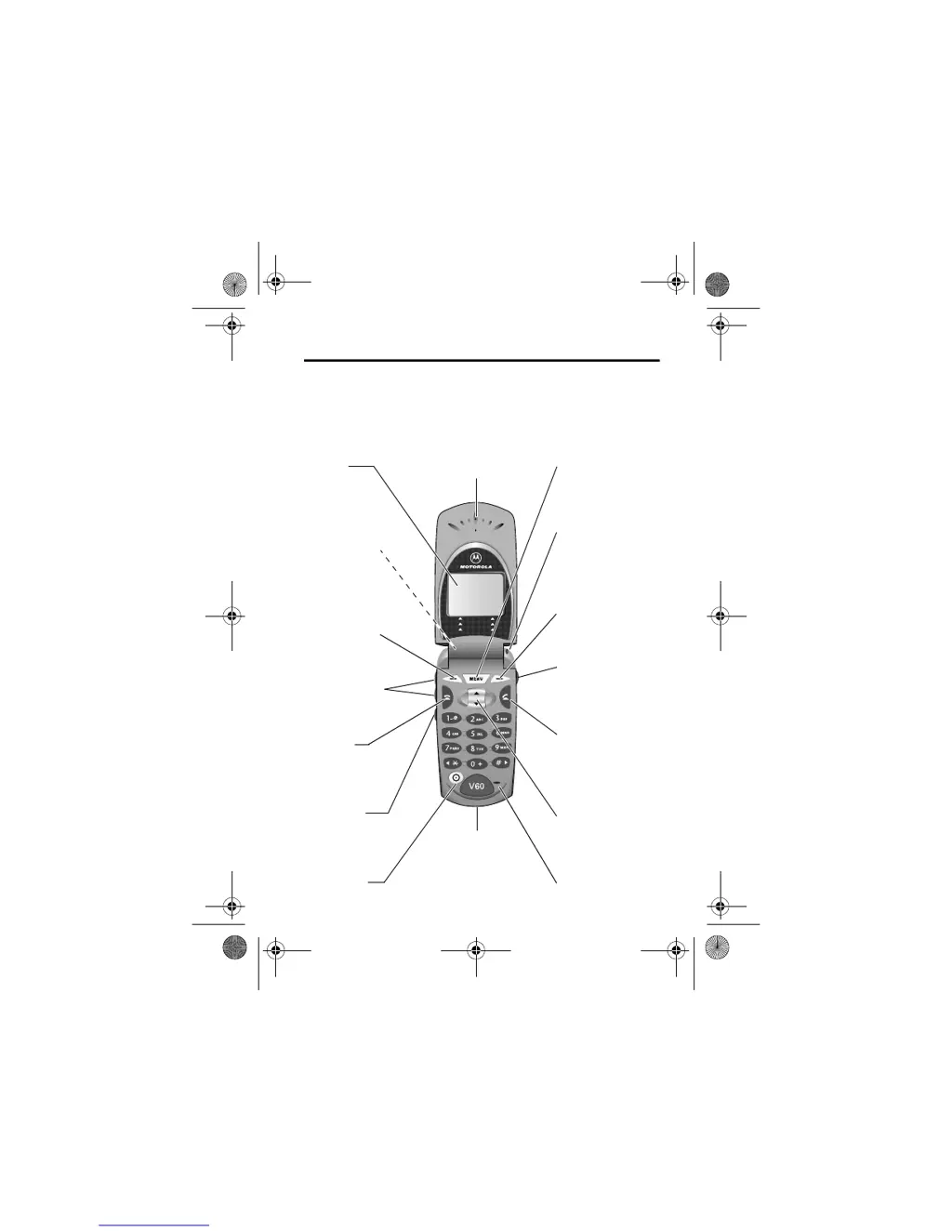
Earpiece
Headset Jack
Insert headset
accessory for
hands-free use.
Status Light
See incoming call
and service status.
Volume Keys
Adjust earpiece
and ringer volume.
Smart Key
Select menu items,
make and end calls.
Voice Key
Record voice notes,
phonebook and
shortcut names.
Display
Microphone
Accessory
Connector Port
Insert charger and
phone accessories.
Power Key
Right Soft Key
Perform functions
identified by right
display prompt.
Menu Key
End Key
End phone calls,
exit menu system.
Scroll Key
Move through
menus and lists.
Left Soft Key
Perform functions
identified by left
display prompt.
Send Key
Make and answer
calls, view recent
dialled calls list.
User.Guide.GSM.book Page 1 Wednesday, February 6, 2002 10:26 AM

Table of Contents

Other manuals for Motorola V60

Questions and Answers

  • B
    Brianna HuntSep 14, 2025
    What to do if I pressed the power key on my Motorola V60 Cell Phone, but nothing happened?
    • T
      Tyler RossSep 14, 2025
      If you pressed the power key on your Motorola Cell Phone and nothing happened, press and hold P (the power key) until the idle screen displays and you hear an alert. This may take several seconds. If nothing happens, verify that a charged battery is installed.
  • J
    Justin NormanAug 25, 2025
    How do I unlock my Motorola Cell Phone?
    • F
      fsanchezAug 25, 2025
      To unlock your Motorola Cell Phone, enter the factory-preset unlock code (1234) or the last four digits of your phone number.
  • R
    Raymond WintersAug 25, 2025
    Why is my Motorola V60 not ringing?
    • H
      Heather AlvaradoAug 26, 2025
      If your Motorola Cell Phone doesn't ring, check the display for 't' or 'y' symbols, which indicate that the ringer is turned off.
  • T
    turnerdeborahAug 26, 2025
    How to unlock my Motorola V60 Cell Phone when it asks for an unlock code?
    • B
      Brandy WilliamsonAug 26, 2025
      If your Motorola Cell Phone display says 'Enter Unlock Code', enter the factory-preset unlock code (1234) or the last 4 digits of your phone number. If this fails, call your service provider.
  • K
    Kim MckeeSep 15, 2025
    Why does my Motorola Cell Phone make an alternating high/low tone when I try to place a call?
    • H
      Heather AnthonySep 15, 2025
      If you tried to place a call on your Motorola Cell Phone and heard an alternating high/low tone, your call didn't reach the wireless system. You may have dialed the number too soon after turning the phone on. Wait until you see the idle display before making a call.
  • S
    susanrobbinsSep 23, 2025
    What to do if I am unable to record a voice name on my Motorola V60 Cell Phone?
    • C
      Cassandra GibbsSep 23, 2025
      If you are unable to record a voice name on your Motorola Cell Phone, try moving to a quieter location to make your voice recording. Hold the phone about 4 inches (10 centimeters) from your mouth, and speak directly into the phone in a normal tone of voice.
  • C
    crystal40Sep 7, 2025
    How to increase earpiece volume on Motorola Cell Phone?
    • Y
      Yvonne HallSep 7, 2025
      If the earpiece volume on your Motorola Cell Phone is too low, press the upper volume key on the side of your phone during a call.
  • D
    David BowenSep 8, 2025
    How do I unblock my SIM card on my Motorola Cell Phone?
    • P
      Paul RomeroSep 8, 2025
      To unblock your SIM card on your Motorola Cell Phone, call your service provider to obtain the PIN unblocking key (PUK) code.
  • C
    carrollchristianSep 2, 2025
    What to do if my Motorola V60 cannot send or receive calls?
    • N
      Nathaniel SchroederSep 2, 2025
      If you cannot send or receive calls on your Motorola Cell Phone, first ensure that you have a phone signal. Avoid electrical or radio interference, as well as obstructions like bridges, parking garages, or tall buildings. Also, check if the Restrict Calls feature is enabled. If you know the unlock code, you can change this setting in the security menu by pressing M > More > Settings > Security.
  • H
    harrisjordanAug 31, 2025
    How to increase the earpiece volume on my Motorola Cell Phone?
    • B
      Bradley ShawAug 31, 2025
      If the earpiece volume is too low on your Motorola Cell Phone, press the upper volume key on the side of your phone while you are on a call.

Summary

Safety and General Information

Safe Operation and RF Exposure

Guidelines for safe phone use, RF characteristics, and exposure to electromagnetic energy.

Device Precautions and Warnings

Guidelines for device operation, care, body-worn use, and environmental cautions.

Warranty Information

Getting Started

Initial Setup: SIM Card and Battery

Guide to installing SIM card and battery, and charging the phone.

Powering On and Basic Calls

Steps to turn on the phone, make, end, receive calls, and display number.

Making and Receiving Calls

Call Management Basics

Covers redialing, caller ID, emergency calls, notepad, and terminating calls.

Advanced Calling Features

Features like speed dial, 1-touch dial, text message dialing, and conference calls.

Using Features While On a Call

Call Waiting and Conference Calls

Instructions for managing multiple calls and making conference calls.

Call Transfer and On-Call Options

Details on transferring calls and other features available during an active call.

Using the Menu System

Menu Navigation and Selection

How to find, select, and enter information within the phone's menu.

Entering Feature Information

How to enter data for phonebook and datebook entries.

Entering Text

Text Input Modes

Options for selecting text input modes like iTAP, Tap Method, and Symbol Mode.

Text Entry Techniques

Detailed guide on using tap method, symbols, and predictive text.

Recent Calls and Call Data

Call Lists and Notepad

How to view call lists, use the notepad, and manage call entries.

Phonebook Management

Storing, Editing, and Dialing Entries

Covers entry fields, storing, voice names, dialing, and editing phonebook contacts.

Datebook: Scheduling and Events

Voicemail Messages

Text Messaging

Shortcuts

Voice Notes

Calculator and Currency Converter

Adjusting Phone Settings

Data and Fax Connectivity

Phone Security Features

Codes, Passwords, and Locking

Managing unlock codes, security codes, and phone locking options.

Call Barring and SIM Security

Restricting calls and protecting SIM card information with PIN and PUK codes.

Troubleshooting Common Issues

Power, Signal, and Audio Issues

Resolving problems related to battery, signal, sound, and call reception.

SIM, Security, and Data Problems

Addressing SIM card errors, security prompts, data issues, and display problems.

Motorola V60 Specifications

General IconGeneral
BrandMotorola
ModelV60
CategoryCell Phone
LanguageEnglish

Related product manuals