EasyManua.ls Logo

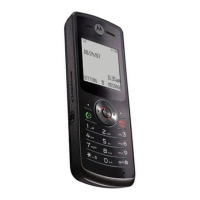
Motorola W220 - User Manual

Motorola W220
80 pages
Print Icon
To Next Page IconTo Next Page
Loading...
User’s Guide
motorola W220
All manuals and user guides at all-guides.com
all-guides.com

Other manuals for Motorola W220

Questions and Answers

  • S
    Sarah GomezAug 12, 2025
    Why won't my Motorola Cell Phone turn on?
    • H
      heatherwatersAug 13, 2025
      If your Motorola Cell Phone won't turn on or stay on, the battery may be discharged or defective. Try recharging it with the appropriate charger. If it doesn't recharge, the battery should be replaced. Also, check the battery terminals for misalignment or damage; realign them or replace the battery if needed. If the keypad is defective, replace it. Temporarily connect a +3.6 Vdc supply to the battery terminals and press and hold the PWR button. If the unit turns on and stays on, disconnect the dc power source and reassemble with the new keypad.
  • A
    Alyssa GrantAug 16, 2025
    What to do if my Motorola W220 won't recognize the SIM card?
    • A
      Ashley TaylorAug 16, 2025
      If your Motorola Cell Phone doesn't recognize the SIM card, first check the SIM card contacts for dirt and clean them if necessary. If cleaning doesn't work, try inserting a known good SIM card to see if the phone accepts it. If it does, replace your original SIM card as it is likely defective.
  • W
    Willie LevineAug 20, 2025
    Why is the receive audio from earpiece on my Motorola W220 Cell Phone weak?
    • J
      Joshua HamiltonAug 20, 2025
      If the audio from the earpiece of your Motorola Cell Phone is weak or distorted, first check the connection between the antenna and the lower PCB. If the connection is good, the speaker may be defective. Temporarily replace the speaker with a known good speaker to check. If the earpiece audio improves, reassemble the phone with the new speaker.
  • R
    Russell GoldenAug 25, 2025
    Why is the incoming call volume low on my Motorola Cell Phone?
    • C
      Colton RasmussenAug 25, 2025
      If the incoming call alert audio on your Motorola Cell Phone is distorted or the volume is too low, the speaker may be defective. Replace the speaker and verify the fault has been cleared before reassembling the phone.
  • G
    George EllisAug 27, 2025
    Why is the display on my Motorola W220 erratic?
    • E
      Erica JosephAug 27, 2025
      If the display on your Motorola Cell Phone is acting erratically, showing only partial information, or not displaying anything at all, the FPC cable might be faulty. Check the condition of the FPC cable and the upper PCB. If these are in good condition, the LCM (LCD Module) may be defective and need replacement. After replacing the LCM, verify that the issue is resolved and then reassemble the unit.
  • A
    Adam TaylorAug 31, 2025
    How to fix a non-functioning keypad on Motorola W220 Cell Phone?
    • A
      Abigail CraigAug 31, 2025
      If the keypad on your Motorola Cell Phone is not functioning, try wiping the keypad metal dome with alcohol to clean it. If the problem persists, the keypad may be defective and need replacement.
  • G
    grahamrachelSep 4, 2025
    Why is the transmit audio weak on my Motorola W220?
    • K
      Karen RileySep 4, 2025
      If the transmit audio on your Motorola Cell Phone is weak, the microphone may be defective. Replace the microphone and verify that the issue is resolved before reassembling the phone.
  • T
    Tina CruzSep 7, 2025
    Why is there no audio when using a headset with my Motorola Cell Phone?
    • M
      Matthew King DDSSep 8, 2025
      If you experience no or weak audio when using a headset with your Motorola Cell Phone, make sure the headset plug is fully inserted into the audio jack.

Summary

menu map

Phonebook

Access and manage contact information.

Recent Calls

View lists of received, dialed, and missed calls.

Tools

Access utility applications like Calculator and Calendar.

Multimedia

Manage pictures and sounds on the phone.

Settings

Configure phone options and preferences.

settings menu

Personalize

Customize phone appearance and quick dial settings.

Initial Setup

Set time, date, backlight, language, and other configurations.

Network

Manage network connections and settings.

Essentials

Basic Navigation

Learn how to navigate menus and select features using keys.

Main Attractions

Create & Send Message

Learn to compose and send multimedia messages.

Receive Message

How to get incoming text and multimedia messages.

basics

Display

Information about the phone's display and navigation.

status indicators

WAP Indicator

Indicates network data transfer status.

Message Indicator

Shows new messages or full message memory.

status icons

Call Icon

Explains the meaning of the call status icon.

menus

Main Menu Navigation

How to access and navigate the phone's main menu.

text entry

Entry Modes

Explains different text input methods like iTAP and Numeric.

Capitalization

How to change text case (lowercase, uppercase).

Tap Method

Using the tap method for text entry.

Numeric Mode

Entering numbers using the keypad.

codes & passwords

Lock & Unlock Phone

How to secure and access your phone using codes.

customize

Ring Style

Customize phone ringtones and alerts.

wallpaper

calls

Recent Calls List

View lists of received and dialed calls.

voicemail

Listen to Voicemail

Access and listen to voicemail messages.

Store Voicemail Number

Save your voicemail phone number on the device.

phonebook

Create Entry

Add new contacts to the phonebook.

messages

Use MMS Template

Open an MMS with preloaded media.

Read Message

Read new text or multimedia messages.

personalizing

Language

Set the menu language for the phone.

Quick Dial

Assign quick dial keys to phone numbers.

phone alerts

Ring Style

Change the ring alert for calls.

Ring Volume

Set the ringer volume level.

Incoming Call Alert

Set the alert style for incoming calls.

Safety and General Information

Exposure to Radio Frequency (RF) Energy

Information on safe mobile device operation and RF exposure.

Implantable Medical Devices

Precautions for users with medical implants.

Driving Safety

Recommendations for safe mobile device use while driving.

Seizures;Blackouts

Warnings about flashing lights and potential health effects.

Motorola Limited Warranty

Products Covered

Lists products and accessories included in the warranty.

Abuse & Misuse

Conditions that void the warranty.

What Motorola Will Do

Details Motorola's warranty service options.

Hearing Aid Compatibility with Mobile Phones

T-Ratings Explanation

Explains phone ratings for hearing aid compatibility.

Motorola W220 Specifications

General IconGeneral
Rear cameraNo
FM radioYes
Ringer typePolyphonic
Display typeCSTN
Display resolution128 x 128 pixels
Display number of colors65536 colors
Internal memory0.5 MB
Multimedia Messaging Service (MMS)Multimedia Messaging Service (MMS) is a standard way to send messages that include multimedia content to and from a mobile phone over a cellular network
Product colorPink
Talk time (2G)8 h
Battery capacity850 mAh
Standby time (2G)290 h
Data networkGPRS
Personal info management (PIM)Alarm clock, Calendar
Weight and Dimensions IconWeight and Dimensions
Depth46.7 mm
Width16.7 mm
Height95 mm
Weight93 g

Related product manuals