EasyManua.ls Logo

Motorola xfinity RNG150N - User Manual

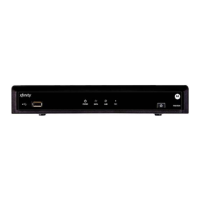
Motorola xfinity RNG150N
57 pages
Print Icon
To Next Page IconTo Next Page
Loading...
USER GUIDE
RNG150N

Questions and Answers

  • J
    Jeffrey AdkinsAug 16, 2025
    Why Motorola xfinity RNG150N Set-top boxes remote control does not work?
    • R
      ryan67Aug 16, 2025
      Try these steps: 1. Make sure the remote is in “Cable” mode. 2. Remove any obstacles between the remote and the Motorola RNG set-top boxes. 3. Aim directly at the front panel of the set-top box, not the TV or VCR. 4. Reduce the angle between the remote and the set-top box. 5. Press keys firmly and deliberately, one at a time. 6. Replace the batteries in the remote if needed.
  • K
    Karen TannerAug 19, 2025
    How to troubleshoot Motorola Set-top boxes RNG that will not power on?
    • J
      jennifermejiaAug 19, 2025
      The Motorola RNG set-top boxes may be installing a software update. Wait a few minutes and try again. Ensure the AC power cord is connected to both the set-top box and an outlet. Try unplugging and replugging the set-top box, then press the POWER button. If it's connected to a switched outlet, ensure that unit is powered on, or use an unswitched outlet if possible. Also, check the remote control batteries.
  • L
    Lee AlexanderAug 22, 2025
    What to do if there is no video on the TV screen with Motorola xfinity RNG150N?
    • S
      shannonmillerAug 22, 2025
      Ensure the TV is on and set to the correct input for your Motorola Set-top boxes. Also, verify that your set-top box is powered on and tuned to a channel you are authorized to view. Check that all video cables and the coaxial cable are securely connected. If connected to a home theater unit, make sure it is on and set to the correct input. For HDMI connections, try power cycling both the TV and set-top box. If the issue persists, you may need to select a different format by connecting the set-top box to your television using a Standard-Definition connector and accessing the HDMI/YPbPr OUTPUT setting via the Menu button on the remote control.
  • J
    Jessica FullerAug 25, 2025
    How to fix no audio when viewing cable channels on Motorola xfinity RNG150N Set-top boxes?
    • J
      James HernandezAug 26, 2025
      First, check if the mute button on your Motorola Set-top boxes remote or TV is activated. If you're using a home theater receiver, ensure it's set to the correct input and isn't muted. Verify that you're using the correct audio cables and that they are firmly connected between the set-top box and your TV, receiver, or DVD player.
  • J
    John WoodsAug 28, 2025
    What to do if there is no audio from center/surround speakers with Motorola xfinity RNG150N?
    • E
      Emily RiveraAug 28, 2025
      Ensure the S/PDIF audio cable is securely connected between your Motorola Set-top boxes and the home theater receiver. Verify the receiver is set to a surround sound mode like Dolby Pro Logic, Dolby Pro Logic II, or Dolby Pro Logic IIx, and that it's correctly configured for all connected speakers. Keep in mind that not all programs have full surround sound; some may only have stereo audio.
  • C
    Charles WilsonAug 31, 2025
    How to remove black bars on all sides of picture on Motorola Set-top boxes?
    • D
      Donald GrantAug 31, 2025
      To fill the screen with 4:3 SD programming, go to the User Settings menu on your Motorola Set-top boxes and set 4:3 OVERRIDE to 480i or 480p, depending on your TV's capabilities. If you see this on a 16:9 TV, the broadcast might be letterboxed; check during commercials or for network logos below the active video and use your TV's zoom feature to minimize it. Broadcasters may also use a 'hybrid' aspect ratio, which the set-top box cannot correct, but you can try using the zoom feature on your TV.
  • D
    Darlene HughesSep 3, 2025
    How to get rid of black bars above and below picture on Motorola Set-top boxes?
    • D
      Derrick BarrettSep 3, 2025
      Turn on the 4:3 OVERRIDE feature in the User Settings menu of your Motorola Set-top boxes. This allows most standard screen TVs to display a full screen picture when tuned to a 4:3 program. Alternatively, set the TV TYPE to 4:3 Pan-Scan to remove the black bars where possible. Note that some SD programs are broadcast in letterbox format with black bars. Some widescreen TVs may also have a zoom feature to remove these bars.
  • T
    todd97Sep 6, 2025
    How to remove black bars on right and left of picture on Motorola xfinity RNG150N?
    • H
      herrerajohnSep 6, 2025
      Turn on the 4:3 OVERRIDE feature in the User Settings menu on your Motorola Set-top boxes. This allows wide screen TVs to stretch the video to fill the screen. If using an RNG150N connected to a wide screen TV, verify that the TV TYPE is set to 16:9 in the User Settings menu. Keep in mind that many HD programs are broadcast in pillar-box format with black bars on the sides, even though the video is not actually 16:9.
  • S
    Sandy NewtonSep 9, 2025
    Why Motorola Set-top boxes no closed captions display?
    • C
      Cheryl BlackSep 9, 2025
      Ensure closed captions are enabled in the User Settings menu on your Motorola Set-top boxes, as well as on your TV. Note that closed captioning may not be available on all programs.
  • J
    Jessica GutierrezSep 12, 2025
    What to do if colors do not appear correctly on Motorola xfinity RNG150N Set-top boxes?
    • R
      Ryan BarberSep 12, 2025
      Ensure that each signal is matched to the corresponding YPbPr connection on your TV; otherwise, the colors will not display correctly on your TV when using Motorola Set-top boxes.

Summary

Important Safety Instructions

Important Safety Considerations

During Transportation to the Subscriber Home

Safety advice for transporting the device.

During Installation

Guidelines for installing the device safely and correctly.

Caring for the Environment by Recycling

Recycling Your Motorola Equipment

Instructions on how to properly recycle Motorola equipment.

Software License

U.S. Government Restricted Rights

1 Introduction

Features

Lists key features of the RNG150N set-top box.

Front Panel

Details and labels for the front panel connectors and indicators.

Rear Panel

Details and labels for the rear panel connectors and ports.

2 Operation

Turning Power On and Off

Instructions on how to power the set-top on and off.

Changing Channels

Methods for changing TV channels using the device.

Adjusting the Volume

How to control the audio volume level.

Interactive Program Guide

Information about using the on-screen program guide.

M-Card

Importance and function of the M-Card.

3 Connecting Your RNG Set-Top

Video Connection Options

Overview of available video connection types for the set-top.

Connecting HDTV

How to connect the set-top to an HDTV for video and audio.

Connecting to Audio;Video Receivers and Multiple Devices

How to connect the set-top to A/V receivers and multiple devices.

Connecting SDTV

How to connect the set-top to a Standard-Definition TV.

4 Recording Your Connections

Data Devices

Information on connecting data devices to the set-top.

Data Features

Capabilities of the set-top for data services.

5 On-Screen Graphics

6 Configuring the Audio, Video, and Closed Caption Settings

User Settings Menu

Accessing and adjusting audio, video, and caption settings via the menu.

Additional HDMI Settings

Detailed settings for HDMI output configuration.

Additional Closed Caption Settings

Detailed settings for customizing closed caption appearance.

Motorola xfinity RNG150N Specifications

General IconGeneral
BrandMotorola
Modelxfinity RNG150N
CategorySet-top boxes
LanguageEnglish

Related product manuals