EasyManua.ls Logo

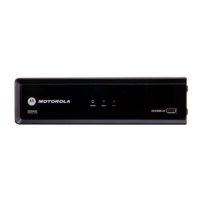
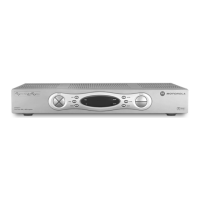
Motorola DCX700 - User Manual

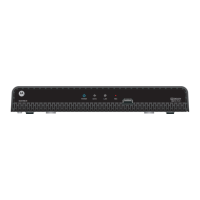
Motorola DCX700
50 pages
Print Icon
To Next Page IconTo Next Page
Loading...
M
User Guide
DCX700
High-Definition Digital Set-Top Box

Table of Contents

Other manuals for Motorola DCX700

Questions and Answers

  • B
    brocksharonAug 15, 2025
    What to do if my Motorola DCX700 Set-top boxes remote control does not work?
    • R
      Robert BarronAug 16, 2025
      If your Motorola Set-top box remote control isn't working, make sure it's in STB mode and that there are no obstacles between the remote and the set-top box. Aim directly at the front panel, not the TV or VCR, and ensure you're not too far to the side. Press keys firmly and deliberately, one at a time. Also, check and replace the batteries if needed.
  • D
    Debra PhillipsAug 18, 2025
    How to fix Motorola DCX700 that will not power on?
    • P
      Pamela BrownAug 18, 2025
      If your Motorola set-top box won't power on, it might be updating software; try again in a few minutes. Ensure the AC power cord is connected to both the set-top box and an AC outlet, and try unplugging and plugging it back in. If it's connected to a switched outlet, make sure that unit is powered on, or use an unswitched outlet if possible.
  • B
    Beth TorresAug 21, 2025
    How to fix no video on Motorola DCX700?
    • P
      Peter SingletonAug 21, 2025
      If there is no video on the TV screen, first verify that the TV is on and set to the correct input source for the set-top box. Ensure the set-top box is powered on and tuned to an authorized cable channel. Check that all video cables and the coaxial cable are firmly connected. If connected to a home theater unit, ensure it is powered on and set to the correct input. For HDMI connections, try powering off both the TV and set-top box, waiting a second, and then powering them back on. If using HDTV, cycle through available output formats in the User Settings menu until a picture displays.
  • M
    Michael McgrathAug 25, 2025
    Why is there no audio on my Motorola Set-top boxes when viewing cable channels?
    • E
      eperkinsAug 25, 2025
      If you're not getting any audio when viewing cable channels on your Motorola set-top box, first check that the mute button on the remote or TV hasn't been pressed. If connected to a home theater receiver, ensure it's set to the correct input and isn't muted. Also, verify that you're using the correct audio cables and that they are firmly connected between the set-top box and your TV, receiver, or DVD player.
  • H
    Hannah CabreraAug 28, 2025
    How to enable closed captions on Motorola Set-top boxes?
    • J
      Jillian WilliamsAug 28, 2025
      To enable closed captions on your Motorola set-top box, verify that closed captions are enabled in the User Settings menu on the set-top box. Also, check that closed captions are enabled on the TV. Keep in mind that closed captioning may not be available on all programs.
  • A
    ashleysuarezAug 30, 2025
    How to remove black bars on the sides of the picture on Motorola DCX700?
    • P
      petersonbrianAug 30, 2025
      If you see black bars on the sides of the picture on your Motorola set-top box, especially on a widescreen TV, turn on the 4:3 OVERRIDE feature in the User Settings menu. Also, ensure the TV TYPE is set to 16:9 in the User Settings menu if you have a widescreen TV. Note that some HD programs are broadcast in pillar-box format, which includes black bars.
  • D
    David JonesSep 2, 2025
    Why is there no audio from surround speakers connected to Motorola Set-top boxes?
    • H
      heidi37Sep 2, 2025
      If you're not getting audio from the center or surround speakers of your home theater receiver connected to the Motorola set-top box, remember that not all Dolby Digital programs feature full 5.1 surround sound. Verify that the S/PDIF cable is firmly connected to both the set-top box and receiver. Ensure the receiver is set to a surround sound mode like Dolby Digital or Dolby Pro Logic, and that it's configured to work with all connected speakers.
  • L
    lynn99Sep 5, 2025
    How to get rid of black bars above and below the picture on Motorola DCX700 Set-top boxes?
    • N
      Nathan RodriguezSep 5, 2025
      To eliminate black bars above and below the picture on your Motorola set-top box, turn on the 4:3 OVERRIDE feature in the User Settings menu. Alternatively, set the TV TYPE to 4:3 Pan-Scan.
  • C
    Carrie HarmonSep 8, 2025
    Why are there black bars on all sides of the picture on Motorola DCX700 Set-top boxes?
    • S
      Sean BrockSep 8, 2025
      If you're seeing black bars on all four sides of the picture on your Motorola set-top box, and you have a 4:3 TV, this may occur if the 4:3 OVERRIDE setting is OFF. Set 4:3 OVERRIDE to 480i or 480p to fill the screen, depending on your TV's capabilities. This can also happen on a 16:9 TV if the active video for an SD broadcast is in letterbox format.
  • M
    mary38Sep 12, 2025
    What to do if colors do not appear correctly on Motorola Set-top boxes?
    • K
      Krystal DavidsonSep 12, 2025
      If the colors don't appear correctly on your Motorola set-top box, ensure that each signal is matched to the corresponding YPbPr connection on your TV.

Summary

Safety & Regulatory Information

During Installation

Guidelines for proper physical placement and ventilation of the set-top box to ensure optimal performance.

FCC Compliance

Information on adherence to FCC rules for digital devices, ensuring proper operation and preventing interference.

Caring for the Environment by Recycling

Instructions for responsible disposal and recycling of the product to protect the environment.

Software License

Introduction

Front Panel

Rear Panel

Operation

Turning Power On and Off

Instructions for powering the set-top box on and off using the remote control.

Changing Channels

Methods for navigating through available TV channels via remote control or program guide.

Adjusting the Volume

Steps to control audio output levels and mute sound for optimal listening experience.

Interactive Program Guide

Overview of accessing TV program information and features via the interactive guide.

M-Card

Importance and usage of the M-Card for accessing cable television and on-demand programs.

Connecting Your Set-Top

Video Connection Options

Overview of available video outputs for connecting to TVs, including HDMI, Component, and Composite.

HDTV Connections

Connecting the DCX700 to an HDTV via HDMI, Component, or IEEE-1394 for video signal.

AV Receiver Connections

Connecting the DCX700 to an AV receiver for optimal audio and video signal distribution.

SDTV and Recorder Connections

Connecting the DCX700 to Standard-Definition TVs and VCR/DVD recorders.

Recording Your Connections

Data Devices

Information on connecting external data devices via USB for advanced features and data services.

Data Features

Overview of the set-top box's data service capabilities like internet access, e-mail, and telephony.

On-Screen Graphics

Configuring A;V and Closed Caption Settings

User Settings Menu

Accessing and navigating the main settings menu for audio, video, and caption configuration.

Native Mode Settings

Customizing native mode operation for optimal video format matching with your TV's capabilities.

Additional HDMI Settings

Adjusting HDMI-specific settings like mode, color space, and audio output for best quality.

Closed Caption and Subtitle Settings

Customizing closed captions, subtitles, and descriptive video service appearance and behavior.

Advanced Audio;Video Settings

Adjusting advanced audio features like Dolby Volume and video sharpness for an enhanced experience.

Troubleshooting

Appendix A

Wall Mounting Your DCX700

Instructions and guidelines for safely mounting the unit on a wall, including hardware and placement.

Motorola DCX700 Specifications

General IconGeneral
BrandMotorola
ModelDCX700
CategorySet-top boxes
LanguageEnglish

Related product manuals