EasyManua.ls Logo

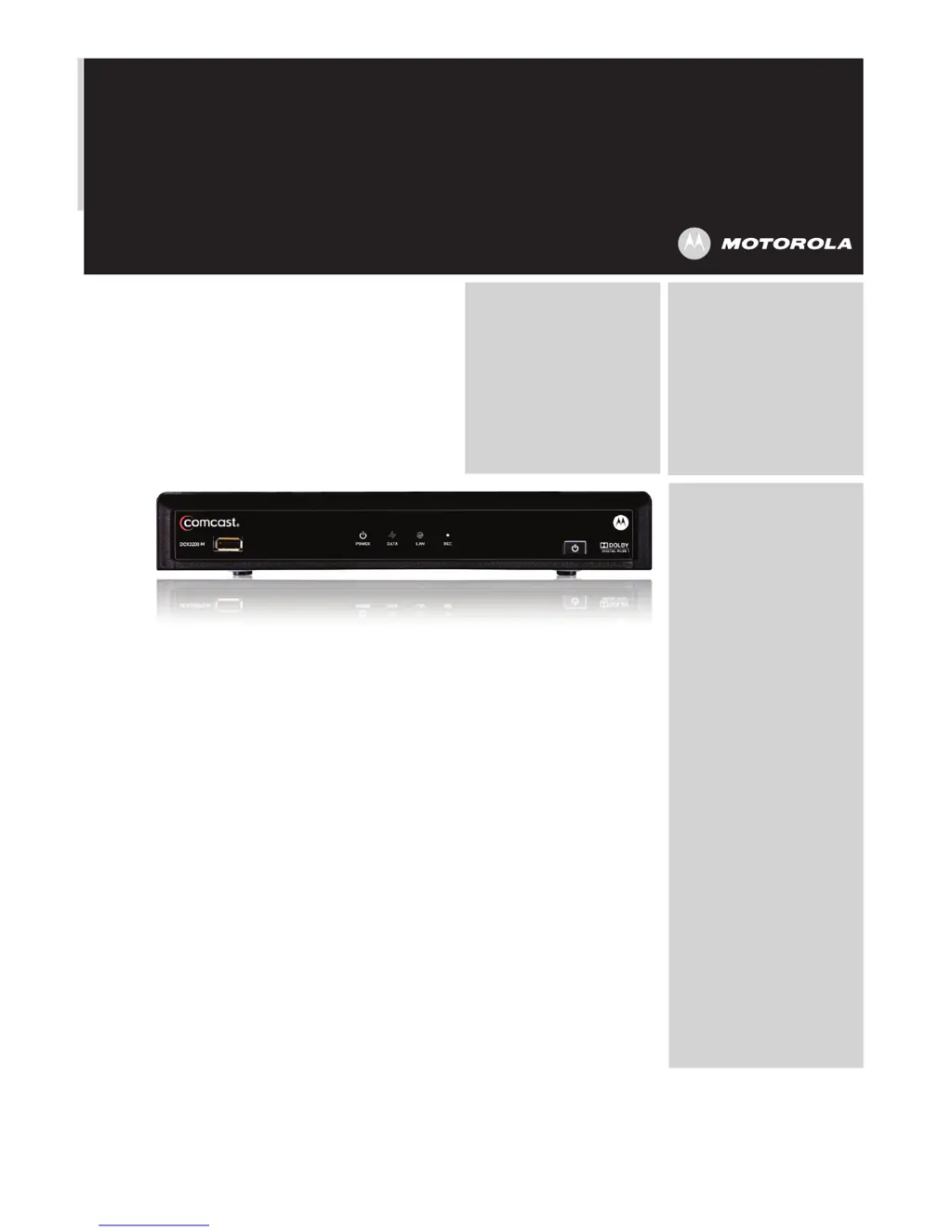
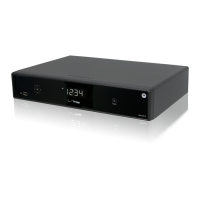
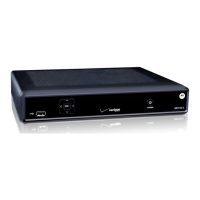
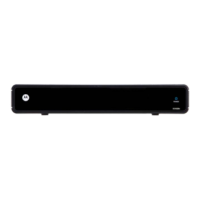
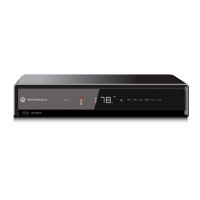
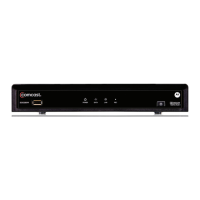
Motorola DCX3200 P2 - User Manual

Motorola DCX3200 P2
57 pages
Print Icon
To Next Page IconTo Next Page
Loading...
USER GUIDE
DCX3200 P2

Other manuals for Motorola DCX3200 P2

Questions and Answers

  • D
    David LopezAug 16, 2025
    How to fix a Motorola Set-top boxes remote control that is not working?
    • M
      Michelle MarshallAug 16, 2025
      If your Motorola Set-top boxes remote control isn't working, ensure it's in 'Cable' mode and that there are no obstructions between the remote and the set-top box. Aim directly at the front panel, not the TV or VCR, and stand in front of it, not too far to the side. Press keys firmly and deliberately, one at a time. Also, check and replace the batteries if needed.
  • C
    Caleb MitchellAug 19, 2025
    How to troubleshoot a Motorola Set-top boxes DCX that will not power on?
    • D
      Diana KellyAug 19, 2025
      If your Motorola DCX set-top box won't power on, it might be updating its software; wait a few minutes and try again. Ensure the AC power cord is connected to both the set-top box and a working outlet. Try unplugging the set-top box, plugging it back in, and pressing the power button. If it's connected to a switched outlet, make sure that unit is powered on. Use an unswitched outlet if possible. Also, check the remote control batteries, as they may be depleted.
  • S
    smithdonnaAug 25, 2025
    Why is there no audio when viewing cable channels on my Motorola Set-top boxes?
    • S
      stacey69Aug 26, 2025
      If you're not getting any audio when viewing cable channels on your Motorola Set-top boxes, first, check that the mute button on the remote or TV isn't activated. If connected to a home theater receiver, ensure it's on the correct input and not muted. Also, verify that you're using the correct audio cables and that they are securely connected between the set-top box and your TV, receiver, or DVD player.
  • N
    Nathan ParkAug 28, 2025
    How to turn on closed captions on Motorola Set-top boxes?
    • K
      Kevin AndersonAug 28, 2025
      If closed captions are not displaying on your Motorola Set-top boxes, verify that closed captions are enabled in the User Settings menu on the set-top box and also enabled on your TV. Note that closed captioning may not be available on all programs.
  • J
    jessica69Aug 31, 2025
    Why is there no audio from surround speakers on Motorola Set-top boxes?
    • M
      Mr. Jonathan WatsonAug 31, 2025
      If you're not getting audio from the center or surround speakers connected to your Motorola DCX set-top box, remember that not all programs have full surround sound. Make sure the S/PDIF cable is firmly connected between the set-top box and receiver. Verify that your home theater receiver is set to a surround sound mode like Dolby Pro Logic, Dolby Pro Logic II, or Dolby Pro Logic IIx, and that the receiver is properly configured for all connected speakers.
  • C
    Charles MatthewsSep 3, 2025
    How to remove black bars on the side on Motorola Set-top boxes?
    • K
      Kayla MendozaSep 3, 2025
      If you see black bars on the sides of the picture on your Motorola Set-top boxes, this is normal for widescreen TVs displaying 4:3 content, unless the TV is set to stretch. You can turn on the 4:3 OVERRIDE feature in the User Settings menu. If using a DCX3200 connected to a widescreen TV, ensure the TV TYPE is set to 16:9 in the User Settings menu. Many HD programs are broadcast in pillar-box format, which also causes black bars.
  • M
    Michelle JonesSep 6, 2025
    How to get rid of black bars above and below picture on Motorola Set-top boxes?
    • R
      Robin KellySep 6, 2025
      If you see black bars above and below the picture on your Motorola Set-top boxes, this is normal for all 4:3 HDTVs displaying HD programs, due to the screen shape. You can turn on the 4:3 OVERRIDE feature in the User Settings menu or set the TV TYPE to 4:3 Pan-Scan. Some SD programs are also broadcast in letterbox format. Some widescreen TVs may have a zoom feature to remove the black bars.
  • W
    Wesley RoweSep 9, 2025
    Why don't graphics or program guides show on Motorola Set-top boxes?
    • H
      hallamandaSep 9, 2025
      If no graphics or program guides appear on your Motorola Set-top boxes, on-screen graphics, including closed captions and program guides, are not displayed by the DCX set-top if you use the IEEE-1394 connection. On-screen graphics and captions may still be overlaid by your TV, if enabled. Alternatively, use HDMI or component video instead.
  • E
    elizabethcaldwellSep 12, 2025
    Why are there black bars on all sides of the picture on Motorola Set-top boxes?
    • A
      Anna GambleSep 12, 2025
      If you see black bars on all four sides of the picture on your Motorola Set-top boxes, on a 4:3 TV, this may occur if the 4:3 OVERRIDE setting is OFF. Set 4:3 OVERRIDE to 480i or 480p to fill the screen, depending on the TV's capabilities. On a 16:9 TV, this can happen if the active video for an SD broadcast is in letterbox format; confirm by waiting for a commercial or looking for a network logo. You can try using the zoom feature on the TV. A broadcaster may include black bars on either side of a wide screen broadcast, resulting in a black border surrounding the video on a 4:3 TV, which the DCX3200 cannot correct; try using the zoom feature on the TV.
  • A
    Ashley DeanNov 21, 2025
    What to do if there is no video on the TV screen from Motorola Set-top boxes?
    • J
      Joshua OrtizNov 21, 2025
      If there is no video on your TV screen when using Motorola Set-top boxes, first, verify that the TV is on and set to the correct input source for the set-top box. Also, make sure the set-top box is powered on and tuned to an authorized channel. Check that all video cables and the coaxial cable are firmly connected. If connected through a home theater unit, ensure it's on the correct input. For HDMI connections, try powering off both the TV and set-top box, waiting a second, and then powering them back on. Note that not all HDTVs support every output format, so you may need to adjust the output format by turning off the DCX set-top, connecting it to your television using a Standard-Definition connector, turning on the DCX set-top with your remote control, pressing the Menu button on the rem...

Summary

Important Safety Information

General Safety Instructions

Lists essential safety precautions for operating electrical equipment.

Transportation and Installation Safety

Covers safe handling during transport and proper installation guidelines.

Operating the DCX3200

Basic Operations (Power, Channels, Volume)

Instructions for turning the device on/off, changing channels, and adjusting volume.

Connecting Your DCX Set-Top

Video Connection Options

Overview of available video connection types for HDTV and SDTV.

Connecting to HDTV

Detailed steps for connecting to High-Definition TVs using HDMI, IEEE-1394, DVI, Component.

Configuring Audio, Video, and Closed Caption Settings

Troubleshooting Common Issues

Power and Remote Control Troubleshooting

Solutions for issues related to powering on the device or remote control functionality.

Video Display and Graphics Issues

Resolves problems with video output, black bars, colors, and missing graphics.

Motorola DCX3200 P2 Specifications

General IconGeneral
Tuner TypeQAM
Video OutputHDMI, Component, Composite
Output Resolution1080i, 720p, 480p, 480i
Ethernet PortYes
Remote ControlYes
TypeSet-top box
PortsHDMI, Component, Composite

Related product manuals