12 Apps & updates
Apps & updates
get the app you want
Quick start: Apps & updates
Touch in any home screen panel, then flick left or
right to see all your apps.
In the apps screen, touch All apps to view or create app
groups.
To add a shortcut to the home screen for an app group
view, touch All apps > Add group to home.
To close the apps screen, touch Home or Back .
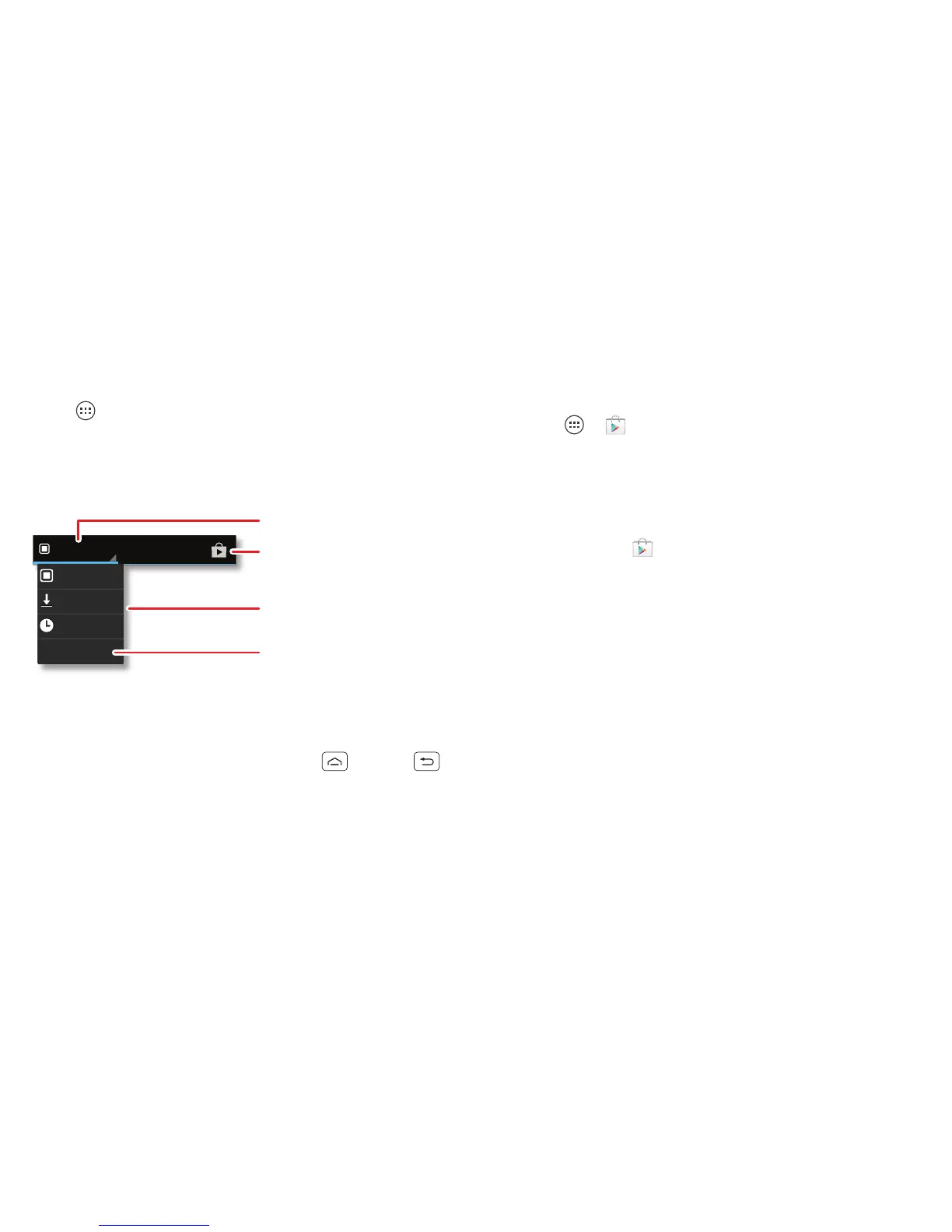
ALL APPS
WIDGETS
All apps
New group
Downloaded
Frequent
Choose the app group
you want to see.
Create a new app group.
Select the apps screen view.
Find new apps
on Google Play™.
Browse & install apps
Get all the fun games and cool apps you want! Google
Play™ provides direct access to apps, games, books,
and movies that you can download and install on your
phone.
Find it: > Play Store
Scroll to and touch the app you want to install. Then,
touch Install (if app is free) or Buy.
New apps that you install are added to the apps screen.
Tip: Choose your apps and updates carefully, from
trusted sites like Play Store, as some may impact
your phone’s performance—see “Choose carefully” on
page 13.
Note: When installing an app, make sure you read the
alerts that tell you what information the app will access.
If you don’t want the app to have access to this
information, cancel the installation.
Create shortcut folders
You can use home screen folders to logically group and
store your app shortcuts in a single location.
To create a shortcut folder in the home screen, drag one
shortcut onto another to put them both in a folder. To
add other shortcuts, drag them onto the folder icon.
To name the folder, touch it and enter a name at the
bottom.



 To Next Page
 Loading...






