24 Text entry
• To correct a word, double-touch it (tap twice, quickly).
Swype shows a small menu of other word options.
Swype might also show a menu if it can’t guess your
word.
• If Swype doesn’t know a word, you can still touch the
letter keys to enter it. Swype remembers, so next
time you can just drag over the letters.
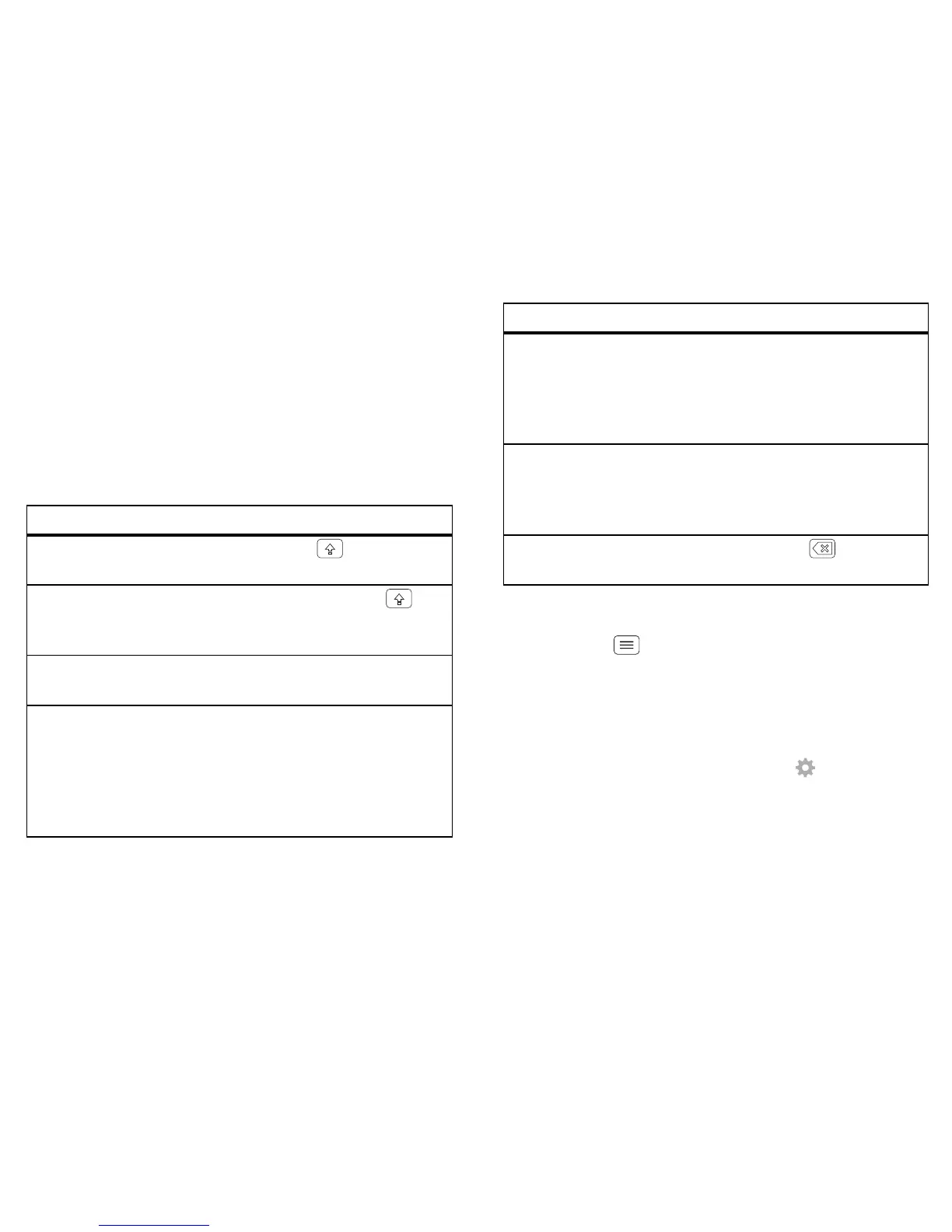
Typing tips
To . ..
Enter one capital
letter
Tou ch S h ift .
Enter only capital
letters
Touch and hold Shift .
Touch again to revert to
lowercase.
Move the text entry
cursor
Touch the text where you
want the cursor to go.
Select text Touch and hold or
double-touch text to select
it. Tabs mark the boundaries
of the selected text. Drag
the tabs to select the text
you want.
Text input settings
Find it: Menu > System settings > Language & input
• To change the language for your phone and
touchscreen keypad, touch Locale.
• To change the default text input method, touch Default
under KEYBOARD & INPUT METHODS.
• To change text input settings, touch next to
Motorola Input or Swype.
Cut or Copy selected
text
Touch icons at the top of the
screen to Cut or Copy
selected text. In a landscape
display, touch Edit > Cut or
Copy.
Paste cut or copied
text at cursor location
Touch the Paste icon at the
top of the screen. In a
landscape display, touch Edit
> Paste.
Delete character to left
of cursor
Touch Delete (hold to
delete more).
To...









 To Next Page