Page 6
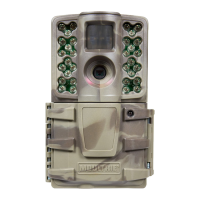
M-990i (Gen2) Digital Game Camera
Page 15
M-990i (Gen2) Digital Game Camera
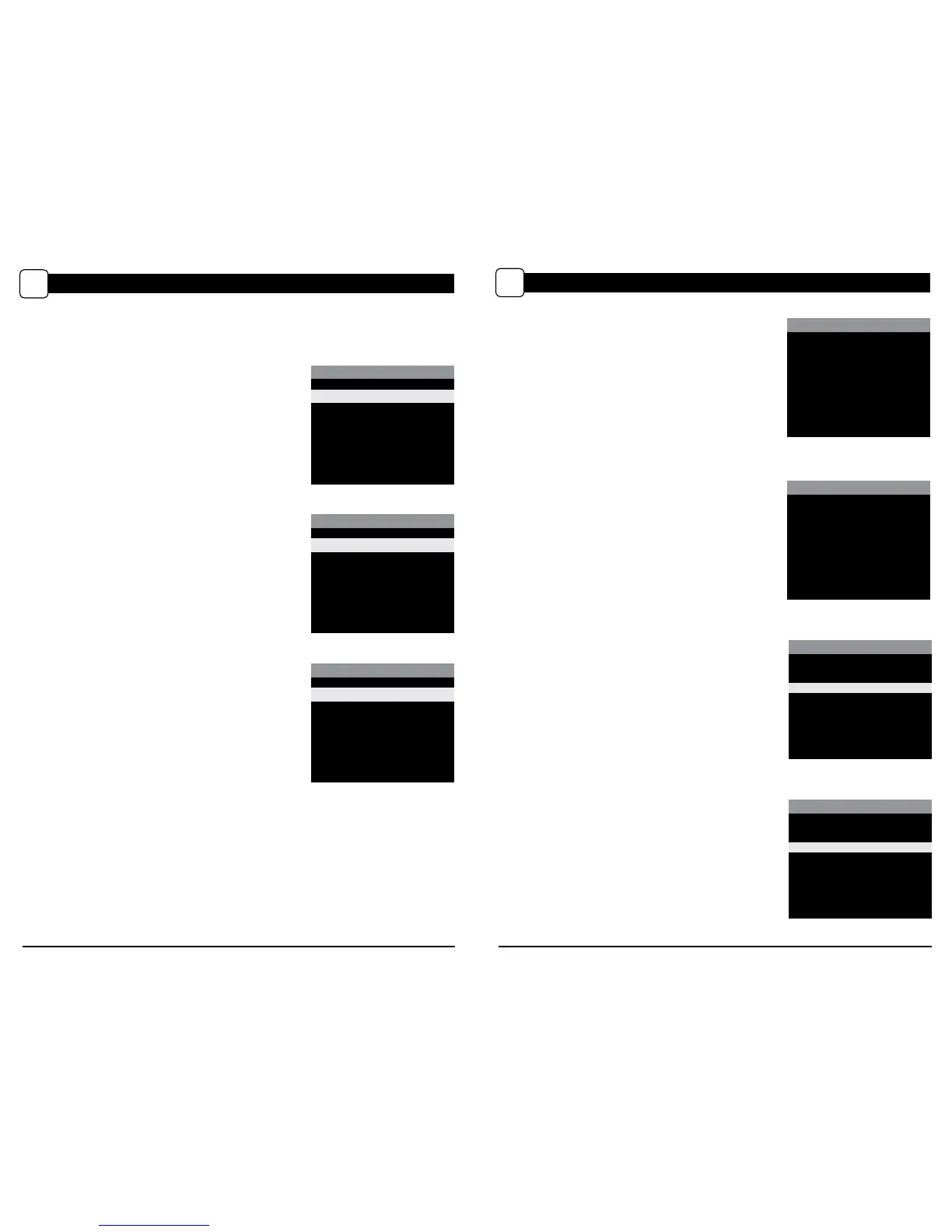
You will see one of three status screen displays after you slide the Mode switch to the Custom Start
position and select the capture mode.
Motion Detect Mode
When the camera has been programmed for Motion Detect
Mode - Photo, the camera will take still images when motion is
detected. The following will be displayed on the Status Screen.
CAPTURE MODES
C
MOTION DETECT MODE
DETECTION DELAY: 5sec
4
PIR SENSITIVITY: High
4
MULTI-SHOT: 1(o)
4
PHOTO/VIDEO: Photo
4
Reset Options
4
(press OK to take test photo)
START
4
Time Lapse
When the camera has been programmed for Time Lapse
photography, the camera will observe a full day of activity in
the field during Time Lapse mode. The camera will record a
block of still images following the Time Lapse program setting.
The following will be displayed on the Status Screen.
TIMELAPSE (TL) MODE
INTERVAL: 10 sec.
4
PROGRAM #1: 6am-9am
4
PROGRAM #2: 4pm-7pm
4
Reset Options
4
(press OK to take test photo)
START
4
Time Lapse + Motion
The camera operates in Time Lapse Mode during the
programmed intervals and Motion Detect Mode for the
remainder of the day.
MOTION DETECT + TL MODE
Note:
Adjust settings in MOTION DETECT
and TIME LAPSE modes.
(press OK to take test photo)
START
4
SYSTEM SETTINGS
SECURITY CODE
00000
Security Code
Press the
OK button. Use the Up/Down and Left/Right
buttons to select a 5 digit security code for your camera.
Press the OK button to conrm the selection. Press the
Right button to move to the next option.
NOTE:
Please remember your security code. If the code is
lost, you can contact Moultrie customer
support to reset
the password (charges may apply). Also, use caution when
navigating through the Security Code option as not to set
a code by mistake. For no Security Code, the setting should
remain as “00000”.
Conrm Security Code
Once a Security Code has been entered, the camera will
prompt you to verify the code. This will keep you from
mis-entering a code or seting a code inadvertantly.
SYSTEM SETTINGS
CONFIRM SECURITY CODE
00000
SYSTEM OPTIONS (cont.)
K
SYSTEM SETTINGS
FACTORY RESET
X Do Not Reset
Factory Reset
Reset to Default settings
You can reset your camera to the factory default settings.
Press
Up/Down to choose:
YES - all setups restored to factory default
NO - keep custom settings
Press the OK button again to make selection. Press the Right
button to go to the Main Screen.
SYSTEM SETTINGS
UPGRADE FIRMWARE
X No
Yes
5M990i-140919
Upgrade Firmware
The firmware version is displayed. Press
Up/Down to
choose setting:
YES - To upgrade rmware.
NO - Keep current firmware.
NOTE: This operation should only be performed when
prompted by a technician to do so.


 To Next Page
 Loading...