Need help?
Do you have a question about the Movado Connect 2.0 and is the answer not in the manual?
Details phone compatibility requirements for the smartwatch.
Instructions for downloading the Wear OS by Google app on iOS and Android.
Step-by-step guide to setting up the smartwatch.
Procedures for powering on, off, and restarting the smartwatch.
Guide to resetting the smartwatch to factory default settings.
Explains the Bluetooth connectivity range between watch and phone.
Instructions for uninstalling the Wear OS by Google app on iOS and Android.
General guidance for new users of Wear OS by Google.
Offers tips and tricks for optimal use of Wear OS by Google.
Steps to connect the smartwatch to a Wi-Fi network.
Instructions to exit the demo mode on the smartwatch.
Detailed steps for pairing the smartwatch with iOS and Android phones.
Troubleshooting steps for pairing issues between watch and phone.
Instructions for unpairing the smartwatch from the phone.
Steps to re-pair a smartwatch with the Wear OS app.
Information on the number of smartwatches that can be paired.
Explains how Wear OS by Google functions with Android and iPhones.
Details on receiving, replying to, and blocking notifications.
How to use the watch for fitness tracking, goal setting, and monitoring activity.
How to use Google Assistant for questions, tasks, and voice commands.
Instructions for using Google Maps for navigation and travel info.
How to control music and media playback on the watch.
How to use the smartwatch for contactless payments via NFC.
Information on microphone, speaker, alarm, GPS, and buttons.
Troubleshooting steps for inaccurate heart rate tracking.
Guide to downloading third-party apps and accessing Google Play.
Information on sleep tracking capabilities and interchangeable straps.
Information on battery duration, charging procedures, and indicators.
Tips to manage battery life, including screen brightness and notifications.
Steps to uninstall applications to conserve battery power.
How to use battery saver, turn off tilt-to-wake, and power saver tilt.
How to access and manage account and device settings via the app.
Detailed steps for factory resetting a locked watch without access to settings.
Steps to learn about how personal data is used, via the Privacy Policy.
Information on the smartwatch's 2-year limited warranty.
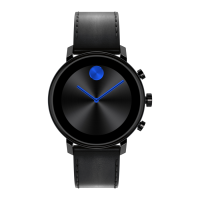
This document provides a comprehensive guide for the Movado Connect 2.0 smartwatch, focusing on its general setup, app usage, pairing, syncing, features, battery management, account settings, and privacy.
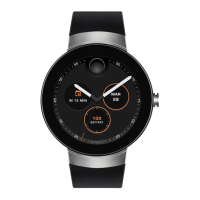
The Movado Connect 2.0 is a smartwatch designed to integrate seamlessly with your smartphone, offering a range of functionalities from notifications and fitness tracking to Google Assistant access and mobile payments. It runs on Wear OS by Google, making it compatible with both Android and iOS devices. The smartwatch allows users to stay connected, manage their daily tasks, monitor their health, and access various apps directly from their wrist.
To begin using your Movado Connect 2.0, you'll need to download the Wear OS by Google app on your smartphone. For iOS users, this is available on the App Store®, and for Android users, it's on the Google Play store. The smartwatch is compatible with Android 4.4+ (excluding Go edition) or iOS 12, and requires Bluetooth® Smart-enabled devices with improved data transfer.
Powering on the smartwatch involves pressing and holding the crown for at least three seconds, or simply connecting it to the charger. To power off, if the display is on, press the crown to enter the app menu, then navigate to Settings > System > Power off. Restarting follows a similar path: Settings > System > Restart.
If you need to reset your smartwatch to factory settings, this can be done via the Settings menu by selecting Disconnect & reset. This action will unpair the watch from your phone and erase all stored data, including notifications, fitness data, and installed apps. After a factory reset, you'll need to re-pair the watch with your phone.
The smartwatch's Bluetooth connection range is typically about 10 meters (30 feet), but this can be extended by connecting the watch to a Wi-Fi network. Connecting to Wi-Fi allows your watch to stay synced with your phone even when out of Bluetooth range, enabling notifications and voice search.
Pairing the smartwatch with your phone is a straightforward process initiated through the Wear OS by Google app. After turning on your watch and opening the app, you'll follow on-screen instructions to select a language, accept terms of service, and confirm a pairing code displayed on both devices. For iOS, if you're re-pairing after a factory reset, you'll need to select "Pair With New Watch" in the app. Android users can pair multiple watches simultaneously, while iOS users are limited to one watch at a time. It's important to keep the Wear OS by Google app open on your phone to maintain connectivity.
The Movado Connect 2.0 offers a rich set of features through Wear OS by Google.
The battery life of the Movado Connect 2.0 can last up to 24 hours, depending on usage. To maximize battery life, several tips are provided:
The smartwatch is charged using the included USB wall charger. Ensure the four magnetic pins on the charger align with those on the back of the watch. A lightning bolt icon on the watch face indicates successful charging. If the charging indicator isn't visible, check the connection, ensure no debris is between the watch and charger, verify the charger is receiving power, and try a different power source. If the watch becomes too hot during charging, it may enter a thermal shutdown mode; remove it, let it cool, then place it back on the charger.
The smartwatch is dust and splash resistant. However, it's recommended to limit exposure to dust and water as certain functions (like the NFC reader) may not work properly when wet. Excessive moisture can also affect the lock screen and touch screen functionality. Always dry the device thoroughly with a clean, soft cloth.
The straps are interchangeable, allowing for customization. They can be changed by pressing the pins on the inside of the straps.
Account and device settings are accessed through the Wear OS by Google app on your phone. Your password and email message settings are tied to your Google account. The language of the Wear OS by Google app is determined by your phone's language settings.
If you forget your smartwatch passcode and are locked out, a factory reset can be performed without accessing the settings menu. This involves a series of power button presses and screen gestures to enter "Fastboot Mode" and then "Recovery mode" to wipe data and reset the device.
Information on how your personal data is used can be found within the Wear OS by Google app by navigating to the Privacy Policy section.
The Movado Connect 2.0 is a versatile and user-friendly smartwatch, designed to enhance daily life through its comprehensive features and seamless integration with your smartphone.
 General
| Resolution | 390 x 390 pixels |
|---|---|
| Processor | Qualcomm Snapdragon Wear 3100 |
| RAM | 1 GB |
| Storage | 8 GB |
| Operating System | Wear OS by Google |
| Water Resistance | 3 ATM |
| Battery | 300 mAh |
| Case Material | Stainless Steel |
| Connectivity | Bluetooth, Wi-Fi |
| Sensors | Accelerometer, Gyroscope |
| Battery Life | Up to 24 hours |
| Compatibility | Android, iOS |
| Strap Material | Leather, Stainless Steel |
| Dimensions | 42mm |
| Display | AMOLED |

 To Next Page